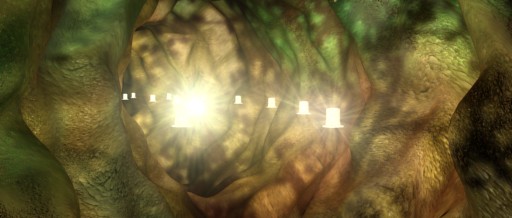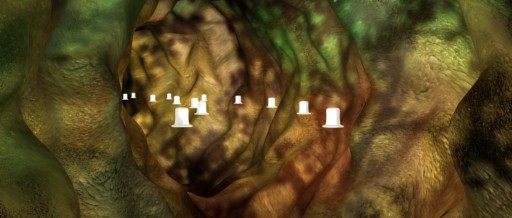
-. Make a test render in while in the camera or perspective view port. (WOW looking good eh?) Your image should be looking similar to this test render.
Note: Were almost finished, first we’re going to apply lens effects to the lights inside the lamp objects. This way it would appear as it the lights were glowing (were going to use the glow and ray filters). Were going to use render effects instead of video post because it will be allot faster and easier to set up.

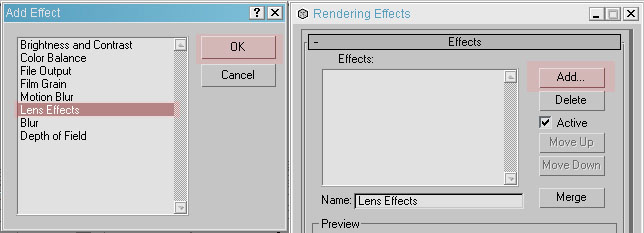
-. Click on the rendering menu and select effects.
-. Click on the add button>Select lens effects from the list>click Ok.
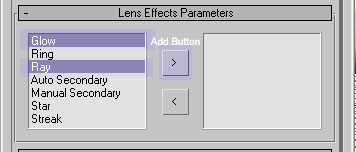
-. On the lens effects parameters rollout click on glow then ctrl+click on ray>click on the add button.
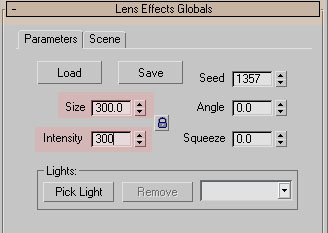
-. On the lens effects globals rollout make the following changes.
Size: 300 and Intensity: 300
-. For now make sure that ‘glow’ is selected from the list on the
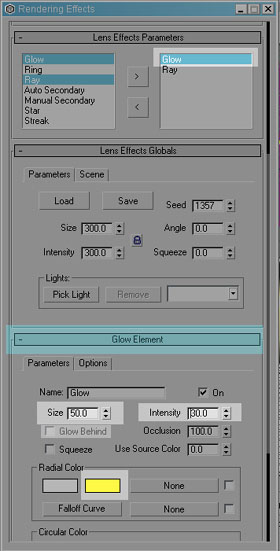
right, on the lens effects rollout and make the following changes in the glow
element rollout.
Size: 50 intensity: 30. Make sure 'Glow Behind' is 'unchecked'. Use the following
image as a reference.
-. Still on the glow element rollout, under radial color change the second slot from red to a yellow color. Use the following image as a reference.
-. Now make sure that ‘ray’ is selected from the list on the right,
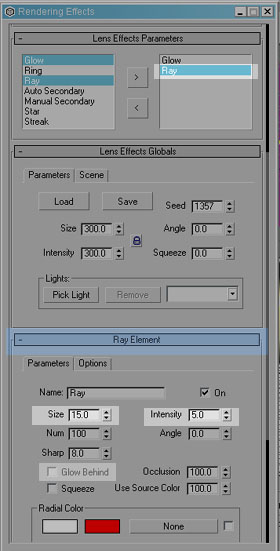
on the lens effects rollout and make the following changes in the ray element
rollout.
Size: 15 intensity: 5. Make sure 'Glow Behind' is 'unchecked'. Use the following
image as a reference. Make sure 'Glow Behind' is 'unchecked'.
-. In the lens effects globals rollout, click on the pick light button.
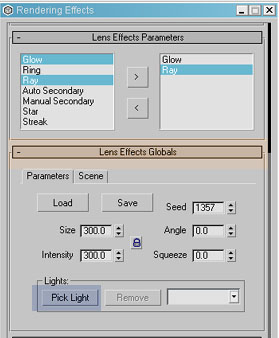
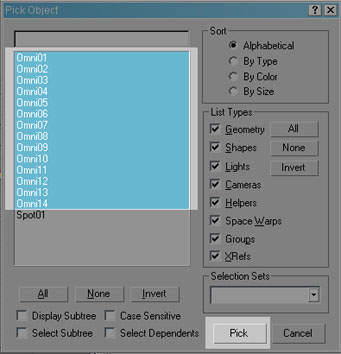
-.Open the select by name dialog box, select all your ‘omni’ lights (This is the reason why we grouped the last three lights we created, so we don’t get mixed and apply the lens effects to them. If you decided to create more lights than the ones instructed just make sure you don’t select them now. The only ones we want to select are the ones that are inside the lamp objects). Click on the Pick button.
-. Close the render effects window.
-. Make another test render. All the lights should glow, otherwise make sure you ‘unchecked’ ‘Glow Behind’ on the glow element and ray element rollouts. You're test render should look similar to this.