| Ymlite Options Misc |
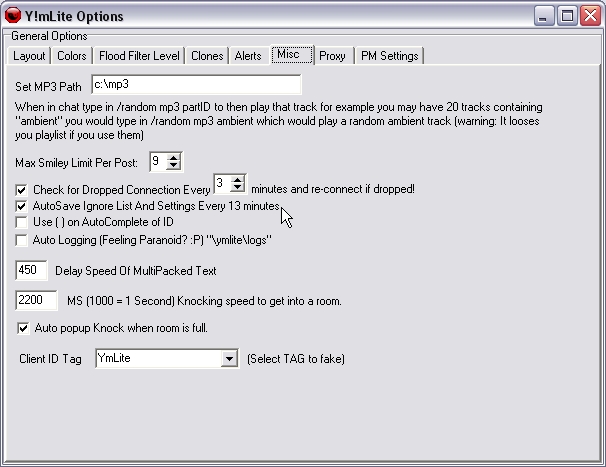
| Here you can see what is on the Misc menu. I have missed the alert |
| menu you can chose there wether or not you wish to be alerted by |
| a pop up list of the people who said your name in the room. Annoying |
| sometimes as this pops up when you are typing or using voice and has |
| to be closed to continue. |
| Set mp3 path I haven't tried this prefering to run my winamp from my |
| mp3 catalog using its search features for the songs I intend to play. |
| In Ymlite you can chose the amount of smiley's you can use yourself |
| per post to the chatroom here. |
| Auto save of ignore list save's the ignore list every 13 minutes this is a |
| good idea if for some reason the program crashes without doing a save |
| the last ones you have ignored wouldn't be on the list. |
| Auto Complete will by typing the first few letters of a persons name and |
| pressing the right arrow key will complete the persons name for you |
| with the option ticked here it will complete the persons name in brackets. |
| Client ID Tag don't want people to know you are using Ymlite select |
| from the list which client you wish them to think you are using. |
| PM Settings |
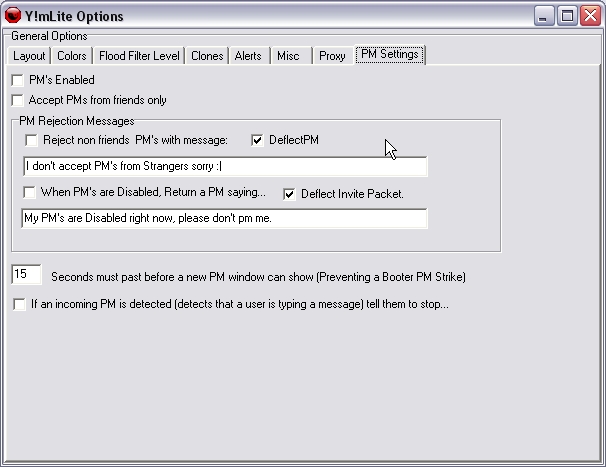
| I don't accept private messages when using Ymlite I use a id name I |
| have made specially for use in Ymlite with no one on the buddy list. |
| At the same time I am logged into messenger with my normal name and |
| chat to my friends in private through there. |
| As a guide here if you wish to accept private messages enable PM's |
| and also tick the box from friend's only. |
| Don't reject non friend's PM's with a message if someone is trying to |
| boot you, your computer would be attempting to answer all of these |
| messages and could crash not only the Ymlite program but also your |
| computer. Same rule apply's to invites. Deflect PM will drop the packet |
| sent to Ymlite containing the private message or invite. |
| I make it 15seconds before a new PM window can appear from the |
| default 5 seconds. |
| Untick the last box here as well not really sure what this does but |
| appears to send a message to the user to tell them to stop sending the |
| message to you. |
| Filtered Data |
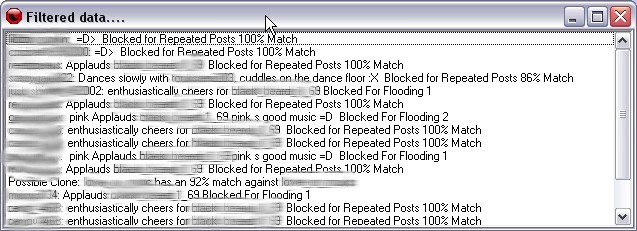
| The filtered data window can be opened by double clicking the blue bar |
| across the top of the Ymlite chat window. The dialog box that will |
| appear is pictured left. Here you can see the last posts made into the |
| chat room and if you have missed a recent post by someone you should |
| be able to view it in this window. Only the last 25 post's made to the |
| chat room will be visible here though. |
| Format Menu |
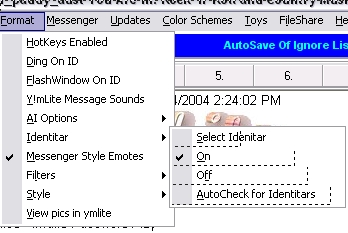
| Identitar's those little pics next to a person's name in the chat window |
| use to be popular in Cheeta Chat and other chat clients. To view these |
| from other ymlite users or to use one yourself turn them on through the |
| format menu as shown. To select the one you wish to use yourself go |
| to Select Identitar and from those available select one of your choice |
| you can change your identitar as often and whenever you like by |
| repeating these steps. |
