|
| The
first step in creating a new shader is to select a beginning material.
There are several to choose from, but the most common are Phong, Blinn,
Lambert, and Anisotropic. I have chosen a Blinn for this model because
I wanted more control over the reflections than Anisotropic allows.
After selecting a base material, the material node representing the
new shade will appear in the Hypershade editor window. Double clicking
on this node will allow us to begin constructing the new shader. |
The shader attribute editor window gives full control over the properties
of the selected shader. The first property listed is color. There
are several methods available to assign a color to our new shader.
We can use solid color fields, gradients of colors, or we can use
a two dimensional image file, such as a .gif or .jpg, and project
this color mapping onto the model. For this model, we will use a solid
color. Clicking on the color box next to the attribute label calls
up a palette window where we can choose a color for the shader. I
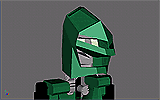
have chosen a green with a hue value of 147. Accepting this color
choice causes the appearance of our shader sample to change.
Next, we will further refine the appearance of the shader material.
By expanding the specular shading section of the attribute editor
we gain control over eccentricity and specular roll-off. Because matte
surfaces with few highlighted regions are desired, I have set these
values relatively low. Eccentricity has been set at .240, and specular
roll-off is assigned a value of .440 |
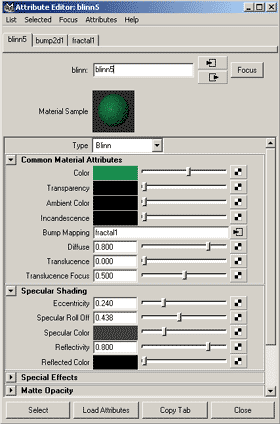
The Attribute Editor
|
|
|
|