FrontPage2002 Tutorial FrontPage2002 Introduction to Web Components Web components are special add-ons to enhance your site. Some are templates (sort of)...such as the photo gallery options. Just try some of these options, but be forewarned: some require connections to databases or servers. Also, some are Java Applets. They are very cool to look at but sometimes can not be uploaded properly if you do not have a server optimized to handle such add-ons. Here is an introduction to some of the more practical and common web components. Hover Buttons Hover buttons allow you to link the hover button to another page. What makes them special is there ability to add special effects when you "hover" over it. Example: |
||
|
Before Roll-Over |
After Roll-Over |
|
|
|
|
|
|
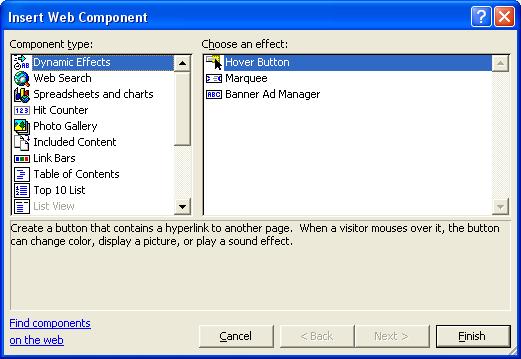
To add a hover button, go to Insert--Web Component... . In the "Component
Type:" frame, select "Dynamic Effects." In the opposite frame, select
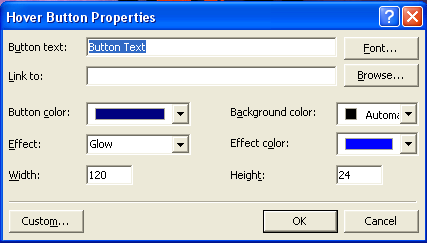
"Hover Button." The dialog box appears.
As you can see, using a hover button adds cool special effects. Not all servers are optimized to carry hover buttons. You will have to check with the webmaster for details. Scrolling Marquee Another common web component is the scrolling marquee. Scrolling marquees are strands of text that "scroll" across your browser from left to right or right to left or alternating. |
||
| right to left | ||
| left to right | ||
| alternating | ||
| To insert a scrolling marquee, go to Insert--Web Component... . The dialog box appears. | ||
|
|
||
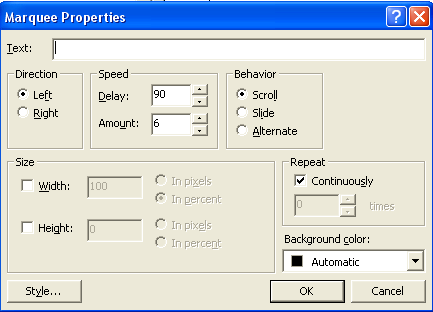
| In the "Component type" frame, choose "Dynamic Effects." In the opposite frame, select "Marquee." The "Marquee" dialog box appears. | ||
|
|
||
| From here you can try out and
customize your new marquee. As a test, reconfigure your marquee using a
different radio button each time. See how each radio button changes the
marquee. Link Bars Link bars allow you to link many pages very efficiently. With link bars, you no longer have to spend hours making simple links to a dozen other pages. To add a link bar, go to Insert--Web Component. In the dialog box, select "Link Bars." In the "Choose an effect" frame select "Bar with Custom Links." The program will ask you to choose a theme for the bars. This is where you edit the link bar (i.e. choose which pages you want to link together). To add a link, click the "Add" button then make the appropriate link. The "Move up" and "Move down" buttons allow you to rearrange the order of the pages. The great thing about link bars is that you don't have to make changes to all the pages. Say you have the link bars in place on all ten pages. You realize you want to change the order of the pages. All you have to do is change the order like usual, and all the pages on the link bar will also change. Experiment with other options and see how it affects the link bars. |
||