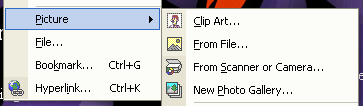
FrontPage2002 Tutorial FrontPage2002 Insert The Insert toolbar menu is a key drop-down menu because it lets you add almost anything to your page. In this section, I will go review some of the more important options. You can also jump to a sub-topic: Pictures, like backgrounds, keep your visitors interested. To add a picture, select where you want to place it by using you cursor. This can be anywhere on the page, or in a cell of a table. Go to Insert--Picture.
Now, select where you want to get that picture then follow the directions on the screen. Manipulating the picture isn't all that difficult either. The easiest and most obvious way is to right-click on the picture then navigate to "Picture Properties." Another way is to click on the picture then navigate the cursor somewhere in the blank space of the toolbar. Right-click anywhere in that blank space. Select the "Pictures" command. The pictures toolbar will appear. Experiment with those options. Forms are different add-ons that enhance the user-web interactions. Buttons can enable a user to send you information or messages. As I said before, I am not an advanced web programmer. Besides, some of these forms require a connection to a database or other server to store "results" such as in a file upload form. I can go over the basics, though. Text areas allow you (or the user) to type text into a textbox. What makes text areas special is there flexibility. Text areas require additional connections to databases...unless you delete the buttons. Simply delete the buttons and you can utilize the text area just like any other text box. Here is an example of a normal text box, by way of inserting a text area and deleting the buttons: To see just how useful text boxes can be, visit www.hypergurl.com/easyhtml.html and "Trailing Text Cursors." You may have to scroll down, but take note as to the fact that you can customize the code inside the text box. There aren't many other forms that don't require other connections so I won't go over any of those. Bookmarks allow you to hyperlink to a specific point on the page. First, place the cursor where you want to bookmark. Then simply select Insert--Bookmark. You will also have to identify the bookmark for when you hyperlink to it. |