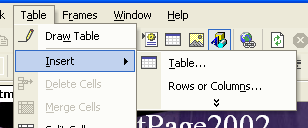
FrontPage2002 Tutorial FrontPage2002 Gettin' Started From here, it's pretty much up to you what goes on. I like to start by either creating a table or tuning by background. Tables are exactly what the name implies. They are very useful if you want to easily organize the elements of you web site. By using tables you can manipulate each cell (cells make up a table) to change its background, border, or whatever else (within certain limits). To create a table, select Table--Insert--Table in the toolbar.
A dialog box will appear asking you specific questions regarding your table. You can customize it however you'd like. For all intents and purposes, you can leave the "cellpadding" and "cellspacing" options at zero. Once you confirm these options, the table will appear on the page. At this point, it would be best to experiment with the various customization features by right-clicking inside one of the cells and manipulating it in some way. To change a feature in an individual cell, choose "Cell properties" when you right-click. To alter a table, choose "Table properties." Backgrounds are very important because they keep your visitors interested (just look at mine!). To change your background, right-click anywhere on the page. Go to Page Properties. Click on the "Background" tab.
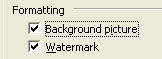
It should be pretty self explanatory from here. You may be asking what the "Watermark" option is. Did you ever wonder why my background picture doesn't move? It doesn't move because of that "Watermark" option. Selecting that checkbox, "fixes" the background picture so that only the content moves.
To add this feature using HTML, add this line of code to the "body" tag: bgproperties="fixed" |