 The Files List
The "Files List" is the primary interface for the Chronicle Plugin. It is the default view for the Chronicle "Library" (the main window). From the files list, you can manage all of the Files and Folders that you create while using the plugin.
Fig. 1 - The Chronicle Files List in the Chronicle Library Window
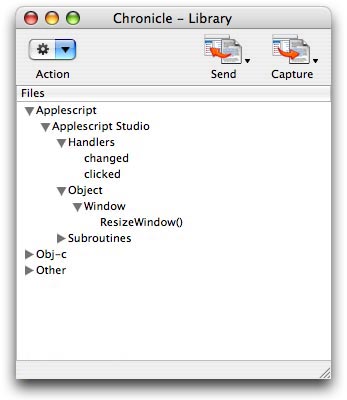
Table of Contents:
1. Creating New Files
2. Creating New Folders
3. Opening Files in the File Editor
4. Editing Folder Info in the Folder Editor
5. Miscellaneous File Options
6. Moving Files & Folders
7. Deleting Files & Folders
8. Importing Files into Chronicle
9. Exporting Chronicle Files to external locations
10. Forcing an Update of the Files list
11. Sending text to Xcode from the Files list
12. Capturing text from Xcode while viewing the Files list
Creating New Files...
To manually create a new Chronicle file, simply select "New FIle..." from the "Action" menu in the Chronicle Library window. If a folder is selected in the Files List, the new file will be created in that folder. If a file is selected in the Files List, the new file will be created in the folder containing the selected file. If no file or folder is selected, the new file will be created in the root User Data directory.
By default, the new file is automatically opened for editing in the built-in editor. You can disable this setting in the Chronicle Preferences.
FIles are saved in a generic 'Document' format, and are basic Plain Text files. They are not encoded or stylized in any way. You can easily manage your User Data folder manually (i.e. in the Finder), and you can open the files in any other editor or application that handles plain text files. The files created are also given a creator type of "????" to increase their portability, but note that the files will not open automatically in Xcode or Chronicle when double-clicked in the Finder.
Creating New Folders...
To create a new folder in the Files List, select "New Folder..." from the "Action" menu in the Chronicle Library window. If a folder is selected in the Files List, the new folder will be created in that folder. If a file is selected in the Files List, the new folder will be created in the folder containing the selected file. If no file or folder is selected, the new folder will be created in the root User Data directory.
By default, the new folder is NOT automatically opened for editing in the built-in folder editor. You can enable this setting in the Chronicle Preferences.
Opening Files in the File Editor...
To open an existing file for editing in the built-in File Editor, use one of two methods: Double-click on the file in the Files List, or select the file and then select "Open in Editor" from the "Action" menu in the Chronicle Library window.
See also:
The File Editor
Editing Folder Info in the Folder Editor...
To edit the name of a folder using the built-in Folder Editor, select the folder in the Files List, and then select "Open in Editor" in the "Action" menu in the Chronicle Library window.
Tip: You can also open a folder in the Folder Editor by Double-clicking on the folder while holding down the "control" key.
See also:
The Folder Editor
Miscellaneous File Options...
- Reveal in Finder
You can reveal the selected file or folder in the Finder by selecting "Reveal in Finder" from the "Action" menu in the Chronicle Library window.
- Get Info
To get information about the selected file or folder, select "Get Info" from the "Action" menu in the Chronicle Library window.
The file info will be displayed in Chronicle's built-in Info viewer.
You can also click on "More Info" while viewing the info to launch the Finder Info Window for the item.
Moving Files & Folders...
Moving files and folders in Chronicle works similar to moving items in the Finder. To move an item, drag it to the desired location in the Files list. As you drag items in the Files List, folders automatically expand to reveal subfolders.
Tip: Copy dragging is supported in Chronicle. To copy an item to another location, hold down the "option" key while dragging it to a new location.
Deleting Files & Folders...
To delete a file or folder from Chronicle, select "Move to Trash" from the "Action" menu in the Chronicle Library window. Chronicle does not actually "Delete" files, but rather moves them into your Trash bin, where they will be purged when you next empty the trash.
Tip: Pressing the "Delete" key while a file or folder is selected in the Files List will move that item to the Trash.
A setting in the Chronicle Preferences determines whether or not you will be warned with a dialog before the item is moved to the trash.
Importing Files into Chronicle...
To import a file, select ":Import...": from the ":Action": menu in the Chronicle Library window. You will be prompted to select the file to import, and then you will be prompted to provide a name for the new file.
Tip: Chronicle can import the plain text of any readable file.
Files such as images, pdf's, and formatted text files can be imported. Chronicle does not attempt to read any formatting or encoding, it merely extracts the data in the file as plain text and inserts it into a new Chronicle file.
Exporting Chronicle Files to external locations...
Files created in Chronicle are only saved within the main User Data folder. To copy a file to another location... one outside of your User Data folder... you must 'Export' it.
To Export a file from Chronicle, select the file in the Files List, and then select "Export..." from the "Action" menu in the Chronicle Library window. You will be prompted to choose a name and location for the exported file, and then a copy will be created at that location.
Forcing an Update of the Files list...
On occassion it may be desirable to manually force an update of the contents of the FIles List. If you make changes to the directory structure of your User Data folder outside of Chronicle (such as in the Finder) you will want to make sure that your changes are reflected in the FIles List.
To manually update the Files List, select "Update File List" from the "Action" menu in the Chornicle Library window. The directory structure will be read again, and the Files List will be re-drawn. If an item is selected in the list when you update it, that item will be highlighted again when the list is recreated (assuming you have not moved or deleted it since the last update).
Chronicle Plugin - Copyright 2005 - Jed Green
www.geocities.com/jobu10000/Chronicle/