 The Folder Editor
Chronicle has a built-in Folder Editor which is used to edit and create folders in your Chronicle User Data folder.
Fig. 1 - The Chronicle Folder Editor
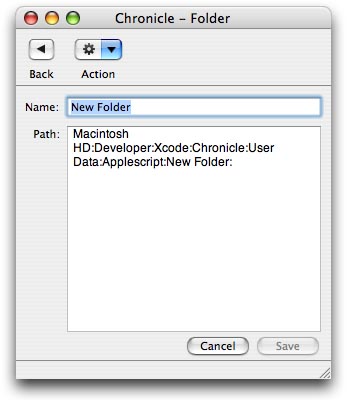
Table of Contents:
1. Renaming Folders
2. Creating New Folders
3. Miscellaneous Folder Options
4. Deleting the Current Folder
Renaming Folders...
To rename a folder while in the Folder Editor, simply change the folder's name in the "Name" field, then click "Save".
Creating New Folders...
A new folder can be created while editing an existing folder by selecting "New Folder..." from the "Action" menu. Depending on a setting in your Chronicle preferences you may be prompted to confirm whether you would like to save any unsaved changes to the current folder before creating the new folder.
Miscellaneous Folder Options...
- New File
A new file can be created while editing a folder by selecting "New File..." from the "Action" menu.
Depending on a setting in your Chronicle preferences you may be prompted to confirm whether you would like to save any unsaved changes to the current folder before creating the new file.
- Get Info
To get information about the current folder, select "Get Info" from the "Action" menu in the Chronicle Library window.
The folder's info will be displayed in Chronicle's built-in Info viewer.
You can also click on "More Info" while viewing the info to launch the Finder Info Window for the folder.
Deleting the Current Folder...
To delete the current folder, select "Move to Trash" from the "Action" menu in the Chronicle Library window. Chronicle does not actually "Delete" folders, but rather moves them into your Trash bin, where they will be purged when you next empty the trash.
IMPORTANT:
When you delete a folder, all of it's contents are deleted, too.
Any files and subfolders in the deleted folder will be lost when you empty the Trash.
Make sure you really want to delete the folder and ALL of it's contents.
It is recommended that you keep the "Warn Before Moving Items to the Trash" preference checked so you can consciously confirm the deletion of items before they are actually moved to the Trash.
A setting in the Chronicle Preferences determines whether or not you will be warned with a dialog before the item is moved to the trash.
See also:
Warn before moving to the Trash
Chronicle Plugin - Copyright 2005 - Jed Green
www.geocities.com/jobu10000/Chronicle/