 Editing Preferences
Chronicle has a handful of features that are user-configurable, so you can set up the plugin to better fit into your existing work flow. To show the Preferences window while using Xcode, choose "Preferences..." from the Chronicle menu.
Fig. 1 - The Chronicle Preferences Window
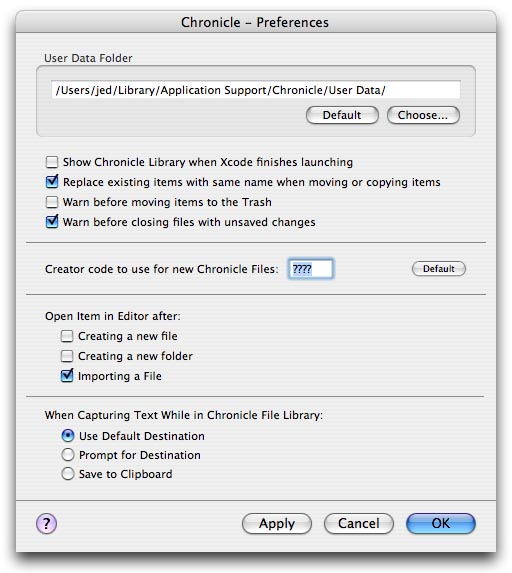
Table of Contents:
1. User Data Folder location
2. Show Library on Xcode Launch
3. Replacing Items with the same name when Moving/Copying
4. Warn before moving to the Trash
4. Warn before closing files with unsaved changes
4. Assigning a Creator Code for Chronicle Files
5. Automatically Opening items after Creating/Importing
6. Default behavior when Capturing text
User Data Folder Location...
The User Data Folder is the primary directory in which all of your Chronicle files are saved. When you first set up the plugin, you are prompted to choose a location for the User Data Folder, or to select the default location. By default, the User data folder will be created in the Application Support folder for the current user.
The location of the User Data Folder is configurable by the user, allowing you to change the location of the folder as needed. You can also use this preference to share a single User Data Folder between multiple system users.
Tip: If you do decide to share a single User Data Folder between multiple users, make sure to remember that changes you make also permanently effect the files for other users.
Show Library on Xcode Launch...
This setting determines whether the Chronicle Library window should be visible when Xcode launches.
Replacing Items with the same name when Moving/Copying...
When dragging items in the Files list, should Chronicle automatically replace items in the target location that have the same name as the item being dragged? If unchecked, Chronicle will not move/copy the item, and will show an alert reminding you that your preferences do not allow you this action.
Warn before moving to the Trash...
Should a warning message be displayed when you attempt to move items to the Trash? If checked, you will be prompted to confirm that you really want to delete the selected item.
Warn before closing files with unsaved changes...
Display's a warning message if you attempt to exit the File Editor or Folder Editor while there are unsaved changes to the current item's content and/or name.
Assigning a Creator Code for Chronicle Files...
By default, Chronicle assigns a creator code of "????" to every Chronicle file it creates. Defining this generic creator code fixes an issue on some systems where files created by Chronicle are automatically opened by the Classic application SimpleText. If you prefer to assign a different Creator code to Chronicle files, you are free to do so. Simply enter the code you wish to assign to all new files, and all files created in the future will use your custom Creator code.
Note: Chronicle does not attempt to change the Creator code's of existing files. Only new files are assigned the creator code saved in the user preferences, or the code "????" if no custom code is provided.
Automatically Opening items after Creating/Importing...
When you create a new file or folder, or you import a file into Chronicle, you have the option to immediately open the new item in it's appropriate editor. If unchecked, the new item will be created and highlighted in the Files List, but you will not be redirected to the editor to begin editing the item.
Default behavior when Capturing text...
When you capture text from Xcode, Chronicle can be configured to handle the captured text one of three different ways:
- Use Default Destination
Using this setting, Chronicle will automatically decide what to do with the text.
If a file is selected in the Files List, it will append the captured text to the selected file.
If a folder is selected in the Files List, it will create a new file in that folder containing the captured text.
If no file or folder is selected, it will create a new file in the root of the User Data folder containing the captured text.
If a file is currently open in the editor, the captured text will be inserted into the file at the insertion point.
- Prompt For Destination
If this option is selected, Chronicle will prompt the user for how the captured text should be handled.
The captured text can either be used to create a new file, or can be placed on the general clipboard.
If a file is selected in the Files List, the option to add the captured text to that file will also be available.
- Save to Clipboard
You can also choose to save all captured text directly to the clipboard.
If this option is selected, the text captured from Xcode will be placed directly on the clipboard, and will not be inserted into any file.
Note:
The behaviors mentioned above only apply to text captured while viewing the Files List.
Text captured while in the File Editor is always inserted at the insertion point.
Chronicle Plugin - Copyright 2005 - Jed Green
www.geocities.com/jobu10000/Chronicle/