
Paint Shop Pro Advanced
Week Four Part 5
Making Selections to
Minimize Color Spill
Continued
Method #2
Selection from Mask
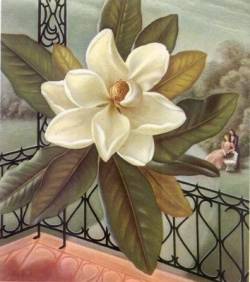
1. Activate your image that has the object you want to select. Double-click the background layer and name it Magnolia. This will make the layer with the magnolia on it a floating layer that can have transparency.
2. In order to see what you are doing, create another layer, fill it with a light contrasting color, and place it below the layer with the magnolia.
3. Click on the Magnolia layer to make it active.
4. Go to Masks - Load from Disk and load Mask1. You will see that there is a color spill along the edges of the flower.
5. In the Layers Palette, click on the Magnolia layer.
6. Go to Selections - From Mask.
7. Go to Selections - Modifiy - Contract and type in 2, click OK. This will choke in your selection by 2 pixels. The feathering will be maintained. That should be enough to get rid of the color spill in this image. You may need to experiment with the number of pixels for your image.
8. Go to Selections - Invert. Hit the Delete Key.
9. Press CTRL - D to deselect.
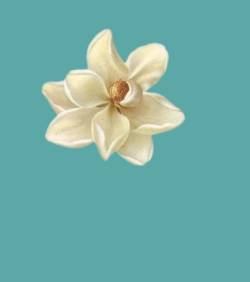
The results is shown on the right.
Method #3
Next Page