
Paint Shop Pro Advanced
Week Four Part 3
Making Selections to
Minimize Color Spill
Continued
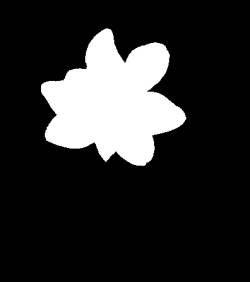
6. Now I have to use black and white paint to clean up the mask. Set the foreground color to black and the background color to white. As you change from black to white paint, just click on the arrow between the color "chips" Choose a hard brush the size that will best work. You may change the size as you work in tighter places.
7. Inside the flower, paint with white. Outside the flower paint with black. You will want to zoom in.
8. To make sure all pixels are either black or white, go to Layers - New Adjustment Layer - Threshold and set the threshold to 128. Go to Layers - Merge - Merge Visible. Final image is on the left. This will create a rough mask with an edge that is not feathered.
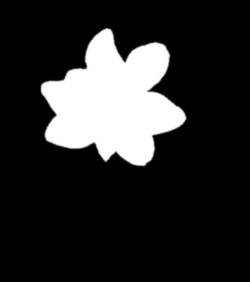
9. Now I want to feather my mask so that the selection will have a softer edge. To do that I will go to Image - Blur - Gaussian Blur and type in radius = 1.00.
The softer mask can be see on the right.
10. Go to Masks - New - From Image. This Window, Source Luminance.
11. Go to Masks - Save to Disk and save the mask to your hard drive naming it Mask1.
Steps 1 - 11 were how I created the basic mask from the Green channel of my image. Now I will show three different ways to use this mask to select the flower while eliminating the color spill. If at this point I just load this mask into my image, I would get a color spill from the background.
I am going to leave this Green channel image open because I will come back to it to show another method for dealing with color spill.
Continue to next page
for 3 methods of dealing
with color spill in a selection