|
|
|
|
|
|
|
|
|
|
|
|
|
|
|
|
|
Tools for remodeling object in Halo
|
|
|
|
|
|
Remodeling with Milk Shape 3D
Here you will learn how to reshape objects used in Halo
|
|
|
|
|
Tools to make and apply patch files to Halo
|
|
|
|
|
|
|
|
Tools to uncompress files which are compressed
|
|
|
|
|
|
Uncompressing files using Winrar
This will tell you how to compress and uncompress files with Winrar
|
You are currently
viewing this tutorial
|
|
|
|
Installing Winrar
Uncompressing files
Compressing files
|
|
|
STEP 1
To uncompress a file, you will first need to download and install Winrar, which has been explained in the "Installing
Winrar" section of this tutorial.
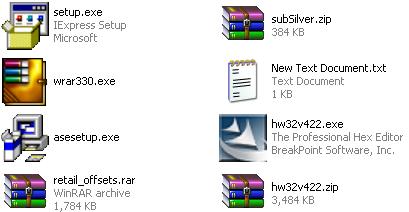
To start with, you will first need a file that is compressed, which you can easily find in our Halo Mods section. A
compressed file will have the extension of rar or zip, also you can tell if a file is compressed by looking at the file icon
(which should look like 3 books stacked on top of each other).
|
|
|
|
 |
|
|
STEP 2
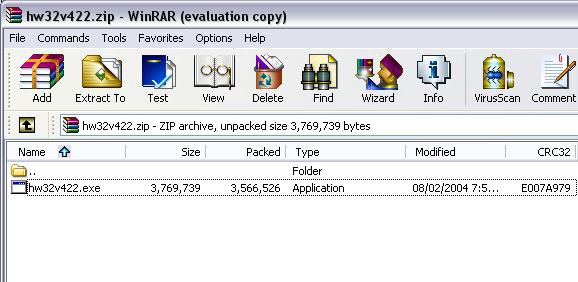
To uncompress one of these rar or zip file, you will simply need to double click on the file. From there you will be
brought to a window that shows the content within the compressed file. All you need to do is click the "Extract" button.
|
|
|
|
 |
|
|
STEP 3
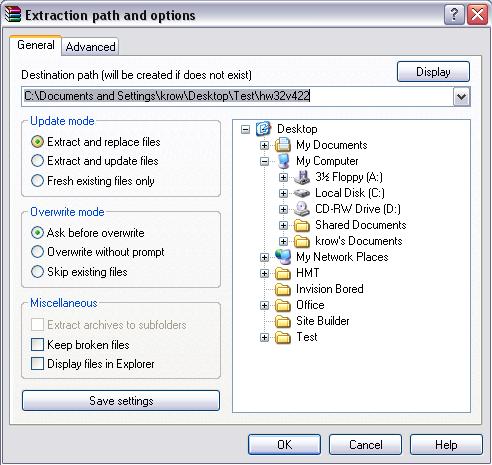
When you have clicked the extract button, then a window will pop up asking where you would like to put the file when it is
extracted. By default, it will chose the place where the compressed file is currently located, but you can select a
different place if you wish.
After choosing a location, click the "OK" button to extract the files. Congratulations, you have successfully
uncompressed your file.
|
|
|
|
 |
|
|