|
|
|
|
|
|
|
|
|
|
|
|
|
|
|
|
|
|
|
|
|
|
|
|
Tools for remodeling object in Halo
|
|
|
|
|
|
Remodeling with Milk Shape 3D
Here you will learn how to reshape objects used in Halo
|
|
|
|
|
Tools to make and apply patch files to Halo
|
|
|
|
|
|
Applying a ppf (patch file) with PPF-O-Matic
This will teach you how to apply mod to Halo
|
Click here to view
this tutorial
|
|
|
Making a ppf (patch file) with PPF Studio
Everything you need to know about making a ppf (patch file)
|
You are currently
viewing this tutorial
|
|
|
|
STEP 1
If you have made a mod for a map and you then want to make that mod into a ppf file (Patch file), then do the fallowing.
First off, you will need a program called PPF Studio which you can download by clicking here.
Second, you will need to have the original copy of the map in which you have not modded. You will also need a modded
version of that map, so you have something to make a patch from.
After you unzip this download, then fallow the instructions I have posted bellow.
STEP 2
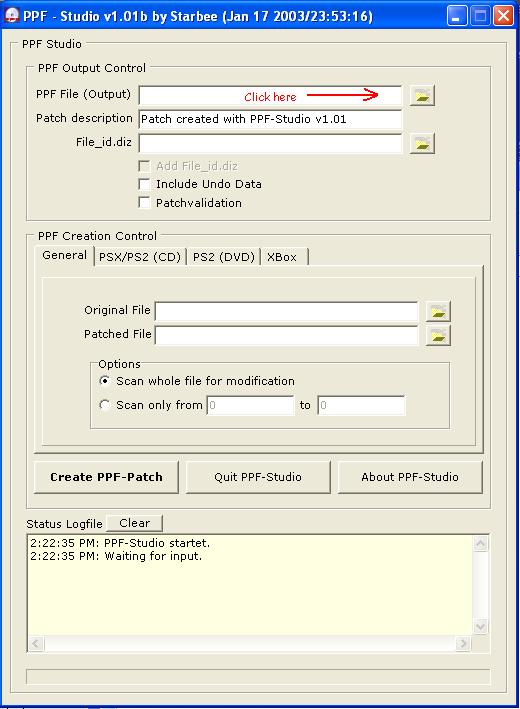
Load up your PPF Studio program, and then click on the little folder icon (browse)to the right of the field labeled "PPF
File (Output)".
|
|
|
|
 |
|
|
STEP 3
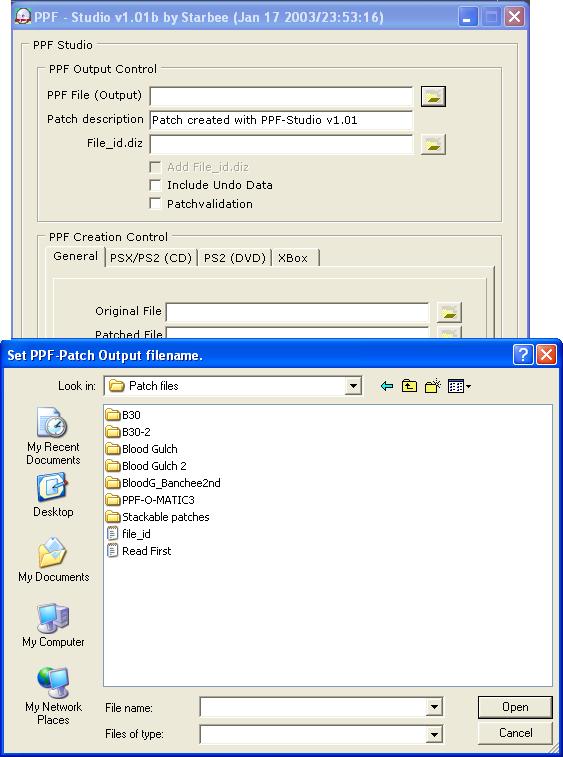
In this window you will be asked to locate where you want the patch file to be put after it has been made. The best place
to put the output, would be a designated folder on your desktop
|
|
|
 |
|
|
STEP 4
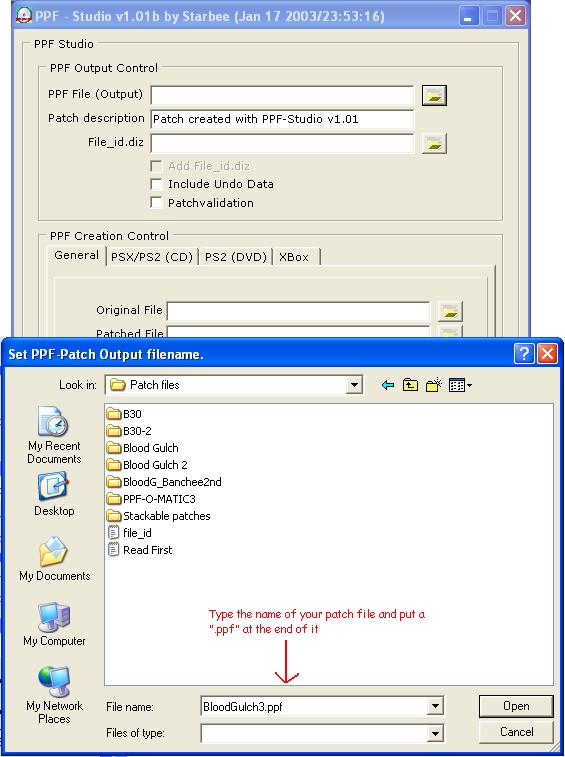
After choosing where you want to put the patch, then you will need to set the "File name". When you have named your
file, put a ".ppf" at the end of it, this way it will save as a ppf file (patch file).
|
|
|
|
 |
|
|
STEP 5
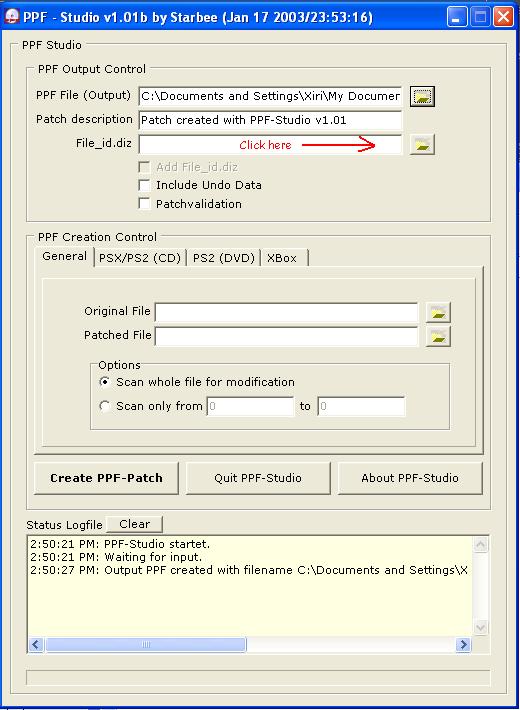
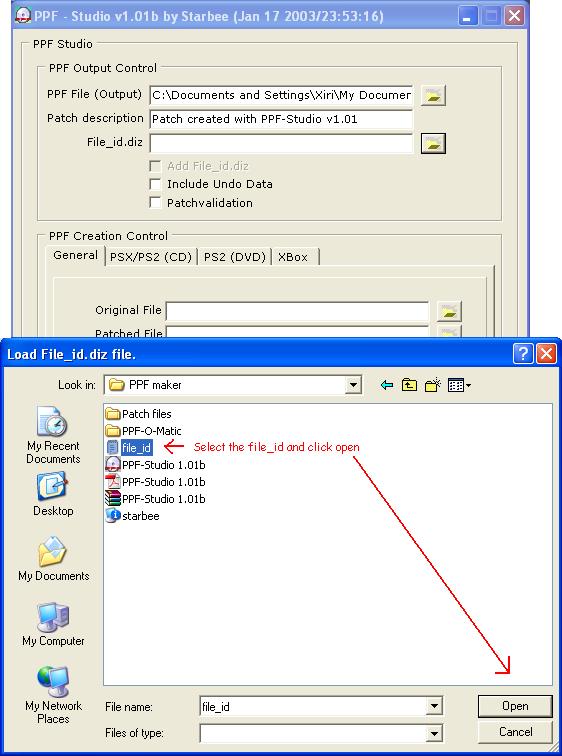
Next you will need to click on the little folder to the right of the field labeled "File_id.diz".
|
|
|
|
 |
|
|
STEP 6
In this window you will need to find the file called "File_id.diz" which is located in the PPF-Studio folder which you
downloaded.
|
|
|
|
 |
|
|
STEP 7
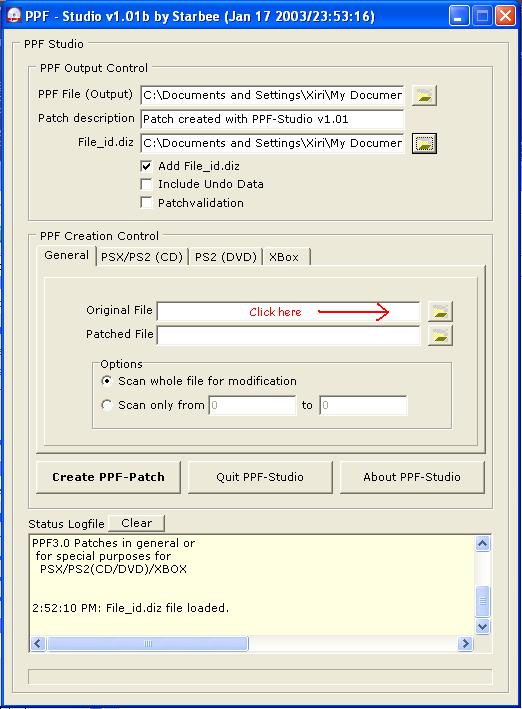
From here, click on the little folder to the right of the field labeled "Original File".
|
|
|
|
 |
|
|
STEP 8
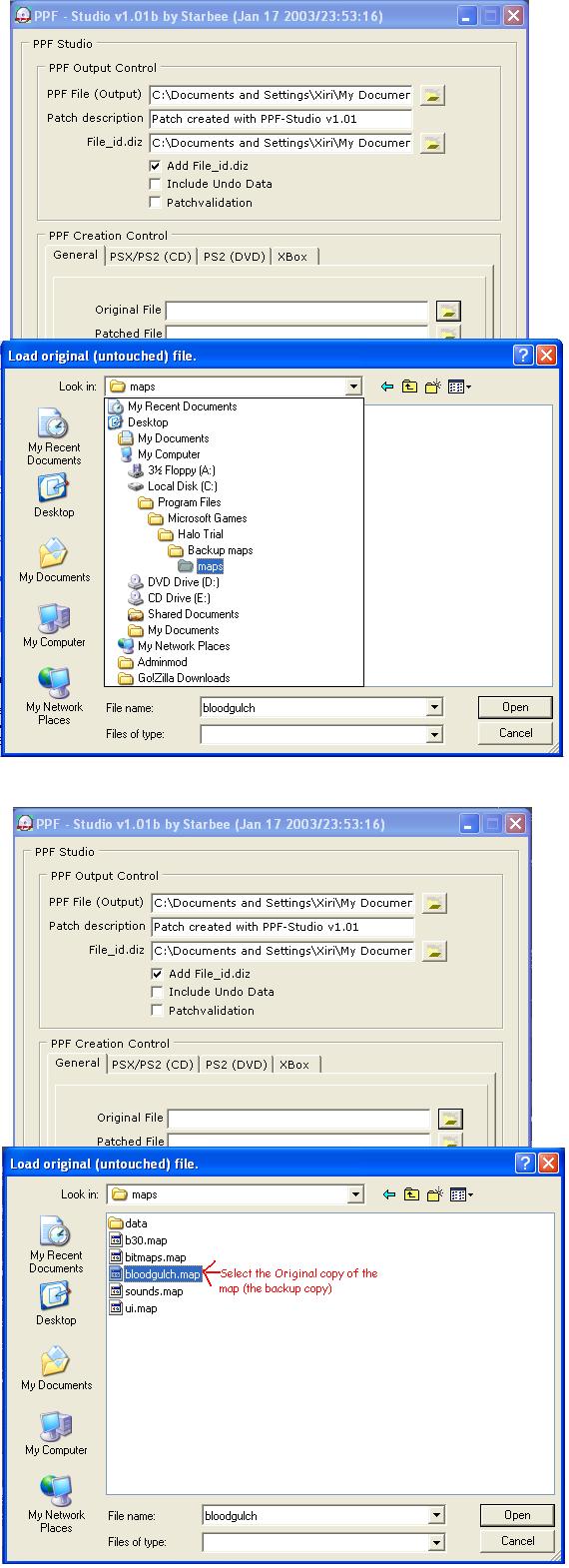
In this window you will need to select the original map file or in other words the backup map that you did not mod. If you
do not have a copy of the original map (the unmodded map), then you will need to find the original copy of that map.
|
|
|
 |
|
|
STEP 9
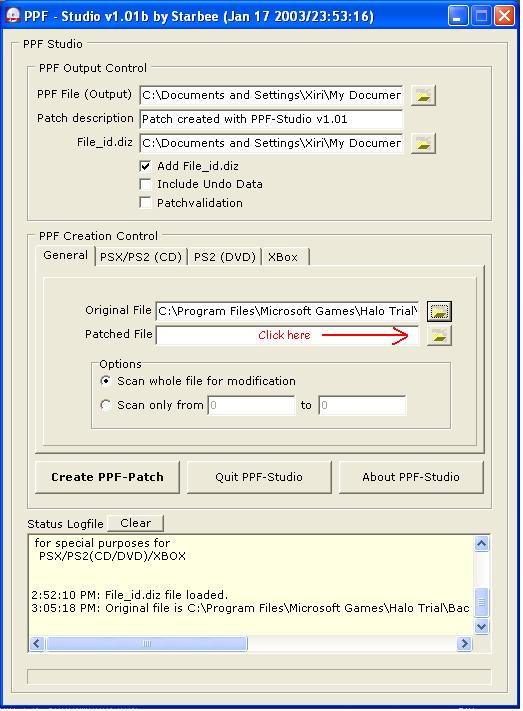
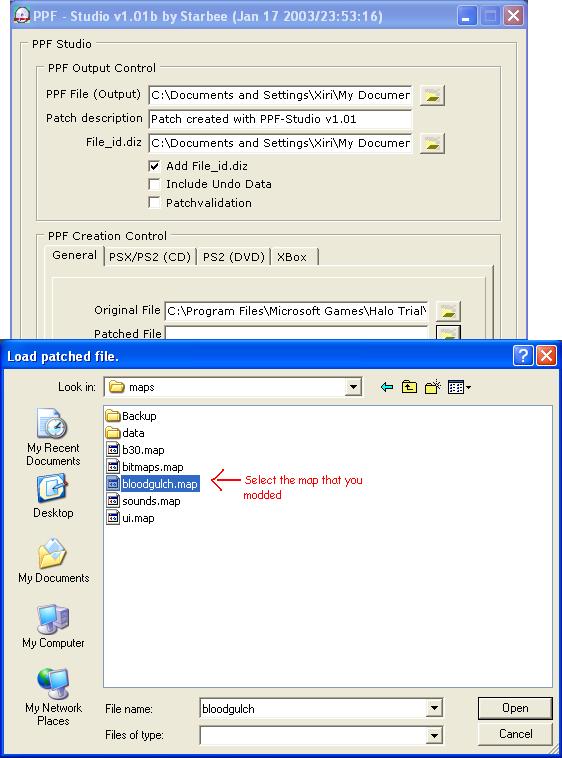
Next, you will need to select the little folder to the right of the field labeled "Patched File"
|
|
|
|
 |
|
|
STEP 10
In this window you will need to locate and select your modded map, in which you want to make the patch from. This file
will be located (by Default) in C:\Program Files\Microsoft Games\Halo Trial\maps
|
|
|
|
 |
|
|
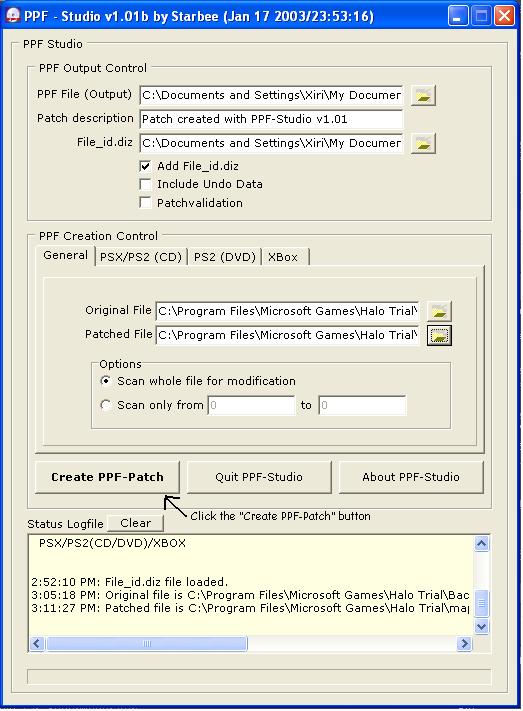
STEP 11
After find all the specified files, you can now create your patch.
|
|
|
|
 |
|
|
Tools to uncompress files which are compressed
|
|
|
|
|
|
|
|