If it's not modded, then it's not extreme

I
Help
>Site legend
>Forum help
News
>Forum
>Modding tools
>Membership sign-up
>News on tutorials
>General Site News
Rules
>Forum rules
>Site rules
Members
>Site Members
Captain
Darkfish
Mr.L
smk867
>Forum Members
Links
>halomods.com
>halo-mods.com
>halo4pc.com
>forge.halomods.com
Tools for modding Halo
Modding with a Hex Editing tutorial
Everything that you will need to know when modding with a Hex editor
Click here to view
this tutorial
Modding with Halo Modding Tool versin 3
This will tell you what you need to know about using HMT v3 to mod Halo
Click here to view
this tutorial
Tools for remodeling object in Halo
Remodeling with Milk Shape 3D
Here you will learn how to reshape objects used in Halo
 
Tools to make and apply patch files to Halo
Applying a ppf (patch file) with PPF-O-Matic
This will teach you how to apply mod to Halo
Click here to view
this tutorial
Making a ppf (patch file) with PPF Studio
Everything you need to know about making a ppf (patch file)
Click here to view
this tutorial
Tools to uncompress files which are compressed
Uncompressing files using Winrar
This will tell you how to compress and uncompress files with Winrar
You are currently
viewing this tutorial

Installing Winrar

Uncompressing files

Compressing files

                                                                                STEP 1
To compress a file, you will first need to download and install Winrar, which has been explained in the "Installing Winrar"
section of this tutorial.

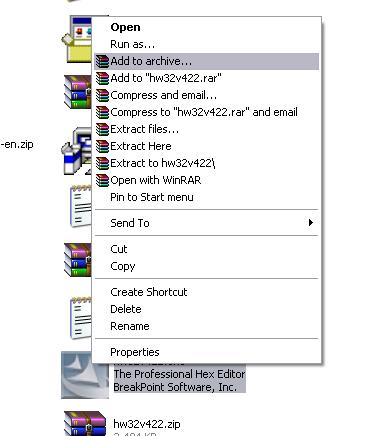
If you are wanting to compress a file, you need to first find the file and then right click on it.  This will bring up a small
menu that will be to the right or left of your cursor.  In this little menu, you will need to select "Add to archive"

                                                                                    STEP 2
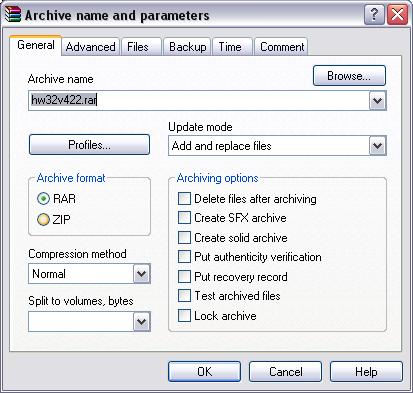
A new window will appear, which will ask to setup how you would like the file to be compressed.  You do not really need
to change anything in this window, but you can change weather the file is a zip or an rar by selecting one or the other
from the "Archive format"  Other then this, the only real thing you need to do is click the "OK" button.

                                                                                    STEP 3
After pressing the "OK" button, your file should be compressed and located in the same place that the existing file is.  
You will note that there are now two copies of this file, one that is compressed and the one that is not.


Hosted by www.Geocities.ws

1