Along with the specified shapes, VizPaint2D lets you draw freehand to make shapes with curved and straight edges. You can use freehand shapes to trace over pictures or make your own shapes from scratch.
Tip: To begin this section with a clean canvas, use the clear tool described in "Undoing a step" on page 396. |
If it is not, select paint(TM)shapes.
The shapes tool updates to show the options for creating freehand shapes.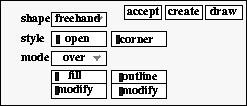
Figure 73 Using the freehand shapes tool
Tip: If you have been trying different composition modes, make sure that over is selected from the mode pull-down menu. |
Tip: Once you have drawn a freehand line, you cannot go back and edit it. |
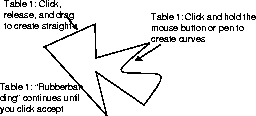
Figure 74 Creating freehand shapes
An outline tool appears around the open-ended, freehand shape. If you do not click accept, VizPaint2D continues creating new sides every time you click in the canvas. You can use the outline tool handles to size and position the shape.
VizPaint2D draws the freehand shape on the canvas using the colors you selected.
You draw closed shapes by clicking and sliding the pointer just as you did for the open shape.