The following sections describe how to use the basic VizPaint2D tools with a mouse or pen.
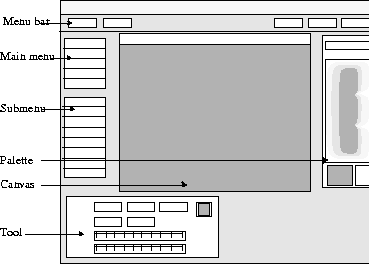
When you start VizPaint2D, this window is displayed:
The parts of the VizPaint2D window are:
You use the mouse or pen to move the pointer and choose the button for the tool or option you want. In general, you use the mouse as described in your workstation documentation.
Try moving the pointer around and clicking the VizPaint2D buttons to see some of the functions and tools. You can't hurt anything. If you do get lost, click paint in the main menu to display the paint menu.
To find out how to set up a tablet for use with VizPaint2D, see Tablet Setup on page 486.
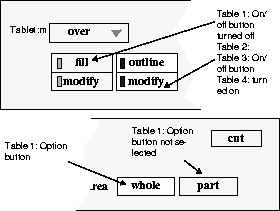
There are four types of buttons in VizPaint2D:
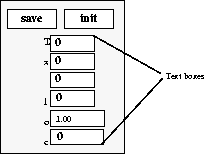
Many paint tools have one or more text boxes where you can enter or change text or numbers (see figure 7). When working with text boxes, you can:
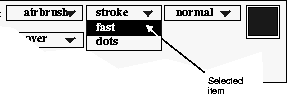
A button with an arrow symbol ( ) offers a range of options that is hidden until you press and hold down on the mouse button (or pen).
To select from a pull-down menu:
VizPaint2D uses lists whenever you need to select something- such as a picture, cutout, or text-to complete an operation. You also use lists to select file formats or canvas sizes.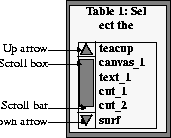
To scroll up or down, click higher or lower on the scroll bar at the left side of the list. You can also drag the scroll box to move up and down the list. If a list is only one page long, the scroll box occupies the entire scroll bar. To move up or down one line at a time, click the up or down arrow.
To select an item, click on it. In some lists you can select more than one item at a time. Selected items are highlighted.
To unselect an item, click on it again. The item is no longer highlighted.
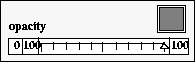
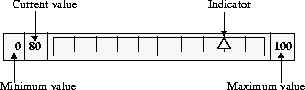
Whenever you need to adjust values, a slider is included in the selected tool.
To adjust the value with a slider, simply click to the left or the right of the indicator. The indicator moves to wherever you clicked. You may also drag the indicator to the desired value, or click the minimum or maximum value buttons to obtain the minimum or maximum value.
Note that the sliders on palettes run vertically instead of horizontally. Also, these sliders display only the current value. There is no minimum or maximum value displayed on the palette's sliders.
Anytime you need to specify an area of the canvas, VizPaint2D displays the outline tool.
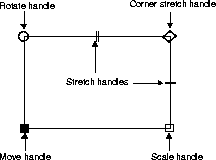
You can move and size the outline tool either by entering values with the fine adjustment tool or by directly manipulating it with the mouse (or pen, if using a tablet). When using the mouse, you click and drag on one of the outline tool's handles, described below.
Drag the move handle to reposition the outline tool. (You can also move the outline tool by clicking and dragging anywhere in the interior of the tool.)
Drag the scale handle to proportionately scale the outline tool larger or smaller.
Drag the stretch handles to stretch or shrink the outline tool's height or width.
Drag the corner stretch handle to simultaneously stretch or shrink both the height and width of the outline tool.
Drag the rotate handle to rotate the outline tool. The rotate handle is only displayed on the outline tool when you are using the paste or shapes tool.
VizPaint2D displays swatches whenever you need to select a canvas to display, save, remove, or paste. Swatches are miniature pictures that let you see a canvas before selecting it.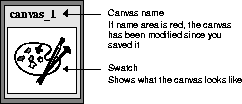
Swatches appear in two places: along the bottom of the VizPaint2D window and in certain tools, such as the paste, brush paste, and pattern tools.
To select a canvas, click anywhere in the picture area of the swatch. When selected, the name area is highlighted. To reposition the swatch along the bottom of the window, click with the left mouse button and drag on the name area.
Tip: When a canvas has been modified, the name area of the corresponding swatch is displayed in bright red. This tells you that you may want to save the picture before exiting. |
You use two types of tools to select colors: the color selector and the palette.
You use the color selector with any tool when you need to choose a color.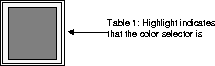
When you click on the color selector, it becomes active and is updated to match the color displayed on the palette's color swatch. As long as the color selector is active (or highlighted), it changes to match any new color choice made with the palette.
Clicking on the color selector again turns it off. (The color selector is no longer highlighted.) Any new color choices made with the palette are not reflected in an inactive color selector.
As soon as you start VizPaint2D, a palette is displayed on the right side of the window. There are three types of palettes:
The continuous palette, which is the default, contains the following options common to all palettes: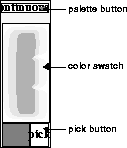
The palette button at the top of the tool is a pull-down menu for choosing a palette.
The color swatch displays the current color selection. This color also appears in the active (highlighted) color selector in individual tools.
Use the pick button to choose a color from any color area in the paint display, including the palette, the canvas, and color selectors on displayed tools.
When you click pick, the pointer changes to a pick pointer. To pick a color, click on the pointer and move it over the color. 
The palette's color swatch and any active tool's color selector display the color you picked.
The block palette displays color in a series of discrete blocks. Initially, the blocks display the entire color spectrum, with a gray scale in the right row of blocks.
To select a color from the block palette, click on it. 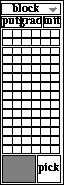
The put button places a color in the palette and is normally used with picking and grading to create a two-color gradation. It can also be used with the pick button to select a color from the canvas and place it in the block palette.
The grad button starts the operation that creates the color variations that make up the color gradation palette.
Clicking the init button resets the block palette after you have altered it by putting or grading.
You can use the colors from the palette tool or colors from your canvas to create a gradient palette.
To create a gradient palette with the put button:
The color you selected as the first color of the gradient palette appears in the block.
The color you selected as the second color of the gradient palette appears in the block.
Tip: The more blocks there are between the first and second color, the greater the number of color variations in the gradient range. |
The grade operation interpolates the color variations of the gradient palette in the blocks between two colors.
You can place colors from your canvas into the block palette.
To place a color from your canvas onto the block palette with the put button:
As you move over the canvas, the pointer changes to the pick pointer. (See figure 15.)
The selected color appears in the color swatch.
The color you selected appears in the block palette.
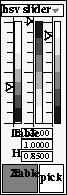
The slider palettes let you specify color values using three models:
To blend color using any of the slider palettes, click and drag on a slider arrow. You can also click and highlight the current values in the corresponding text box and enter a value using the keyboard. The color swatch updates to match the changing slider values.
Brief descriptions of the three color models follow. For more information, see "Color models" on page 357.
With the RGB slider palette, you create color using varying amounts of red, green, and blue. RGB is an additive color process in which 100% of all three colors creates white, 0% creates black, and equal amounts of each creates gray.
With the HSV slider palette, you create color by adjusting hue, saturation, and value:
With the CMY slider palette, you create color using varying amounts of cyan, magenta, and yellow. This is a subtractive process in which 100% of all three colors creates black and 0% of all three creates white.
The menu bar lets you access a variety of management-level features. The following sections describe how to use the menu bar options in the order they appear, from left to right.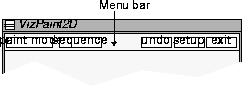
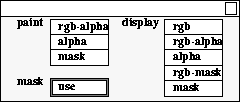
The paint mode tool specifies what channels are being painted and displayed. To display the paint mode tool, click the paint mode button on the far left side of the menu bar.
The paint mode tool is especially important when working with the alpha channel and when creating masks.
See "Using the alpha channel" on page 351 for basic information about the alpha channel and masking.
Specifies what is being painted. Options are:
rgb-alpha to paint all channels. This is the default.
alpha to paint only the alpha channel. When this option is selected, all work is done on the alpha channel and does not affect the RGB channels.
mask to paint a mask for the picture. You can also generate masks from alpha, chrominance, or luminance values and invert existing masks. See "Undoing a step" on page 411 for details.
Protects the masked area while you paint in RGB mode. If you select use, the masked area will not be affected by paint operations.
Specifies which channels are displayed in the canvas. Options are:
rgb to display only the RGB channels. This is the default.
rgb-alpha to display both the RGB channels and the alpha channel. The alpha channel is displayed as a 50% overlay so that you can see the picture through it.
alpha to display only the alpha channel. The picture itself is not visible.
rgb-mask to display both the RGB channels and the mask.
mask to display only the mask. The picture itself is not visible.
Tip: If you want to change the display color of the mask or alpha channel, use the setup tool. |
You may wish to leave the paint mode tool open as you work, especially if you will be using the alpha channel or working with masks. When you are ready to close the paint mode tool, use the close icon in the tool's upper-right corner.
You can use the sequence tool to load a series of images. This helps you compare multiple images by stepping through them one-by-one or by looping repeatedly through the sequence, similar to a flipbook. To display the sequence tool, click the sequence button in the menu bar.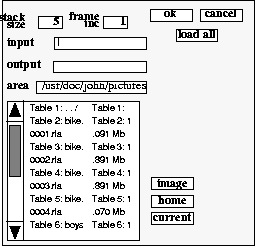
Specifies the total number of images you want to load.
Specifies a frame increment value to load frames at a regular interval, instead of loading the entire sequence. If you use the default of 1, VizPaint2D loads every frame in the sequence. If you specify a value of 3, every third frame is loaded.
Specifies the filename of the first frame in the sequence. You can type a name in the text box, or you can click on the text box and select a name from the list. The name you select is displayed in the text box.
Tip: If you specify an input filename of car.0001.rla, a stack size of 3, and a frame increment of 2, VizPaint2D will load car.0001.rla, car.0003.rla, and car.0005.rla. |
Specifies the base name for the output file. If you do not specify a format or a frame number, VizPaint2D uses the values from the input file. You can type a name in the text box, or click on the text box and select a name from the list. The name you select will appear in the text box.
Shows the UNIX pathname for the current directory. You can change directories using one of the following methods:
Type the pathname in the area text box. You can type the full pathname for any location, including any previously mounted remote disks.
If you make an error while typing a pathname in the box, click this to restore the previous pathname.
Click this to go to the area specified by WF_IMG_DIR. For more information on environment variables, see Environment Variables on page 481.
Click this to go to your home directory. This is the directory you are in when you log onto your workstation.
Click ../ to move up the UNIX directory structure.
Click ok to load the specified pictures, or click cancel to stop the operation. To load all the pictures in a sequence, click load all.
Once the pictures are loaded, the first picture is displayed and its filename appears in the title bar. The title bar includes four buttons that you use to select images for display:
Displays the next image in the sequence. As VizPaint2D loads an image, it discards the first one loaded in the stack.
Displays the images one after another at full resolution, similar to a flipbook. To stop looping, press ESC.
Use the undo button in the menu bar to restore the canvas to the way it was before you saved the previous step to disk. VizPaint2D has only one level of undo.
If you press undo again, the canvas returns to the state it was in before you pressed undo the first time
For the undo function to work, the canvas must have been saved to disk before the operation was performed.
If undo is turned on, the canvas returns to the state it was in immediately before the operation was performed. If undo is not turned on and the canvas was saved using a keyboard save (CTRL-S), the canvas returns to the state it was in at the time of the keyboard save.
You can also use the keyboard to perform an undo operation by pressing CTRL-U. Pressing CTRL-U again returns the canvas to the state it was in before you performed the most recent undo.
Tip: The undo function is not available with the brush paste tool or the brush option of the paint tool and the restore tool. |
To display the setup tool, click the setup button in the menu bar.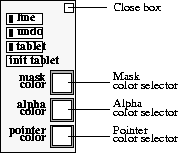
When on, the fine adjustment tool appears when you use the outline tool to select a tool. For a description of the fine adjustment tool, see page 391.
Turn on to enable the undo function. When this option is on, you can undo the previous action by pressing the undo button in the menu bar. See "Undoing a step" on page 389 for details.
Tip: The undo function is not available with the brush paste tool or the brush option of the paint tool and of the restore tool. |
Turns the tablet on or off. You can use a tablet with either a pressure-sensitive pen or a four-button puck.
If you have not initialized the tablet when you click tablet, VizPaint2D prompts you to do so. If you do not have a tablet connected to your workstation or if tablet is off, you access VizPaint2D tools and functions with the mouse.
Prompts you to enter the lower-left and upper-right corners of the tablet area to be active. VizPaint2D will map the specified area to its window.
Selects a color for displaying the mask.
Selects a color for displaying the alpha channel.
Changes the color of the pointer and outline tool for maximum visibility on the canvas.
Tip: See "Using the swatches" on page 381 for more information. |
When you have finished setting the above options, click the close box in the upper-right corner to hide the setup tool.
The fine adjustment tool lets you enter keyboard values to precisely adjust the size, position, and angle of the outline tool. To use the fine adjustment tool, click on the text box for the option you want to change and enter new values for the pixel location, scale, or angle.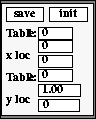
Figure 22 Fine adjustment tool
Fine adjustment options change depending on which tool you select.
Stores the current values in memory until the area selected by the outline tool is completed or save is clicked again.
Restores the fine adjustment and outline tools to the last saved or painted version.
Specifies the distance in pixels from the lower-left of the canvas to the lower-left corner of the outline tool.
Specifies the number of pixels from the left to right side or top to bottom of the shape.
Specifies the scale for the width and height of the outline tool relative to its original size when it first appeared on the canvas.
Specifies the proportionate scale for the outline tool's width and height.
Specifies the rotation of the outline tool around its move handle.
To close the fine adjustment tool, click fine in the setup tool.
The following sections describe the tools you access with the main menu, in alphabetical order for easy reference. For example, to find information about the grade tool (which is in the paint submenu), you would look under Grade.
Each tool description includes a drawing of the tool and describes all options associated with it. 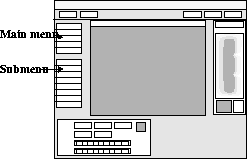
Figure 23 VizPaint2D menu locations
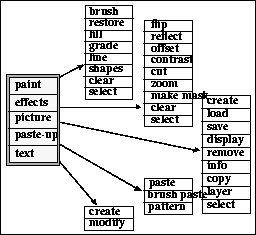
To access a specific tool in VizPaint2D, first click a button in the main menu that corresponds to one of the five types of tools available:
figure 24 shows which tools are in each category.
Figure 24 VizPaint2D menu hierarchy
Use paint(TM)brush to add color to your canvas by painting freehand using a variety of brushes and special effects.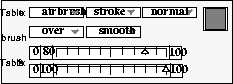
Tip: The undo function is not available with the brush tool. |
Click on the color selector to select a color for painting.
After selecting the brush options, move the brush pointer over the canvas. Click to position the pointer and drag to apply paint from the brush. Release the mouse button to stop applying paint.
Specifies the brush, stroke, and special effect. Brush options are:
airbrush for a soft-edged stroke.
circle for a circular stroke, similar to airbrush but with a harder edge.
pen for a hard-edged, anti-aliased stroke, similar to circle With pen, pressure on the pen and tablet affects size, not opacity.
soft for a hard-edged, anti-aliased stroke that is not as hard as circle.
square for a square stroke that is similar to airbrush but has a harder edge.
hard for a hard-edged stroke that has no anti-aliasing.
stroke for a smooth and continuous stroke.
fast for a stroke that looks like smooth but draws more quickly.
dots for a stroke that is a series of dots.
normal for no special effects. This is the default.
blur to soften the edges of colors together as if you were rubbing them with your finger. Use blur only on areas that have existing color. When blurring between opaque and transparent areas, the replace composition mode works best.
smudge to create an effect similar to dragging a brush through wet paint. Use smudge only on areas with existing color. When smudging between opaque and transparent areas, the replace composition mode works best.
transfer to transfer one area of the canvas to another area. To use transfer, click first on the area you want to transfer from, then click on the area you want to transfer to. Use the brush to complete the transfer.
Specifies the composition mode and the color pattern.
The options for composition mode are over, under, atop, erase, replace, fore, behind, hue, saturation, value, and watercolor. See "Composition modes" on page 360 for basic information about the composition modes.
When creating a mask, the only composition modes available are over, erase, and replace. This is because masks are always placed over pictures. See "Choosing paint and display modes" on page 386 for more information.
The color pattern lets you use color to build a pattern into your brush. The pattern comes from the library option or the custom option. Options are:
smooth for the default mode with no pattern.
library to use a pattern from the supplied pattern files.
custom to use one of your canvases. This can be a cutout, a zoom file, a standard picture file, or a special picture file or canvas you created for this use. (You cannot use text files.)
library displays a list of available pattern files appears. Click on the pattern file you want to use. Options are:
coarse for a large grained texture similar to running a piece of chalk along a blackboard.
medium for a texture similar to coarse, but with a slightly closer grain.
fine for a texture similar to coarse, but with a very fine grain.
crackb for a texture resembling large cracks.
cracks for a texture resembling small cracks.
custom creates a pattern using colors in the selected canvas that have the component you specify.
When you click custom, a list of canvases already loaded in VizPaint2D appears. Click on the canvas you want to use for the source of the pattern image.
The lower-left corner of the area being painted anchors the starting point of the pattern image. If the pattern image you are using is smaller than the area being painted, it is repeated side-by-side until it covers the area.
red to create a pattern using only the colors in the selected picture that have a red color component. (This creates the pattern from the red color channel.)
green to create a pattern using only the colors in the selected picture that have a green color component. (This creates the pattern from the green color channel.)
blue to create a pattern using only the colors in the selected picture that have a blue color component. (This creates the pattern from the blue color channel.)
alpha to create a pattern using the transparency component of the colors in the selected picture. (This creates the pattern from the transparency or alpha channel.)
luminance to create a pattern using the luminance of the selected picture.
The red, green, and blue options paint only colors in the pattern image that have color component information on the channel being accessed. For example, if you select red, only colors that have red as part of their color spectrum are painted in the pattern. (Remember, a color with a red color component does not necessarily look red.)
The alpha option paints all colors unless they are completely transparent. Colors with a low level of transparency (or high opacity) appear more intense and colors with a high level of transparency appear light.
The luminance method paints all colors based on their luminance or brightness.
Use this slider to select the width of your brush.
Use this slider to select the opacity level for your brush.
Use paste-up(TM)brush paste to create a custom brush by pasting copies of a cutout or canvas as though it were a brush. Before you can use the brush paste tool, you need to create a cutout with the cut tool or have other canvases loaded. 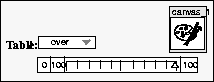
Tip: The undo function is not available with the brush paste tool. |
When you select brush paste, a list of the canvases available for pasting is displayed. Select a canvas for brush pasting by clicking in the list. You cannot brush paste text, so any text files you might have are not listed.
The brush paste tool features a swatch that shows the item selected for pasting. You use the brush paste tool with the brush paste pointer:
The composition mode. Options are over, under, atop, erase, replace, fore, behind, hue, saturation, value, and watercolor. See "Composition modes" on page 360 for basic information about the composition modes.
When pasting a mask, the only composition modes available are over, erase, and replace. This is because masks are always placed over pictures. See "Choosing paint and display modes" on page 386.
Use this slider to set the opacity level for your brush paste.
After you select the mode and opacity, click the left mouse button in the area you want to start the brush paste.
Use paint(TM)clear and effects(TM)clear to clear or erase all or part of the current canvas and replace it with a color at a specified transparency. You can also use the clear tool to clear or erase masks.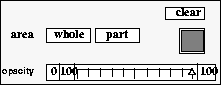
Use whole to clear the entire canvas of any design, picture, or painting. Use part to clear a specified area of the canvas. The outline tool appears on the canvas to let you select the position, size, and shape of the area you want to clear.
Use this slider to select the opacity level for the area being cleared. Use a low opacity to erase the canvas, a high opacity to clear it.
Use the color selector to select a color to fill in the cleared area.
After you click whole or part and, if necessary, adjust the outline tool and select a color, click clear to start the clear operation.
Use effects(TM)contrast to change the contrast (lightness and darkness ratio) of the current canvas. A contrast curve shows the current contrast settings for the canvas. Sliders let you modify the value and the range to change the contrast of the canvas.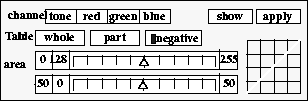
Specifies which channels will be affected by the change in contrast. Options are:
tone to change the contrast for all channels.
red to change only the red channel.
green to change only the green channel.
blue to change only the blue channel.
Use whole to select the entire canvas. Use part to select a specified area of the canvas. The outline tool appears on the canvas to let you select the position, size, and shape of the area you want to contrast.
If selected, all of the colors in the selected area of the image are inverted.
Use this slider to lighten or darken the picture. After moving the slider, click show to display the results.
Use this slider to increase or decrease the amount of the contrast. After moving the slider, click show to display the results.
This grid, on the right side of the contrast tool, shows the contrast curve for the image, and changes as the value and range change.
Initializes the contrast curve. Init does not affect the image.
Displays the selected area of the image. Clicking show displays only a preview of the changed image.
Accepts the current contrast settings for the selected area of the image. Once apply has been selected, the image cannot be reset. The current image is treated as the original image and the contrast curve is reinitialized.
To change the contrast of a picture:
Clicking show does not make the change permanent. This is just a preview; the change is still temporary.
To cancel the change, click init, then click show. The original image re-appears.
To save the change, click apply.
Clicking apply makes the change permanent. You cannot reset the image to its original state.
Use picture(TM)copy to create an exact duplicate of your current canvas. The copy operation copies the current canvas to a new canvas.
You can also use the copy tool to copy the current mask.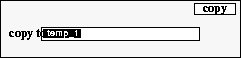
Specifies a name for the new file. You can use the assigned name, or you can click the text box and enter a name of your choice using the keyboard.
The name does not have to be unique. It can be the same as an existing canvas (including the current canvas) since the copy operation creates a duplicate copy, not a new picture file. However, if you decide to save the copy, at that time you need to give the canvas a unique name.
When you have selected a name, copy creates a duplicate of the current canvas. A swatch of the duplicate canvas appears in the copy tool. You can create multiple copies of a canvas.
Use picture(TM)create to open a new canvas or mask. You can choose from a pre-set resolution or define your own.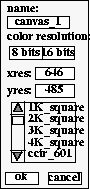
Specifies the name for the canvas or mask. You can use the system-assigned name (canvas_1, canvas_2, and so on), or you can click in the text box and enter a name of your choice using the keyboard.
Use 8 bits for standard color precision (the default). Use 16 bits for high color precision
Tip: The screen can only display color precision at 8 bits even if 16 bits has been selected. However, if 16 bits is selected, the image will be painted with 16-bit color precision. |
Lists the pixel resolutions along the x and y axes of the canvas. You can click on these boxes and enter a resolution value. If you click on a pre-set format, the boxes update automatically.
Scroll up or down the list to choose the pre-set resolution format you want. Click once to make your selection.
When you have chosen a name and specified the color and image resolutions, click ok to create the canvas and display it or click cancel to stop the operation.
Tip: For more information about canvas resolutions, see Image Configuration File on page 474 |
Use effects(TM)cut to create a cutout from all or part of an existing canvas. Once you have a cutout, you can paste it using the paste, brush paste, or pattern paste tools. You can also use it as a source image with the restore tool or the brush custom option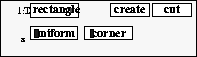 .
.
Select rectangle, ellipse, polygon, triangle, or freehand.
Select uniform to specify the dimensions of the shape. When uniform is on, you create shapes with equal sides or dimensions, such as a circle or a square. If it is off, you create shapes with unequal sides or dimensions.
Select corner to specify where the shape starts. When corner is on, the shape is drawn from the corner. If it is off, the shape is drawn from the center.
The outline tool appears around the newly created shape. Use the outline tool to adjust the shape, size, and position, if necessary.
The new picture (the portion cut out of the original picture) is placed in a file named cut_1, cut_2, and so on. The original picture is not affected by the cut.
Tip: The files created with the cut tool are temporary files. They last only for the duration of your session. To make them permanent you must save them. |
Use picture(TM)display to display a canvas or picture at its full size, up to the size of your workstation screen. This tool is useful for viewing high-resolution images at full size or for shooting 35mm slides of your pictures from the workstation screen.
To display the picture with an associated mask or to display the alpha channel, be sure the correct display option is selected in the paint mode tool. See "Choosing paint and display modes" on page 386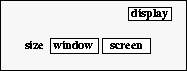 .
.
Displays a list of the picture files loaded in VizPaint2D. Select a picture file for displaying by clicking on its name in the list, then clicking on ok. The display tool appears on the screen.
Use window to display the picture in the VizPaint2D window. Use screen to display the picture in the entire workstation screen.
If the pictures are smaller than the window or screen, VizPaint2D centers them in a black field. If they are larger, VizPaint2D scales them to fit in the selected area.
To remove the displayed picture, press the ESC key or click on all three mouse buttons at once.
You can select more than one picture.
The first selected picture is displayed.
The next picture is displayed.
Use paint(TM)fill to fill the canvas with a solid, opaque color. You can also use the fill tool when creating masks.
You can erase parts of a canvas by filling in erase mode.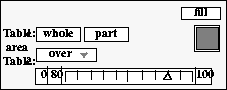
You use the fill tool with a special tool called the seed point. The seed point acts as the anchor or starting point for the fill. It also points to a pixel or a color on the canvas that is used to determine the extent or range of the fill.
During the fill operation, VizPaint2D compares each component of a pixel or a color in the fill area to the color component information of the color designated by the seed point. This information, combined with the range setting, determines the extent of the fill in the specified area.
When you use a low range setting, only colors with component information similar to the color designated by the seed point are filled. With a high range setting, colors with a wider variety or range of component information are filled.
Use whole to apply the fill to the entire canvas. The seed point appears in the center of the canvas. Use part to apply the fill to a portion of the canvas. An outline tool appears on the canvas with the seed point in the center.
The composition mode. Options are over, under, atop, erase, replace, fore, behind, hue, saturation, value, and watercolor. See "Composition modes" on page 360 for basic information about the composition modes.
When the mask display option is selected, the only composition modes available are over, erase, and replace. See "Choosing paint and display modes" on page 386.
Use this slider to specify the extent the selected area is filled with color. The range value determines how close the color component information of the color in the selected area needs to be to the color specified by the seed point in order to be filled.
Use the color selector to select a color for the fill.
If you are filling part of the canvas, adjust the outline tool to the position, size, and shape that you want to fill. With the mouse, click the center of the seed point and drag it to the starting point for the fill.
Use effects(TM)flip to flip all or part of a canvas horizontally or vertically, or to flip all or part of a mask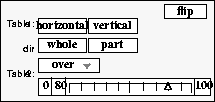 .
.
Use horizontal to flip the selected area along a central axis running from top to bottom. Use vertical to flip the selected area along a central axis running from left to right.
Use whole to flip the entire canvas or mask. Use part to flip only a portion of the canvas or mask.
The composition mode. Options are over, under, atop, erase, replace, fore, behind, hue, saturation, value, and watercolor. See "Composition modes" on page 360 for basic information about the composition modes.
When the mask display option is selected, the only composition modes available are over, erase, and replace. See "Choosing paint and display modes" on page 386.
Use this slider to set the opacity level for the flip.
Clicking part displays an outline tool for you to use to select the position, size, and shape of the area you want to flip.
Use paint(TM)grade to apply a two-color gradation across all or part of the canvas. You can also apply a gradation to a mask. The finished gradation consists of a gradual transition between the two selected colors.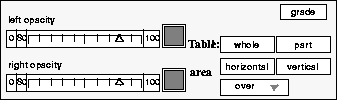
Use whole to apply the gradation to the entire canvas or mask. Use part to apply the gradation to a portion of the canvas or mask
Use horizontal to have the gradation flow from left to right. Use vertical to have the gradation flow from top to bottom
The composition mode. Options are over, under, atop, erase, replace, fore, behind, hue, saturation, value, and watercolor. See "Composition modes" on page 360 for basic information about the composition modes.
When the mask display option is selected, the only composition modes available are over, erase, and replace. See "Choosing paint and display modes" on page 386.
Use the left opacity slider to set opacity for the starting color. Use the right opacity slider to set opacity for the ending color.
Use the left color selector (top) for the starting color. Use the right color selector (bottom) for the ending color
To apply a color gradation to your canvas or mask:
Click part to display an outline tool to select the position, size, and shape of the area you want to grade.
Use picture(TM)info to display information about any canvas, cutout, or text currently loaded into VizPaint2D. When you select info, a list of these files is displayed. Click on a name in the list to display the info tool. The current canvas is the default.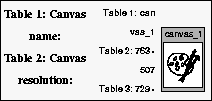
Figure 38 Info tool display for an image file
For an image file, the info tool provides the following information:
Canvas name The name of the canvas.
Canvas resolution The resolution when displayed full-size.
Displayed resolution The resolution when displayed in VizPaint2D.
Color resolution The color precision used on this canvas.
Reduction factor The factor that the displayed resolution of a picture must be multiplied by to get the actual resolution.
Type The type of picture (normal, zoom, or cut).
A swatch of the picture is shown, unless the canvas is currently displayed. If the canvas is displayed, no swatch is shown.
For a text file, the info tool provides the following information:
Canvas name The name of the text.
Typeface The typeface of the text.
Alignment Specifies whether the text is left, right, or center aligned.
Size The point size of the text.
Leading The space (in points) between lines of text.
Kerning The space (in points) between letters.
A swatch of the text is displayed.
To close the info tool, click the main menu or select another tool in the picture menu.
Use picture(TM)layer to display two canvases simultaneously-one in front of the other-and see the combined effect. As you view the canvases, you can make any modifications needed and instantly see the results of your changes.
Canvases must be the same size to be layered.
For example, when you are compositing two canvases, you paint the alpha channel of the foreground canvas to control how much of the background will show through. By using the layer tool, you see the result of these alpha channel changes as you make them, without having to composite the two pictures.
When you select layer, a list the canvases and masks loaded in VizPaint2D is displayed. The current canvas is the default foreground canvas. To select a different canvas for layering, click in the name text box, then select a canvas from the list. 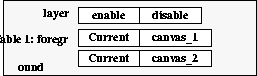
Turns layering on or off. When on (enable), the canvases specified in the foreground and background options are positioned as specified. When off (disable), only the active or current canvas is visible.
foreground The first text box displays the name of the canvas that is in the foreground or front position. If the second text box, current, is highlighted, the foreground canvas is the active canvas. By default, the foreground canvas is active.
background The first text box displays the name of the canvas that is in the background or rear position. If the second text box, current, is highlighted, the background canvas is the active canvas.
The current or active canvas is the one you will be working on.
Use paint(TM)line to draw straight, radiating, or connected lines in a single color or a two-color gradation. You can also use the line tool to create masks.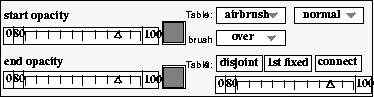
There are two color selectors. To draw a single color line, select the same color for both color selectors. To draw a two-color graded line, select two different colors. Use the start color selector (top) for the starting color; use the end color selector (bottom) for the ending color.
end opacity There are two opacity sliders. Adjust the start opacity slider for the starting color; adjust the end opacity slider for the ending color.
brush There are two brush options which let you choose the type of brush and special effects.
airbrush for a soft-edged stroke.
circle for a circular stroke, similar to airbrush but with a harder edge.
pen for a hard-edged, anti-aliased stroke, similar to circle but pressure affects size, not opacity. (You can apply pressure only when using the pen and tablet.)
soft for a hard-edged, anti-aliased stroke, not as hard as circle.
square for a square stroke, similar to airbrush but with a harder edge.
hard for a hard-edged stroke with no anti-aliasing.
There are four types of special effects:
normal for the default mode that uses no special effect.
blur to soften the edges of colors together as if you were rubbing them with your finger. Use blur only on areas that have existing color. When blurring between opaque and transparent areas, the replace composition mode works best.
smudge to create an effect similar to dragging a brush through wet paint. Use smudge only on areas with existing color. When smudging between opaque and transparent areas, the replace composition mode works best.
mode The composition mode. Options are over, under, atop, erase, replace, fore, behind, hue, saturation, value, and watercolor. See "Composition modes" on page 360 for basic information about the composition modes.
When the mask display option is selected, the only composition modes available are over, erase, and replace. See "Choosing paint and display modes" on page 386.
style Selects a line style. Use disjoint to draw straight, unconnected lines. Use 1st fixed draws a series of lines radiating from central point to create a star. Use connect draws a series of connected, gradated lines. 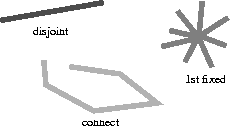
Figure 41 VizPaint2D line styles
size Use this slider to select the thickness of the line.
When you drag the mouse, a line pointer shows where the line will be drawn.
When drawing with the 1st fixed or connect line styles, the line pointer remains until you move it off the screen and click on another tool or option.
Use picture(TM)load to import an image into VizPaint2D to make changes to it or to use it in other canvases. You also use the load tool to import mask files.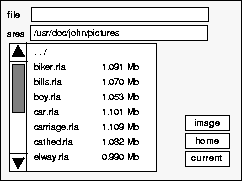
file This text box should display the name of the file you want to load. Either type the filename or click on a name in the list.
area This text box shows the UNIX pathname for the current directory. You can change directories by one of the following methods:
The size of each picture is listed to the right of its name. To load a picture, click its name in the list.
Tip: If you are loading SoftImage files, first modify your image configuration file to make the default file format si. We recommend making this same modification if you have difficulty reading another supported file type.
|
To load a mask with its associated picture
In the paint mode tool, select the rgb-mask display mode. This will let you see both the mask and the picture when you import them.
Use effects(TM)make mask to create masks from the alpha, chrominance, or luminance values of a picture. You can use the entire picture or just a portion of it for the mask. Masking is described in"Masking" on page 359.
When you select the use mask mode with the paint mode tool, masked areas are protected from VizPaint2D operations. See "Choosing paint and display modes" on page 386 for descriptions of the various paint modes.
The make mask tool also lets you invert an existing mask.
Tip: The make mask tool is used when creating masks from pictures or when inverting existing masks. If you are using the paint tools to create a mask, you do not need to use the make mask tool. |
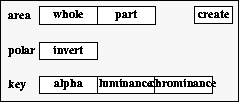
area Use whole to use the entire canvas when creating the mask or to invert the entire mask. Use part to use a specified area of the canvas for creating the mask or to invert the mask(s) only in the specified area. The outline tool appears on the canvas to let you select the position, size, and shape of the area you want to use.
polar Use invert to invert the mask, switching the masked and unmasked areas.
key Use alpha to create a mask from the alpha channel.
Use luminance to mask off portions of the picture based on luminance (brightness) values. Specify the range of values that will be masked with the slider.
Use chrominance to mask off portions of the picture based on chrominance (color) values. Specify which values will be masked with the color selector and the slider.
create After selecting the area to be affected and choosing masking options, click create to create the mask.
Use effects(TM)offset to switch the quadrants of a picture or mask. You can also use the offset tool to blend or remove seams in pictures for repeatable images.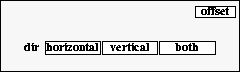
dir Specifies the direction the image will be offset. Use horizontal to swap the right and left halves of the picture. Use vertical to swap the top and bottom halves of the picture. Use both to move the quadrants of the picture so that all the outside corners meet in the center.
offset Offsets the picture in the specified direction. To return to the previous position, click offset again.
Use paste-up(TM)paste to paste pictures, cutouts, zoom canvases, and text. Before you can use the paste tool, you need to create cutouts with the cut tool or have other canvases loaded in VizPaint2D.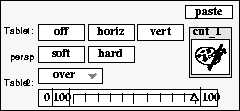
Figure 45 Paste tool-pictures and cutouts
When you select paste, a list of the pictures, cutouts, and text you can paste is displayed.
Select a picture or cutout to paste by clicking in the list. The paste tool appears and the paste outline tool is displayed on the canvas. A swatch appears in the paste tool showing which item is selected for pasting.
persp Use off to paste an exact copy of the picture.
Use horiz to adjust the picture's horizontal perspective. When you click horiz, horizontal adjust handles appear on the left and right sides of the paste outline tool. Click and drag on a handle to adjust horizontal perspective.
Use vert to adjust the picture's vertical perspective. When you click vert, vertical adjust handles appear on the top and bottom of the paste outline tool. Click and drag on a handle to adjust vertical perspective.
style Specifies the amount of filtering done during the paste. Use soft for a style that works best if the picture has curved edges or if you rotate or adjust its perspective. Use hard for a faster style that works well for any picture with straight edges. Hard works well if there is no rotation or scale.
mode The composition mode. Options are over, under, atop, erase, replace, fore, behind, hue, saturation, value, and watercolor. See "Composition modes" on page 360 for basic information about the composition modes.
When the mask display option is selected, the only composition modes available are over, erase, and replace. See "Choosing paint and display modes" on page 386.
opacity Use this slider to specify the opacity level.
Use the paste tool to paste text that you have created or modified with the text tools. Choosing a text file displays a different paste tool than when you choose a picture or cutout. 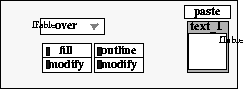
When you select text to paste, an outline tool surrounds your text on the canvas. A swatch in the paste tool shows the upper-left corner of the text you have selected.
mode The composition mode. Options are over, under, atop, erase, replace, fore, behind, hue, saturation, value, and watercolor. See "Composition modes" on page 360 for basic information about the composition modes.
When the mask display option is selected, the only composition modes available are over, erase, and replace. See "Choosing paint and display modes" on page 386.
fill When on, the text is painted with a fill. If off, the text is painted with an outline only.
modify Displays the following tool for setting the color and opacity of the fill:
Figure 47 Text fill drawing tool
Click on the color selector to select a color for the text fill. Use the opacity slider to specify the opacity level for the fill.
outline When the outline option is on, the text is painted with an outline. If the outline option is off, the text is painted with a fill only.
modify Click modify to display the following tool for setting the color and opacity of the outline: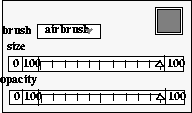
Figure 48 Text outline drawing tool
Click on the color selector to select a color for the text outline.
There are six brush styles. Select:
airbrush for a soft-edged stroke.
circle for a circular stroke, similar to airbrush but with a harder edge.
pen for a hard-edged, anti-aliased stroke, similar to circle but pressure affects size, not opacity. (You can apply pressure only when using the pen and tablet.)
soft for a hard-edged, anti-aliased stroke, not as hard as circle.
square for a square stroke, similar to airbrush but with a harder edge.
hard for a hard-edged stroke with no anti-aliasing.
Use the size slider to select the width of the outline.
Use the opacity slider to specify the opacity level of the text outline.
Important! You must have either the fill option or the outline option on to paste the text. |
The text is pasted on the canvas using the selected fill and outline.
Use paste-up(TM)pattern to create a tiled pattern of pasted pictures or cutouts. Before you can use the pattern tool, you need to create cutouts with the cut tool or have other canvases loaded in VizPaint2D.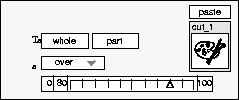
When you select pattern, a list of the picture files you can paste is displayed. Select a picture for pattern pasting by clicking in the list.
The pattern tool appears in the window. A swatch in the pattern tool shows you which picture file you selected for pattern pasting.
area Use whole to fill the entire canvas with copies of the image you selected for pattern pasting. Use part to paste a portion of the canvas. The outline tool appears on the canvas to let you select the position, size and shape of the area you want to fill with a pattern paste.
mode The composition mode. Options are over, under, atop, erase, replace, fore, behind, hue, saturation, value, and watercolor. See "Composition modes" on page 360 for basic information about the composition modes.
When the mask display option is selected, the only composition modes available are over, erase, and replace. See "Choosing paint and display modes" on page 386.
Tip: If you select erase, a shadow version of the image is erased into the canvas. |
opacity Use this slider to select the opacity level for your pattern.
To pattern paste the item, click paste. The anchor point is the lower-left corner of the specified area. VizPaint2D pastes as many copies (or partial copies if the area is smaller) of the picture as it can fit onto the canvas or the area defined by the outline tool.
Use effects(TM)reflect to create a mirror image of a part of the canvas above, below, to the left, or right of the area. You can also use the reflect tool with masks. 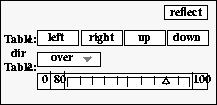
When you click reflect, an outline tool appears. Adjust its size and position to select the area you want to use to create the reflection.
dir There are four options. Select left, right, up, or down.
mode The composition mode. Options are over, under, atop, erase, replace, fore, behind, hue, saturation, value, and watercolor. See "Composition modes" on page 360 for basic information about the composition modes.
When the mask display option is selected, the only composition modes available are over, erase, and replace. See "Choosing paint and display modes" on page 386.
opacity Use this slider to select the opacity level for the reflection.
After adjusting the outline tool and selecting the direction, mode, and opacity, click reflect to mirror the image.
Use picture(TM)remove to delete one or more canvases. You can also use the remove tool to delete masks.
The number of pictures that you can load into VizPaint2D depends on the complexity of the pictures and the amount of memory on your system. If you get a "not enough memory" error message, delete some of your canvases before proceeding.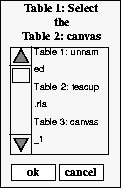
You can remove one at a time or several at once. Removing a canvas "unloads" it from VizPaint2D. The canvas still exists in its area on the hard disk, but must be reloaded before you can use it again. If you have changed a canvas or opened a new canvas, you must save them first or your work will be lost.
Clicking remove displays a list and swatches of all your open canvases, cutouts, pictures, and text.
The selected filenames and their corresponding swatches are highlighted.
To remove a picture file from your hard disk, you use the UNIX rm command. See your operating system documentation for instructions on changing directories and using commands.
Use paint(TM)restore to retouch between two canvases. You can do this by painting a picture as the source for the brush instead of a color. The image comes from a canvas already loaded in VizPaint2D. It can be a cutout, a zoom file, or a standard image file. (You cannot use a text file.) The canvas being restored is the active canvas. 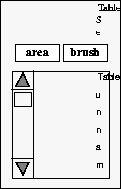
Clicking restore displays the restore tool options and a list of canvases available for you to use as the source of the image for the restore operation.
area Restores a specific section of the canvas. The area option restores by pasting the source image in a specified section of the current canvas.
brush Restores the canvas using a brush. The brush option places the source image over the active canvas. You then use the brush to apply the image to the areas being restored on the canvas.
After selecting a restore option, select a source canvas by clicking in the list. The restore tool appears in the window. The tool that appears depends upon the restore option selected.
If you select the area option, the area restore tool appears. A swatch in the area restore tool shows you which canvas you selected to use as the source of the image for the restore operation.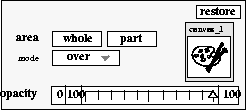
area Use whole to select the entire canvas. Use part to select a specified area of the canvas. The outline tool appears on the canvas to let you select the position, size, and shape of the area you want to restore.
The lower-left corner of the active canvas becomes the anchor point for the image you are using as the source. This means the source image is placed on the active canvas starting in the lower-left corner. If you select whole and the source image is smaller than the canvas, it is enlarged proportionately to fit the canvas.
If you select part, the anchor point is still the lower-left corner of the canvas. The image is not repeated throughout the canvas and is not enlarged. Therefore, when your source image is smaller than the canvas and the area being restored is not near the lower-left corner of the canvas, the image may not reach the area you want to restore.
mode The composition mode. Options are over, under, atop, erase, replace, fore, behind, hue, saturation, value, and watercolor. See "Composition modes" on page 360 for basic information about the composition modes.
When the mask display option is selected, the only composition modes available are over, erase, and replace. See "Choosing paint and display modes" on page 386.
opacity Use this slider to select the opacity level for the restoration.
If you select the brush option, the brush restore tool appears. A swatch in the brush restore tool shows which canvas you selected to use as the source of the image for the restore operation.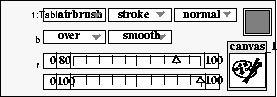
Tip: The undo function is not available with the restore brush tool. |
Click on the color selector to select a color for painting.
brush There are three brush options which let you choose the type of brush, stroke, and special effects to use for your painting.
airbrush for a soft-edged stroke.
circle for a circular stroke, similar to airbrush but with a harder edge.
pen for a hard-edged, anti-aliased stroke, similar to circle but pressure affects size, not opacity. (You can apply pressure only when using the pen and tablet.)
soft for a hard-edged, anti-aliased stroke, not as hard as circle.
square for a square stroke, similar to airbrush but with a harder edge.
stroke for a smooth and continuous stroke.
fast for a stroke that looks like smooth but draws more quickly.
dots for a stroke that is a series of dots.
There are five special effects types:
normal for the default mode with no special effect invoked.
blur to soften the edges of colors together as if you were rubbing them with your finger. Use blur only on areas with existing color. When blurring between opaque and transparent areas, the replace composition mode works best.
smudge to create an effect as if dragging a brush through wet paint. Use smudge only on areas with existing color. When smudging between opaque and transparent areas, the replace composition mode works best.
transfer to transfer one area of the canvas to another area. To initialize, click first on the area you want to transfer from, then on the area you want to transfer to.
mode Specifies the composition mode and the color pattern.
The options for composition mode are over, under, atop, erase, replace, fore, behind, hue, saturation, value, and watercolor. See "Composition modes" on page 360 for basic information about the composition modes.
When creating a mask, the only composition modes available are over, erase, and replace. This is because masks are always placed over pictures. See "Choosing paint and display modes" on page 386 for more information.
The color pattern lets you use color to build a pattern into your brush. The pattern comes from the library option or the custom option. Options are:
smooth for the default mode with no pattern.
library to use a pattern from the supplied pattern files.
custom to use one of your canvases. This can be a cutout, a zoom file, a standard picture file, or a special picture file or canvas you created for this use. (You cannot use text files.)
library displays a list of available pattern files appears. Click on the pattern file you want to use. Options are:
coarse for a large grained texture similar to running a piece of chalk along a blackboard.
medium for a texture similar to coarse, but with a slightly closer grain.
fine for a texture similar to coarse, but with a very fine grain.
crackb for a texture resembling large cracks.
cracks for a texture resembling small cracks.
custom creates a pattern using colors in the selected canvas that have the component you specify.
When you click custom, a list of canvases already loaded in VizPaint2D appears. Click on the canvas you want to use for the source of the pattern image.
The lower-left corner of the area being painted anchors the starting point of the pattern image. If the pattern image you are using is smaller than the area being painted, it is repeated side-by-side until it covers the area.
red to create a pattern using only the colors in the selected picture that have a red color component. (This creates the pattern from the red color channel.)
green to create a pattern using only the colors in the selected picture that have a green color component. (This creates the pattern from the green color channel.)
blue to create a pattern using only the colors in the selected picture that have a blue color component. (This creates the pattern from the blue color channel.)
alpha to create a pattern using the transparency component of the colors in the selected picture. (This creates the pattern from the transparency or alpha channel.)
luminance to create a pattern using the luminance of the selected picture.
The red, green, and blue options paint only colors in the pattern image that have color component information on the channel being accessed. For example, if you select red, only colors that have red as part of their color spectrum are painted in the pattern. (Remember, a color with a red color component does not necessarily look red.)
The alpha option paints all colors unless they are completely transparent. Colors with a low level of transparency (or high opacity) appear more intense and colors with a high level of transparency appear light.
The luminance method paints all colors based on their luminance or brightness.
size Use this slider to select the width of the brush.
opacity Use this slider to select the opacity level for your brush.
restore After selecting the area, mode, and opacity, click restore to begin the restore operation.
If a picture has been modified since it was saved, the title bars above its canvas and swatch are displayed in red.
Use picture(TM)save to save to disk any new canvases, masks, or pictures loaded and changed in VizPaint2D. 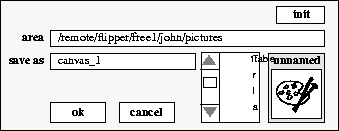
When you select save, a list and swatches of loaded canvases is displayed. To save a canvas, click on its name in the list or click in the center of the corresponding swatch.
When you have selected all the canvases you want to save, click ok to save them. VizPaint2D displays the save tool to show which canvas is selected for saving.
area Shows the UNIX pathname for the current directory. To save the canvas in a different directory, type the new pathname in the text box.
init Returns to the default directory.
save as Shows the current name of the canvas. You can save it under this name or enter a new name. Saving a canvas under its original name overwrites the earlier version.
The format list to the right of the save as text box includes all the file formats for saving pictures. Your .imfrc file specifies these formats. (For more information, see Image Configuration File on page 474)
When you have selected a pathname, image filename, and format, click ok to save the canvas on your hard disk.
Click paint(TM)select, effects(TM)select, or picture(TM)select to display the select list tool and swatches of all the pictures, canvases, and cutouts currently loaded into the VizPaint2D system.
To display one of these items, click on its name in the list or click in the center of its corresponding swatch. You do not need to save the current canvas to select another canvas, cutout, or picture to work on.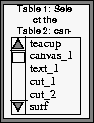
Use paint(TM)shapes to create and draw rectangles, ellipses, polygons, triangles, and freehand shapes. You can also use the shapes tool to create masks.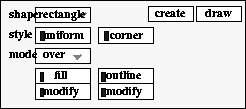
Making shapes in VizPaint2D is a two-step process: you first create the shape, then you draw it. Creating the shape gives it size, dimension, and a position on the canvas. Drawing the shape gives it a color and an outline.
shape Select rectangle, ellipse, polygon, triangle, or freehand.
style Use uniform to specify the dimensions of the shape. When on, you can only create shapes with equal sides or dimensions, such as a circle or a square. If off, you can create shapes with unequal sides or dimensions.
Use corner to specify where the shape is drawn from. When on, the shape is drawn from the corner. If off, the shape is drawn from the center.
edges This option displays only when polygon is selected. To change the number of sides, enter a new value in the text box. You cannot have less than 2 or more than 20 edges.
mode The composition mode. Options are over, under, atop, erase, replace, fore, behind, hue, saturation, value, and watercolor. See "Composition modes" on page 360 for basic information about the composition modes.
When creating a mask, the only composition modes available are over, erase, and replace. This is because masks are always placed over pictures. See "Choosing paint and display modes" on page 386.
fill When on, the shape is filled with color. If off, the shape is drawn with an outline only.
modify Displays the following tool for setting the color and opacity of the fill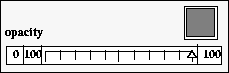 :
:
Click on the color selector to select a color for the fill.
Use the opacity slider to select the opacity level for the fill. For a description of opacity, see .
outline When on, the shape is drawn with an outline. If off, the shape is drawn with a fill only.
Displays the following tool for specifying the outline: 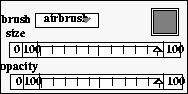
Click on the color selector to select a color for the outline.
airbrush for a soft-edged stroke.
circle for a circular stroke, similar to airbrush but with a harder edge.
pen for a hard-edged, anti-aliased stroke, similar to circle but pressure affects size, not opacity. (You can apply pressure only when using the pen and tablet.)
soft for a hard-edged, anti-aliased stroke, not as hard as circle.
square for a square stroke, similar to airbrush but with a harder edge.
hard for a hard-edged stroke with no anti-aliasing.
Use the size slider to select the width of the outline.
Use the opacity slider to select the opacity level for the outline.
If you select polygon, you also need to specify the number of edges for the shape. (To find out how to draw a freehand shape, see "Undoing a step" on page 427.)
You must have either the fill option or the outline option turned on to draw a shape.
The outline tool appears around the newly created shape. You can now adjust the size, position, and shape if desired.
VizPaint2D draws the with the selected fill and outline. The outline tool remains. You can draw more shapes of the same type by repositioning the outline tool.
When you choose shapes(TM)freehand, the shapes tool displays additional options unique to this shape type.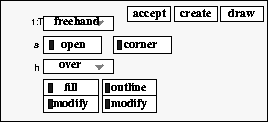
Figure 60 Freehand shapes tool
style Creates open or closed shapes. Turn on to create an open-ended shape. Turn off to create a closed shape.
corner This option behaves differently when drawing a freehand shape. Instead of determining the starting point of your figure, it determines the starting point of the outline tool's scaling operation. If on, scaling begins at the corner. If off, scaling begins at the center.
The fill option or the outline option must be on to create a shape. You can use fill and outline together with different colors if you wish.
Once you click accept, the outline tool appears around the newly created shape. You can no longer continue creating the shape. You can adjust the size, position, and shape if desired.
The shape is drawn with the selected fill and outline. The outline tool remains. You can continue to draw more shapes of the same type by repositioning the outline tool.
Use text(TM)create and text(TM)modify to create or edit text headlines and labels. Once the text is created, use the paste tool to apply it to your canvas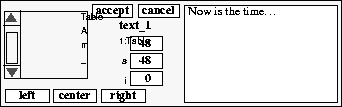 .
.
When you select the text button the text submenu for creating or modifying text is displayed. The two operations are identical, except that when you select modify, a list appears for you to select the existing text file to modify. The text tool appears on the screen. The name of the text file being created or modified appears in the text tool.
The font list on the left side of the text tool lets you select a font for the text. You can only use one font per text file.
Am_Tw_Med for American Typewriter Medium
Brush_Scr for Brush Script
Cooper_Bl for Cooper Black
Helv_Norm for Helvetica Normal
Times_Norm for Times Normal
These are URW-based fonts that have been modified for use with VizPaint2D. No other fonts are currently available.
size Specifies text size. Use positive integers.
leading Specifies the amount of space between lines of text. Use positive integers.
kerning Specifies the amount of space between letters. Use positive or negative integers.
left, center, right Specifies how multiple lines of text are justified.
To create text, click in the large text box on the right side of the text tool and start typing. Click accept to create the text. VizPaint2D names text canvases text_1, text_2, and so on. Click cancel to remove the text.
Up to six lines of text are displayed at a time. You can type in more than six lines, but then the text becomes very difficult to modify. It is best to limit the amount of text to six lines, if possible.
You can modify existing text canvases using any of the following methods:
Far more characters are available in VizPaint2D than on your keyboard.
Each letter in a font is followed by a number in Fonts on page 473. To use special, non-keyboard characters, you enter the number of the letter after a backslash (\) in the text box. You begin an entry with a single backslash. Consecutive entries must be separated by two backslashes (\\).
For example, to get the four characters for the suits of a deck of cards, enter:
Note that the same numbers may represent different characters in different fonts. These characters are in the Helvetica Normal typeface.
Select the appropriate typeface before clicking accept, or VizPaint2D will not recognize the font number. The characters appear when you paste the text in a canvas.
Use effects(TM)zoom to zoom in on an area of the canvas for detail work and retouching.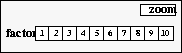
factor Click one of the number buttons to select the factor for zooming. The outline tool is displayed at the largest possible size for the specified zoom factor. You can adjust its size, shape, and position, but you cannot make it larger.
zoom Zooms in on the area specified by the outline tool. You can click again to zoom in more.
VizPaint2D names images zoom_1, zoom_2, and so on. A zoomed image is displayed the same as any other canvas, but it has apply and cancel buttons in the upper-right corner of the window.
After using the brush or other paint tools to retouch the zoomed area, click apply to reintegrate it into the original canvas with your changes. Click cancel to reintegrate it into the canvas with no changes.


 ,
,  µ
µ
 _
_