


Your finished picture should look something like the one in figure 92.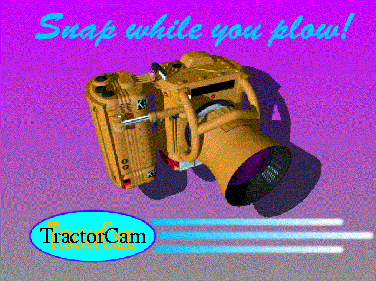
Figure 92 Finished tutorial picture
Before exiting VizPaint2D, you need to save your finished picture or all your work will be lost.
A list of available canvases and their corresponding swatches are displayed. Since the tutorial canvas is the current canvas, a swatch is not shown.
The swatch of your finished picture is displayed.
The save tool shows a swatch of your finished picture.
VizPaint2D saves your file in the default format specified in the .imfrc file. For more information, see Image Configuration File on page 474
The prompt "Exit VizPaint2D?" is displayed. If you have any modified, unsaved files, VizPaint2D will prompt you to save them.
You are now ready to start creating your own pictures in VizPaint2D. You have learned how to use many VizPaint2D tools. Also, you are familiar enough with how VizPaint2D works to experiment with the tools that you haven't used.
If you need additional help, refer to the individual tool descriptions in "Using VizPaint2D" on page 376.