


Adding a logo
Adding logos, labels, and captions to VizPaint2D pictures is a two-step process. First you create the logo, label, or caption using the text tools. Then you draw them on the canvas using the paste tool.
To create text for a logo:
- Select text(TM)create.
The text tool is displayed.
- Type TractorCam in the large text cell.
- In the list of fonts, click Times_Norm.
(For a listing of what each VizPaint2D font looks like, see Fonts on page 473)
- In the size text box, enter 28.
The text tool should look like figure 86. 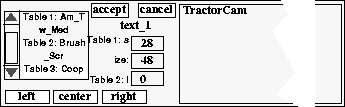
Figure 86 Using the text tool
- Click accept.
VizPaint2D creates the text and puts it in a canvas called text_1.
To design the logo:
- Click the pick button in the palette tool.
The pointer turns into the pick pointer. 
Figure 87 Pick pointer
- Click anywhere in the yellow area of the camera.
The color swatch in the palette tool updates to show the color you picked. You will use this color when you paste down the text.
- Select picture(TM)create.
The create tool is displayed.
- In the name text box, enter temp_2.
- Click ok.
A blank canvas named temp_2 appears on the VizPaint2D screen.
- Select paste-up(TM)paste.
A list shows the canvases available to paste.
- In the list, click text_1 to select it.
The text version of the paste tool is displayed. An outline tool with your text appears in the lower-left corner of the canvas.
- Using the outline tool handles, drag the text to the center of the canvas.
- Use the fine adjustment tool to adjust the size as follows:
- in the y scale text box, enter 1.4
Click the paste color selector in the small tool to the right of the paste tool.
This color selector determines the color for the text fill. It updates to match the yellow you picked earlier.
Click paste.
VizPaint2D draws your text in yellow.
To create a logo background:
- Select paint(TM)shapes.
The shapes tool is displayed. You will use the shapes tool to complete your logo design.
- In the shapes tool:
Click and drag the pointer creating an ellipse. Click to finish the ellipse.
Using the outline tool, size and position the ellipse to fit just around the text.
Click on the shapes fill color selector to activate it. Select a color from the palette tool for the fill.
If the shapes fill tool is not displayed, click the fill modify button.
Click the outline modify button.
The shapes outline tool is displayed.
Click the shapes outline color selector to activate it. Select a color for the outline from the palette tool.
Select mode(TM)under. Click draw.
VizPaint2D draws the ellipse under the text. See figure 88 for an example of how the completed logo should look. 
Figure 88 Completed logo
[email protected]
Copyright © 1998, Alias|Wavefront, a division of Silicon Graphics Limited. All rights
reserved.