Bookshelf Contents Previous Next Glossary Index Search

Creating a custom palette

To give you more color choices, VizPaint2D lets you customize the block palette tool. One way to do this is by creating a gradient palette. You will use this palette in the next section.

To create a gradient palette:

  1. Click a color in the block palette tool to choose the first color for your gradient palette.

    You will be using the colors from the gradient palette when you add decorative lines to the logo.

  2. Click put at the top of the block palette tool.

    As long as this button is highlighted, the color you choose is placed in any block you click on.
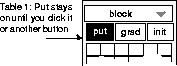
    Figure 89 Putting a color in a block

  3. Click on the first block of the far left column.

    The block changes to the color you picked earlier.

  4. With the mouse button released, click pick in the block palette tool. Click on another block to choose the second color for your gradient palette.

    To get a wide range of colors in your gradient palette, pick a color at the opposite end of the color spectrum from your first color.

  5. Click put again and put the second color in the bottom block of the far-left column.

    Now you have the start and end colors for your gradient palette.

  6. Click grad at the top of the block palette tool. Click on the start color (the top block in the left column). Then click on the end color (the bottom block in the left column).

    The original colors in the left column are changed to a blended palette of the two colors you chose.


Bookshelf Contents Previous Next Glossary Index Search

[email protected]
Copyright © 1998, Alias|Wavefront, a division of Silicon Graphics Limited. All rights reserved.