|
The OMFI filter converts any format image file to an OMFI (AVID Open Media Framework Interchange) format file, or vice versa.
To use the OMFI filter:
-
1
-
Select Render > Filter > OMFI. The File Requestor appears and prompts you to enter the source file name.
-
2
-
Type the name of the source file in the File Requestor, or click Show List and select the source file using the File Lister, and then click OMFI input pix file.
-
The source file is converted to OMFI format and the
extension .omf appended to the file name. (You can
change the extension by setting File Extension in the OMFI
Options window.)
To open the OMFI Options window:
- Select Render > Filter > OMFI
 . .
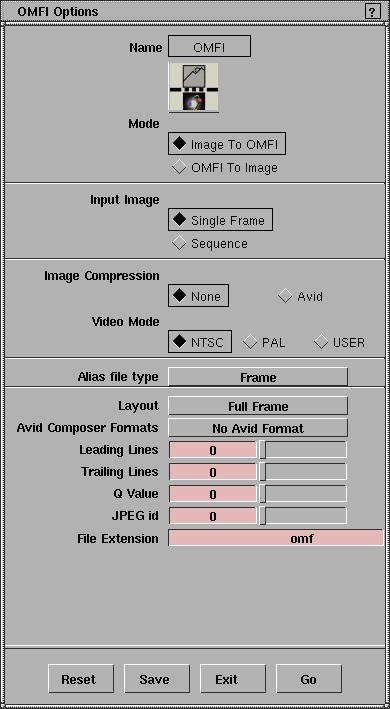
OMFI Options
Mode
-
- The direction of the conversion. The default setting is Image to OMFI.
| Image to OMFI
| converts any format image file to an OMFI format file
|
| OMFI to Image
| converts an OMFI format file to any format image file
|
Input Image
-
- Determines whether a single frame is converted (Single Frame), or an entire animation is converted (Sequence). If Input Image is Sequence, then From Frame, To Frame, and By Frame parameters become available. The default setting is Single Frame.
Image Compression
-
- Specifies whether the output OMFI file will contain JPEG compressed images (Avid) or not (None). Compression uses the JPEG compression tables specified in the ISO JPEG standard. This significantly reduces the size of the OMFI file, but can also result in significant loss of detail. The default setting is None.
Video Mode
-
- Resets the edit rate that is set in the OMFI file to NTSC (29.27), PAL (25), or user defined value (USER). If Video Mode is USER, the User Edit Rate parameter becomes available. The default value is NTSC.
User Edit Rate

-
- Resets the edit rate that is set in the OMFI file to a user-defined value. The slider range is 1 to 100. The default value is 29.97.
|
|
|
Alias file type
-
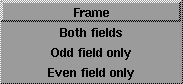
- The type of Alias pix file used to create the OMFI file: Frame, Both fields, Odd field only, or Even field only (see Fields on page 412). The default setting is Frame.
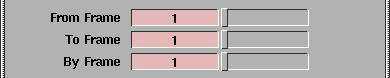
From Frame, To Frame, By Frame
-
- The first frame (From Frame), last frame (To Frame), and frame increment (By Frame) of the animation to be converted. The frame number is appended to each file name. These parameters are only available if Input Image is Sequence. For example, if the From Frame value is 1, the To Frame value is 20, the By Frame value is 1, and the output file name is pixfile, then the actual output file names will be pixfile.1, pixfile.2, ..., pixfile.20. The slider range is 0 to 100 for From Frame, and 1 to 100 for To Frame and By Frame. The default value is 1.
|
Tip:
|
The By value is usually 1, unless you want to convert a
sample of the animation.
|
|