|
Convert Filter
|
|
|
|
|
The Convert filter converts any format image file into any other image file format.
To use the Convert filter:
-
1
-
Select Render > Filter > Convert. The File Requestor appears and prompts you to enter the source file name.
-
2
-
Type the name of the source file in the File Requestor, or click Show List and select the source file using the File Lister, and then click Input Convert.
-
The File Requestor appears again and prompts you to enter
the destination file name.
-
3
-
Type the name of the destination file in the File Requestor, or click Show List and select the destination file using the File Lister, and then click Output Convert.
-
The source file is converted.
To open the Convert Options window:
- Select Render > Filter > Convert
 . .
Convert Options
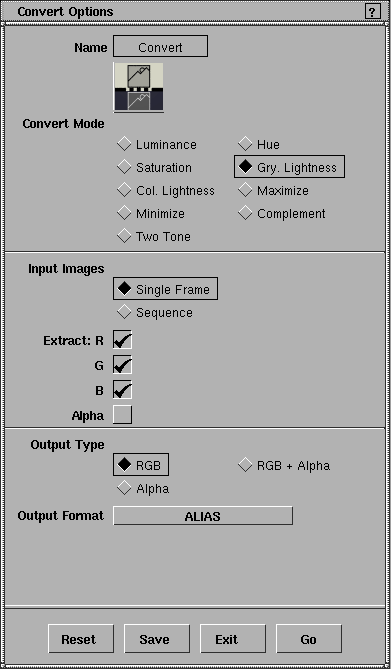
Convert Mode
-
- The type of alteration made to the image during conversion. The default setting is Gry. Lightness.
| Luminance
| Converts each pixel to grey scale value based on its RGB value (grey = 0.3 R + 0.59 G + 0.11 B).
|
| Saturation
| Converts each pixel to a grey scale value based on its color saturation.
|
| Col. Lightness
| If Output Format is Alpha, outputs the maximum value of each pixel's RGB color channels (unlike Gry. Lightness which outputs each pixel's maximum RGB color channel).
If Output Format is RGB or RGB + Alpha, the input image is unchanged. This is a convenient way to convert between image file formats without changing the image.
|
| Minimize
| Converts all pixels to black.
|
| Two Tone
| Converts all black pixels to black, and all non-black pixels to white.
|
| Hue
| Converts each pixel's color saturation to 1; each pixel's hue and value are unchanged.
|
| Gry. Lightness
| Converts each pixel to a grey scale value based on its maximum RGB color channel.
|
| Maximize
| Converts all pixels to white.
|
| Complement
| Converts each pixel's RGB values to (255 - R, 255 - G, 255 - B). If the source file is black and white, Complement produces a negative/positive switch.
|
|
|
The input images must be
either 24 or 32 bit deep
images. You cannot input 8
bit Alias matte files.
|
Input Images
-
- Determines whether a single frame is converted (Single Frame), or an entire animation is converted (Sequence). If Input Images is Sequence, then the From Frame, To Frame, and By Frame parameters become available. The default setting is Single Frame.
Extract
-
- Specifies which channels of the input image file to convert: R, G, B, and/or Alpha. The default setting is R, G, and B.
Output Type
-
- Specifies the bit-depth of the output image file: RGB (24 bit), Alpha (8 bit), RGB + Alpha (32 bit). The default setting is RGB.
-
- Certain file formats are implicitly 32 bits deep (for example, RLA or TIFF files). In these cases, if you set Output Type to RGB or Alpha (that is, less than 32 bits), the non-specified channel will be given a zero value.
|
|
|
Output Format
-
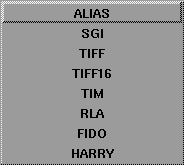
- The format of the output (that is, converted) image file (see Format on page 411). The default setting is Alias.
From Frame, To Frame, By Frame
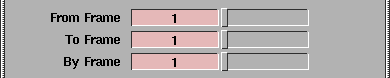
-
- The first frame (From Frame), last frame (To Frame), and frame increment (By Frame) of the animation to be converted. The frame number is appended to each file name. These parameters are only available if Input Images is Sequence. For example, if the From Frame value is 1, the To Frame value is 20, the By Frame value is 1, and the output file name is pixfile, then the actual output file names will be pixfile.1, pixfile.2, ..., pixfile.20. The slider range is 0 to 100 for From Frame, and 1 to 100 for To Frame and By Frame. The default value is 1.
|
Tip:
|
The By value is usually 1, unless you want to convert a
sample of the animation.
|
|


