|
Pick > Components 
|
Picking Components |
|
| |
PurposeTo pick individual components from a group of objects without disturbing the entire group. How to Use
Pick Component Options
Select Component
-
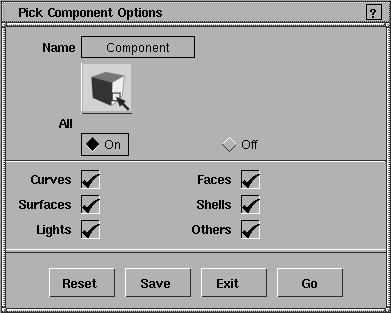
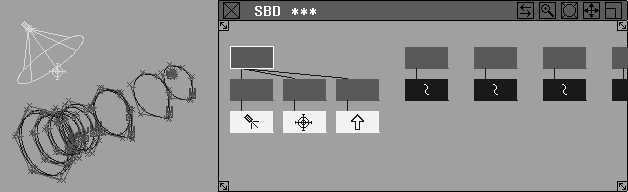
By default, all of the listed object options are toggled ON (indicated by a check mark). If All is toggled OFF, everything is removed from the component pick list. The Others option includes the camera and solid textures. Using Toggle OptionsYou can selectively toggle any object option OFF to exclude them from the component pick list which makes them no longer pickable when you use Pick > Component. This can be helpful if you have a complicated scene and do not want to accidentally pick the wrong component. For example, if you toggle all components off except Lights in the option box, only the lights are pickable. This means that even if you drag a pick box around the whole model, only the lights are picked, as in the following diagram. | |
| |
Pick Component Mask | |
|
|
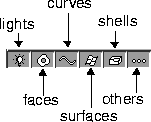
The pick mask in the Alias menu area provides additional buttons which appear when Alias is in Pick Component mode. These buttons let you manipulate the mask and define what kind of components can be picked. This feature provides the same functionality as the option box. The buttons reflect which instances of Pick Component are in force (that is, the shelf item or marking menu entry). Notes on Pick > Component
|
| Copyright © 1998, Alias|Wavefront, a division of Silicon Graphics Limited. All rights reserved. | Please send questions or comments regarding the documentation to: [email protected] |
 to display the Pick Component Options box.