|
Displays QuickShaded views of objects in all windows or the current window.
|
Tip:
|
For a faster alternative that allows you to work on your
model interactively while in shaded mode, try the
evaluation tools available from the Control Panel (see
NURBS Modeling in Alias). If you don't have access to the
Control Panel, see also Diagnostic Shading on page 289.
|
>
|
Note:
|
Only some hardware platforms support double-sided
shading (for example, VGX, VGXT, and Reality Engines).
|
How to Use
-
1
-
Choose DisplayTgls > Shade to toggle between shaded and wireframe views.
-
To set various QuickShading options, choose DisplayTgls >
Shade-
 to use the Toggle Shade Options window. to use the Toggle Shade Options window.
When to Use QuickShader
QuickShader works best with relatively uncomplicated scenes. Objects can be rotated, scaled, and/or translated in near real time.
The process of updating the window slows down when geometry is change. This delay happens whenever you perform one of the following operations:
- reduce or increase multiplicity
- attach an open surface or detach a closed surface
- change the rendering subdivisions
- play back an animation with metamorphosis
- proportionally modify a surface
Hints and Tips
- This tool is useful for placing lights, cameras, and objects in relatively uncomplicated scenes.
- If this tool results in window updates that are too slow, you may want to use the Active geometry option to only shade the geometry that interests you.
- If a surface appears very dark or black, the surface normals may be reversed. To change the direction of the surface normals, use Object Edit > Reverse direction.
Toggle Shade Options
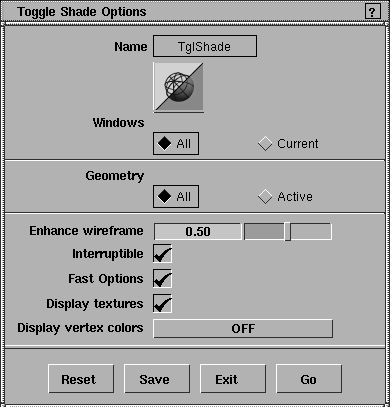
Windows
-
- All-Shade all geometry in all modeling windows.
-
- Current-Shade geometry in the current modeling window.
Geometry
-
- All-Shade all geometry.
-
- Active-Shade only the picked (active) geometry using the picked lights. If no lights are active, all lights are used; otherwise only the active lights are used in the shading.
Enhance wireframe
-
- Enhances the quality of your wireframe display so that wire lines appear in front of the shaded surface.
Interruptible
-
- On-camera moves such as tumbling, panning, and dollying use wireframe view. When you release the mouse, the view is reshaded.
-
- Off-camera moves such as tumbling, panning, and dollying use shading. This option is not recommended for slow machines.
Fast Options
-
- Ignore textures and lights (use a simulated light attached to the camera), and use low subdivision for surfaces.
- To select the amount of subdivision for Fast Options
, select a LOW Global Quality Level from the Global Quality Level menu in the Render Globals
window (Render > Globals).
- Trim surfaces use the adaptive subdivision settings; all other surfaces use the uniform subdivision settings.
- Faces use the U-division value of uniform subdivisions.
- To view your object in shaded mode with the textures and lighting in your scene, click to turn Shade
off, toggle Fast Options OFF,
and click to restart Shade.
Display textures
-
- Displays texture shaders on shaded objects.
Display vertex colors
-
- Use the pre-lighting information on polygon vertices to color polygons.
|


