
IN COLOR SEPARATION | FULL IMAGE COLOR SEPARATION | By: Rodelio D. Balagot
| ARCHIVE DIRECTORY | STEP 1 - CONVERTING IMAGE | STEP 2 - COLOR SEPARATION | STEP 3 - PRINTING REFERENCES |
 |
||
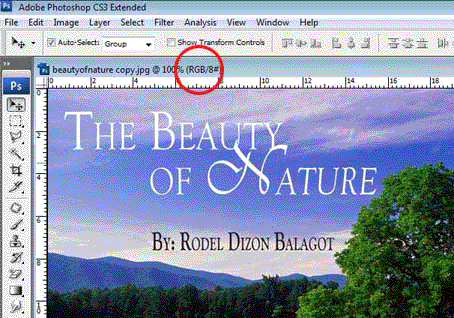
Figure 1 - A Four Color Image |
 |
||
Figure 2 - RGB Color Format Image |
 |
||
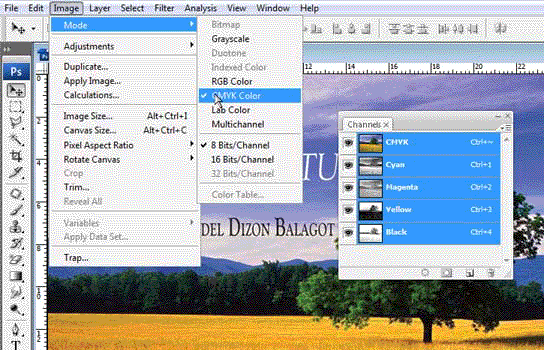
Figure 3 - Converted to CMYK Color Format |
 |
||
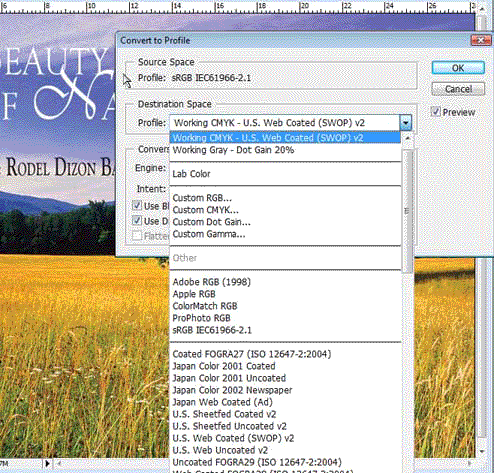
Figure 4 - Color Profle - Working CMYK - US Web Coated (SWOP) v2 |
|
Photoshop Color Separation - Step 1 |
||||||
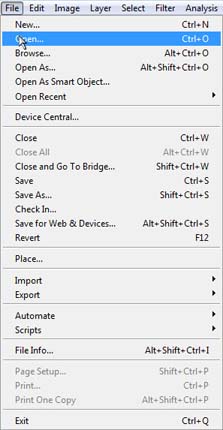
Converting Image First: Copy the Image " The Beauty Of Nature " file onto your computer. Right click your mouse and "Save As" to desktop or any folder you prefer. Launch Adobe photoshop application. Then, Open the file/ picture [take note file is still in RGB color format] How: File > Open [Shortcut: Ctr+O] search from the place you saved
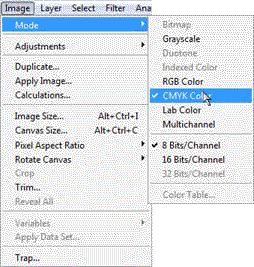
Task 1: Changing the Colour Scale How: Image > Mode > CMYK Colour [Shortcut: Alt + I > M > C] Hold the Alt tab and then press I then M it will convert to CMYK.
Task 2: Converting the Color Profile How : Convert to profile : Go to Edit > Convert to Profile > Select Working CMYK - US Web Coated (SWOP) v2 [ Shortcut: Alt+E > V ] Actions: Precise, consistent color management requires accurate ICC-compliant profiles of all of your color devices. This is one solution a system that interprets and translates color accurately between devices. A color management system (CMS) compares the color space in which a color was created to the color space in which the same color will be output, and makes the necessary adjustments to represent the color as consistently as possible among different devices. Open the Channels Window so you can see each of the CMYK layers in grayscale preview you can print the channels individually. How: Window > Channels [Shortcut: Alt+W > C > Enter]
|
® Design & Developed by: Rodelio Dizon Balagot