Home Page Image  
 
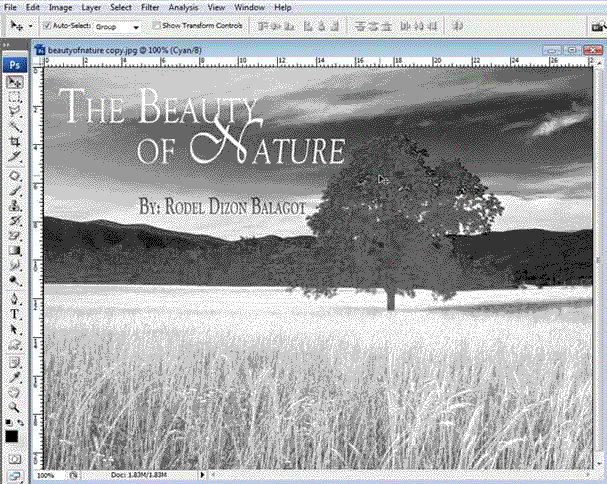
CYAN CHANNEL
 
     
  Home Page Image  
 
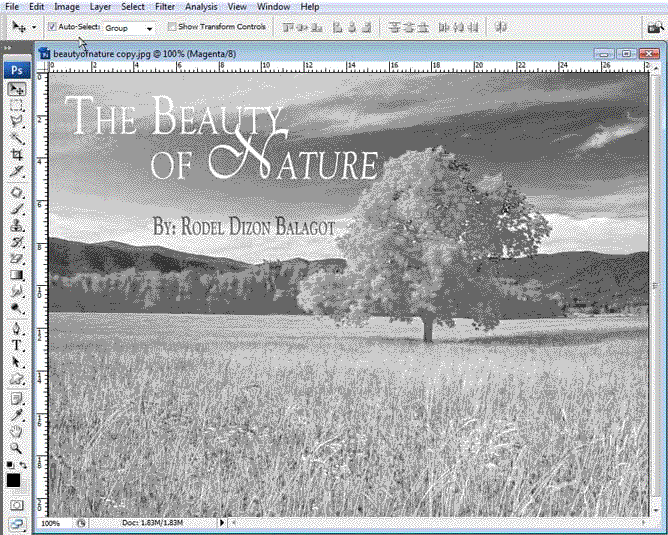
MAGENTA CHANNEL
 
c
     
  Home Page Image  
 
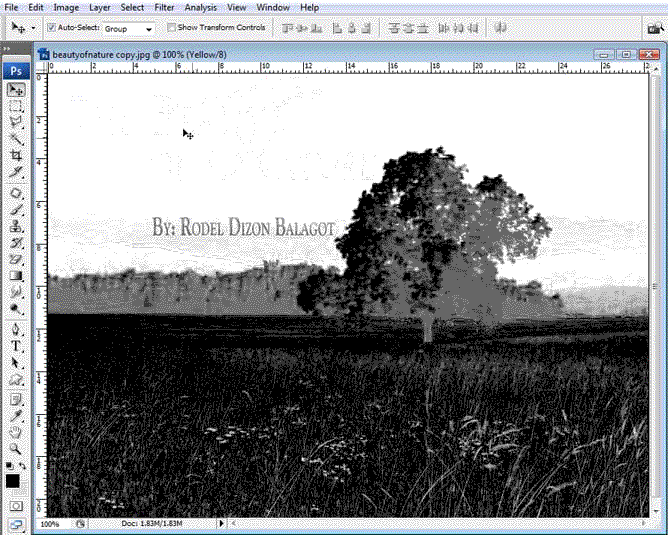
YELLOW CHANNEL
 
     
  Home Page Image  
 
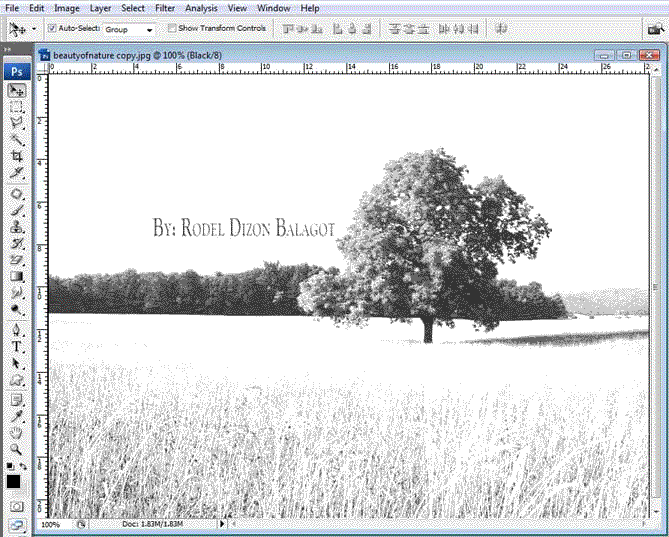
BLACK CHANNEL
 
     
  printwmarks  
 
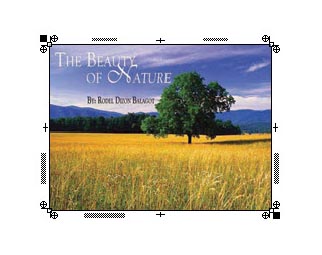
Figure 5 - IMAGE RESULT WITH COMPLETE DETAIL READY FOR PRINT OUTPUT


Next Info >

Return Info <


ARCHIVE DIRECTORY


Photoshop Color Separation - Step 2

Color Separation

Color Separation is the process of converting an image, such as full color photograph into four separate components, corresponding to the four primary colors used in process color printing—cyan, magenta, yellow, and black,


Task 3: INDIVIDUAL COLOR SEPARATION - PRINTING PER CHANNEL

You have now changed your picture from RGB to CMYK colour settings ready for Individual Channel printing.
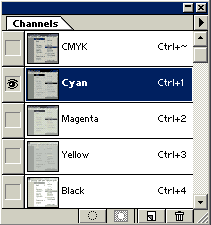
http://www.nehoc.com.au/training/is/28/Channels.gifSelecting Channels
Channels are the different color separations - also called layers.
In the Channel Window, click the mouse onto the Cyan channel – watch as the picture changes from colour to black & white.
The same changes happens for the Magenta, Yellow & Black layers as well.
To print a color [also called channel or layer], simply click on the channel colour with the mouse, then with the channel highlighted proceed to print as outlined below. It will only print as single plate/channel whichever color was highlighted.


Task 4: COLOR SEPARATION Printing using Laser Printer or Deskjet printer
It's important to understand all printers provide different printing options – the more advanced your printer the more options may be made available. If you have more memory and functions available you can modify more characteristics of the printing. Example - the ‘Printer Colour Management’ box at the bottom of the ‘Print’ box may be greyed out with older model printers.
Print Options

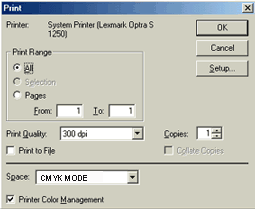
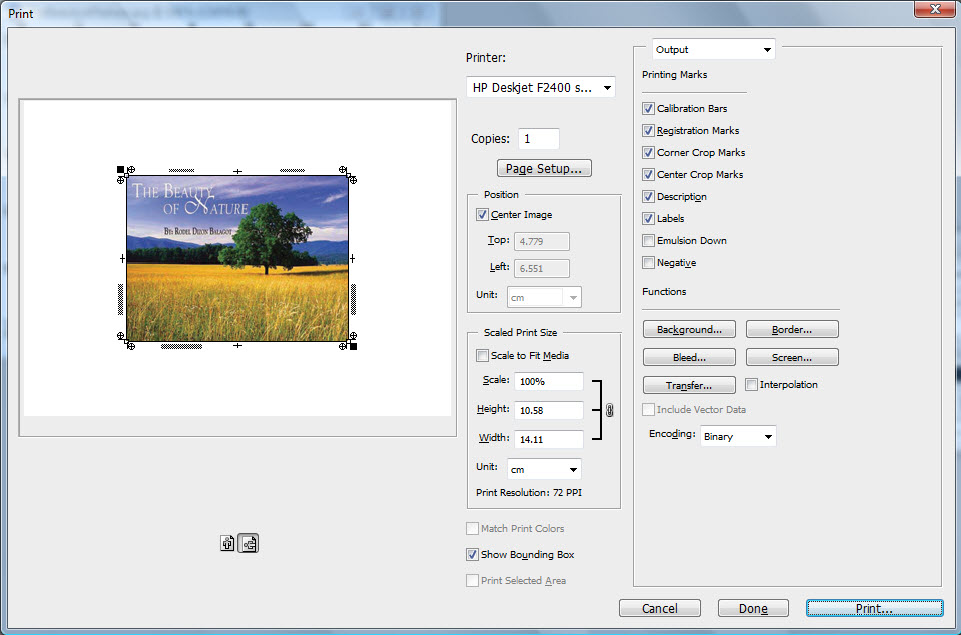
1/ Open the Print options box [pictured right]
HowFile > Print [Shortcut: Ctr+P]
Action: Print dialogue box will open on the screen

When the Print box is opened, basic printers will have options ‘greyed out’ and made unavailable. Basically your computer can’t tell your printer how to use the functions and therefore doesn’t make them available [they are set to default values that your printer can understand]. Options you should have available, regardless of printer model, include:
- Change the Print Range if required [normally you don’t need to touch this]
- Change the Print Quality to the highest setting available [600 dpi is the most you should need] for ink,but some quality print is up to4000 dpi same as the color separation on the film.
- Select number of Copies if required (from 1 to 1 means 1 copy only)

2/ Click the Setup button on the right [under the OK and Cancel button]
How: Click Setup button with mouse [Shortcut: Alt+S]
ActionPage Setup dialogue box will open on the screen over Print box
With a basic printer the options at the bottom of the Page Setup box will be ‘greyed out’ and you don’t have much ability to manipulate your picture – you’ll just have to stick to Photoshop’s default values for CMYK separations.

3/ Close the Printer Properties box and Page Setup boxes to return to Print box.
How: Press OK button if you have made changes [Cancel if no changes].
With all your options selected/ changes made you can proceed to Print by clicking OK.


1/ With a channel selected [Cyan for example] open the Print options
HowFile > Print [Shortcut: Ctr+P]
Action: Print dialogue box will open on the screen
NB: Printer Colour Management should only be used if you KNOW your printer’s software drivers have CMYK support. If you are unsure simply let the program [Photoshop] do the work.
Page Setup Options

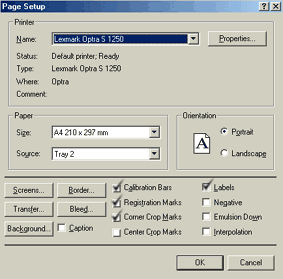
2/ Open the Page Setup box [pictured right] by clicking the Setup button from the Print box
HOW: Click Setup button [Shortcut: Alt+S]
ActionPage Setup box will appear
Now you can manually adjust some of the setting, as you can add registration and crop marks to your print or select from the other available buttons!
What the buttons do [remember you can press F1 for help]: Based on the page setup box [pictured right]

As for the basic color separation marks (see figure 5) click the calibration bars, registration marks, corner crop marks and labels.


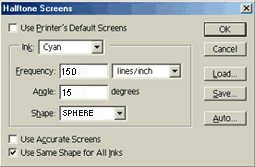
Screens Options


PRINT

This is how it will look, when the settings are all done.

Task 5: COLOR SEPARATION Printing using Imagesetters or CTP spoolers

raster image processor (RIP) is a component used in a printing system which produces a raster image also known as a bitmap. The bitmap is then sent to a printing device for output. The input may be a page description in a high-level page description language such as PostScriptPortable Document FormatXPS or another bitmap of higher or lower resolution than the output device. In the latter case, the RIP applies either smoothing or interpolation algorithms to the input bitmap to generate the output bitmap.
Raster image processing is the process and the means of turning vector digital information such as a PostScript file into a high-resolution raster image.

Generally, the Printing and Page setup are almost all the same if we will spool or print it it in the imagesetter machine.

 
 ® Design & Developed by: Rodelio Dizon Balagot