| |
|
Chapter I Chapter II Chapter III Extra |
Beginners Guide part II As you have probably noticed, there is a small software suite that comes with your device. You will want to look through that for programs that interest you. When you can’t find something there that you desire, look to Google (or other search engines) Simply type “Pocket PC” software and a brief description of what you want. For example “Pocket PC” software calculator freeware Many programs you find will be for purchase but some people make software and share it with others. Most of these programs are created as either practice, or a sincere effort to put forth quality programs for people at no cost because they are great people. Many of these people only test on their own PDA. This means if you have a different system than theirs, then it may not work. I have also included a list of free software that I believe is really worth looking at as well as a brief description of what each one does. This list is available at www.pdastreet.com in the forum section, under pocket pc, software and programs. It is called “Best freeware youve ever found.” This is the list as of February 22nd 2004. __________________________________________________________________ Contributed
______________________________________________________________ This is a large section. I am going to attempt a systematic breakdown of any and all program of the pocket pc. There is a lot and this will take a lot of time. Activesync This is a way to troubleshoot your PDA sync errors. It gives a more in depth view into the actions taking place. It also lets you configure your settings on the pocket pc side. You can let it figure out the things all by itself, or it can manually configured. There are options to sync to a server. I have never tried this and I do not believe this falls under the category of beginners. Avantgo This is a great free service. Go to www.avantgo.com and sign up. Then go to Activesync on your computer, click tools, option and check the box next to the word avantgo. Double click the category Avantgo. Click the server info in the pop up, this will bring up another box. In the middle there is a place to add your username. At www.avantgo.com, add content with their confusing and complicated menus. It will take quite a while to get used to them but it is worth it. There is always a list of the most popular channels as well. Calendar
The arrow in the top-left that points to a square is a button that lets you switch to the current day. The next arrow les you go back a day, week, month or year depending on your current view and the other lets you move forward. Go to tools > options. There you can customize your calendar to your preferences. There is this little quirk about the calendar that takes a little practice to get used to. If you click on a blank space to highlight a time and then tap and hold on a time below it to add an appointment, it will create an appointment from the highlighted time until the time that was taped on. Contacts Check this out. Press the contacts button. Then do it again. Notice how things change? The contacts are divided and can be organized into multiple categories. Pressing the contact button when your device already has that open tells the program to switch to the next category. Go to tools > options. There you will notice some great options like show ABC tabs, which is great for quickly moving through a large contacts list. Show names only options is good for those who want to see the entire name. The large font is great for those who can’t see very well or want to be able to more quickly find the contacts. You can change the categories that are available for selection by clicking the arrow at the top left corner and select “more”. There you can add categories. Notice how when you add a phone number to a contact it automatically adds the area code? If you don’t like the area code it auto generates then you can change it. Simply add your own area code to the Area code box. The
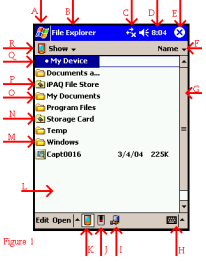
region/country setting dictates the format in which the addresses are viewed. File explorer This is a not so powerful file explorer. It can’t do as much as it should but it works. Resco File explorer is much better but it isn’t free, unless you are really lucky and it is included in your companion CD. This is what your screen should look like the first time you open File explorer. I will go through all of the letters here.
A. This is the start button. It lets you open a new program or search. B. This is the current program running. In this case, file explorer. C. This shows whether or not the device is connected via Activesync or wirelessly. D. This is the time. In between C and D there is a picture of a speaker. This lets you change the volume of your device. E. This button minimizes your current application. F. In File Explorer it lets you organize your files by name, date it was created, size or type. Be reselecting the current organization it becomes backwards (A-Z becomes Z-A) G. This is the scroll bar, just like windows. H. This lets you select the input method. You can add more from various third party software programs but the main defaults ones are block recognizer, keyboard, letter recognizer or transcriber. Tap the arrow to select the type. Click the thing next to it to open it. I. This lets you open a folder if you know the address of the file. J. This brings you to the last folder accessed in a memory card. Taping it again will bring you to the main directory of the memory card that was viewed last. K. This brings you back to the last place you were in the RAM such as windows or my documents. L. Taping and holding on a blank part of the screen brings up commands associated with the current program. M. The Windows folder has all the operating system files. I would not suggest deleting any files in there that aren’t talked about or that you didn’t put in there. Most files that are need for your Pocket PC are protected and the pocket pc won't let you delete. N. This lets you access memory cards that are installed on you pocket pc. These may include but are not limited to SD, CF and microdrives. O. This stores most of your documents and is a good place to put some small documents. Although any files that you don’t open very often or are important should be kept on a memory card. P. This is the remains of the memory card that was used to store the operating system. It ranges from 2 MB to 16 MB. You can put anything on here. Ipaq pocket pc’s use this in their PIM (contacts appointments and what not) data backup system. This is a very useful feature that separates the ipaqs from the rest of the Pocket PCs. Q. This is the dropdown hierarchal menu that lets you back up several folders at once. R. This opens item Q. and shows the folder name in which you are currently in. This area needs work. Sorry but these programs are unavailable until I get my Pocket PC back. Internet
Explorer The Internet Explorer on your computer is much more powerful than this little scaled down version. However this is enough for most people. If it is not there are some great alternatives. Like thunder Hawk: http://www.bitstream.com/wireless/
Pocket Internet Explorer (sometimes called PIE for short) is on every pocket pc. Its main function (for most) is as an offline browser in conjunction with Avantgo.
In PIE there are only two menus, View and Tools. In View there are a couple options that may help you navigate through your pages easier. Text size is a great option. If you are browsing a site with larger text than you need or it is too small to read you can adjust that here. There is also an option to stop pictures from being downloaded. If you uncheck the option labeled “Show pictures” you can increase the speed of downloads and save you money if you use your pocket pc with a web enabled phone and pay per MB.
The favorites should be familiar (little gold star) and the rest you can figure out. Tools> Options…> Here you can delete old internet files and cookies.
iTask Has
been covered in chapter one. Notes Pocket
Excel Pocket
Word Ipaq
backup Microsoft
Reader Microsoft Reader is a free full
function electronic book library similar to Palm Reader™, Peanut Press™, Rocket
Reader™ or Mobipocket™ that allows you to download complete e-book copies of
full-length books that may be read on your IPAQ. To use Microsoft Reader select the
Start Button, the Microsoft reader icon will appear in the dropdown window. Tap
on the icon to open the program, which will take you to a title screen while
the program loads and searches for your e-books. Then to a screen with all of
your e-books listed. There can be multiple pages so you may have to scroll.
Click sort to change how the books are ordered. Shop gives you a little
paragraph about buying e-books and a link. Help gives you the E-book called
Microsoft reader help. Settings lets you customize your reader experience. In
page one, the font size can be changed by adjusting the slider. On page two you
can choose to use Bookmarks, Highlights, text note and drawings. Page three lets
you view information about your copy of Microsoft reader and lets you know if
it is registered or not. While reading a book there are many
options available. If you have a dictionary installed on your pocket pc (highly
recommended) you can look up a word if you are unsure of its meaning by taping
it and selecting lookup. It takes about three seconds and it gives you a
definition. If this definition isn’t right click the little i at the top
left. You can also add bookmarks by
taping anywhere. If you want to quickly between chapters and sections of the
book, clicking the top left menu and selecting table of contents may help. Or
just tap and hold on the numbers at the bottom center. This brings up a little
red meter menu thing. To close it, tap the little x. If you are using a
dictionary this feature makes the dictionary not work correctly. Microsoft Reader will only read
books in the .lit format. These books are available for free and for purchase.
Microsoft is all too happy to take your money for these books. You can also
download them for free legally. Just type in the words Ebook Microsoft reader
and free into Google and you should get plenty of results. If you get stuck
check this place out. It has a list of different websites that have free books.
http://www.pocketpcmag.com/_top/bestsites.asp
Just scroll to the middle of the page.
A small sample collection of complete books for Microsoft Reader may be
found on the CD ROM that came with your IPAQ. Most complete e-books range from
200-500 KB in size though some like “Robinson Crusoe” are larger. E-books may
be saved to a storage card or main memory. The only limitation to the size of
your library is the amount of storage you are willing to devote to it. Some
purchased books may only be stored in main memory to discourage pirating. E-books can be stored anywhere, but
putting them all in one folder is very helpful. I suggest in a folder labeled
“My books” in either “My Documents” or on a memory card. When you open a book
Microsoft Reader will create an “annotations” file for it (EBO) which allows
you to pick up where you left off, keeps notes, drawings and bookmarks for each
book you read-Delete old ones if you want. In order to add a book to your
library simply download the book to your PC (I usually download directly to the
desktop to save steps), open your ActiveSync folder on the desktop of your PC,
drag and drop the book into the “my library” folder that now appears there.
Synchronize the IPAQ and the book will be transferred to the device. You may
also use the explore window in ActiveSync once the IPAQ is connected and drop
the e-book into the “my library” folder in main memory or one you have created
in a “my documents” folder on a storage card. Free books may also be shared by
IPAQ users using file transfer via infrared (IR) port, Bluetooth or swapping storage
cards and copying the book from one device into the other. In order to purchase a book, such
as a best seller, the Microsoft Reader must be “activated” (registered). This
allows the seller to ensure that the book may be copy protected and cannot be
pirated. In the activation process the PPC is assigned a random code number
based on the IPAQ processor chip identifier that allows the book to be mated
with the PPC. There is no identifying information of the user involved –
although the process of activation does include the Microsoft Passport process.
Books may be purchased from www.amazon.com,
and links off of the www.pocketpc.com
website. Free books do not require
activation and may be obtained from several sources. These books are considered
to be common domain and no longer have an active copyright. My favorite sites
for free e-books are www.blackmask.com,
www.dotlit.com, and the University of
Virginia Charlottesville e-text website. There is a desktop version of the
Microsoft Reader that is available for free download from the Microsoft Reader
website. Free plug-ins include a Word feature that allows you to author your
own e-books or copy other e-text works into an e-book format. A free audio reader plug-in is available for the desktop
version that will read the books to you using an electronic voice synthesizer
(interesting and functional but not terribly pleasant and takes a little
getting used to). Audio books (AudibleReady™) are also available for the
newest versions of Reader (2002 and 2003) using free AudibleManager™ software
from Microsoft at www.audible.com . I have uploaded a book called Romance of the Threee Kingdoms. (more info here) The book has been pulled off this site and made into a .lit format. This massive book has been split into 6 parts to reduse opening time and storage costs. It is a great book and hope many enjoy it. Right-click these links to get sections of the book.
Pocket
Windows Media Player There are always questions about this, most
questions are asking how to move music from PC to PPC. Here is a simple
step-by-step system I have told people before. Step 1,
take a CD with the songs you like and copy them to your computer using Windows
Media Player. There are
advanced options. Select tools > option > buttons. This will let you map
buttons on your pocket pc while listening to music. The most common choice is
screen toggle. This lets you turn off the screen while letting music play.
Saves batteries and makes it easier to listen. (No accidental screen taps resulting in volume change, skip track or mute) There is
also a skin chooser. I haven’t found too many gret skins for pocket pc. http://www.microsoft.com/windows/windowsmedia/software/pocket/custom.aspx http://www.mypdacafe.com/skins/index.php?o=view&c=0&p=0&type=Media+Player Here are a few links. Just copy the folders into Program
files>Windows media player. To get to
the settings menu you must click the Start bar and select settings at the
bottom. From here you can tweak multiple things. It is just like the palm
version of settings except slightly more in depth. The settings are divided
into three main categories: Personal, System and Connection. I do not know a
lot about Connections. I think it is a little confusing and I am asking for
help on these. (thank you) Note that not all pocket pc’s are the same and I am
going off my hp5555, but they are about 90% the same. Personal Buttons This
is where you can modify button settings to better suit your needs. The first
tab is a way to reassign buttons. To do so simply tap the arrow and select the
thing you want the pocket pc to do from the list. Then press the button
(physically on your pocket pc body) This will set that button to do this task.
Note that there are things like ok/close and none at the top. These are very
useful. I personally reassigned my mailbox button to <input panel>. The second
tab has a sensitivity control. You may want to adjust this if you are having
trouble in certain games. The third
(not in 2002 OS) lets you lock all the buttons when your device is off except
the power button. By checking this you can prevent the stupid recording button
from turning the Pocket PC on and making a recording because you accidentally
pressed it. Input From
here you can adjust all the different settings that go along with your keyboard
and recording. In the first tab you can change the options that go along with
each input method. I suggest opening a pocket word document and playing with
the options. The second tab lets you adjust the
word completion. You may want to disable this if you have an attachable keyboard
because the arrows on the keyboard occasionally cause a word to be selected and
then you can no longer type. If your recordings are too large
you can adjust their size and quality here. Go to options (third tab) and
select the 2KB/s option to reduce the quality of your recordings so they don’t
take as much room. Menus The
first tab has the start menu items on them. As mentioned before you can
manually edit this with file explorer. This method is better because you can
add things not listed on here such as shortcuts to documents or entire folders. The second
tab lets you turn on the new button menu. It is a waste of screen space to
activate it. All it does is add a little arrow next to the New menu located at
the bottom of the today screen. The only decent thing about this entire part is
the fact you can switch up the new menu a little bit. Owner information You
should put your info here and select the “Show information when device is
turned on” option. This way someone can return it to you. The notes tab lets
you add a comment at the bottom. My note is
“ Who are you? -_-* “ Password You
must enter your password to change any options here. At the top there is a drop
down menu where you can select the kind of security you want and how long until
a password is asked of you. If you have a pin or fingerprint then zero minutes
is good. If you have a long password that takes a while to enter you may
consider changing this option to one minute. If you have
a HP 5500 then you have the option of having a fingerprint as your password. It
is a secure and quick way to access your information. If you are going to train
your pocket pc, get some practice and then try to do as many clean and
effective swipes as possible. Try slightly adjusting the angle that you use to
train it so that if you aren’t at a perfect angle while swiping your
fingerprint, you can still get in.
|