|
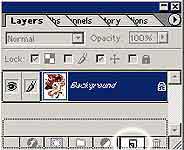
1. Make a copy of
your background
You do this because
when your image is titled Background as shown on the left,
you cannot move it, and you cannot separate the image from the
background. Do you see the padlock on the layer menu? That means you
can't change a lot of things to it, like the blending mode and
opacity.
So what you do is
drag the layer titled Background with your mouse, over to the create
new layer button, down there. It's the second most right button,
besides the dustbin.
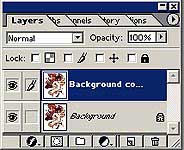
That action will make
a new layer titled Background copy (image on the left). Now you can
delete the layer titled Background, and start using the Magic
Wand tool.
2. Let the magic
begin!
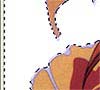
Click on the Magic
Wand tool, and then click on the part of the image that you want to
delete. Take for example, this white background in this image on the
left. You will see moving dots on your image. Then press the delete
button on your keyboard, and walla, the background disappears!
Keep doing this,
while making sure that you don't accidentally delete anything
important! If you find a part that's difficult to clean or delete,
you might have no choice but to manually erase it with your erase
tool. I know there are other ways of doing this, like using the mask
tool, but I don't know how O_o Can somebody teach me? :D
Now that you've
deleted the background, you can start work on it, and make your very
own wallpaper! Cheers, have fun!
|

 This is called the Magic Wand tool, because it looks like a wand,
and it works like magic, walla! :D This is what you do.
This is called the Magic Wand tool, because it looks like a wand,
and it works like magic, walla! :D This is what you do.