|
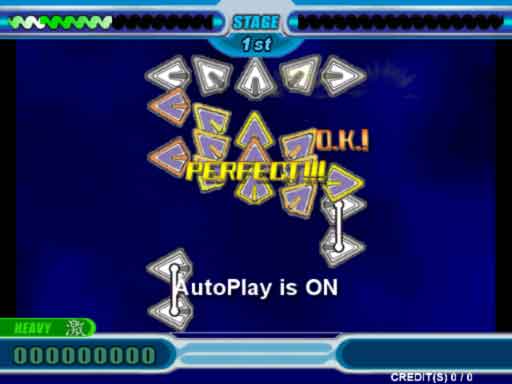
This tutorial will guide you through the creation of a complete StepMania step file. The reader is assumed to have some basic knowledge about his/her software.
These are the required materials :
- Sonic Foundry Sound Forge
- Adobe Photoshop or Jasc Paint Shop Pro(having both is preferrable)
- A copy of pngcrush(optional)
- A song(I will use Murder on the Dance Floor, 2:53)
- A text editor(vim or notepad for example)
- A calculator(Windows' calculator will do fine)
- StepMania, obviously
So, let's begin!
-
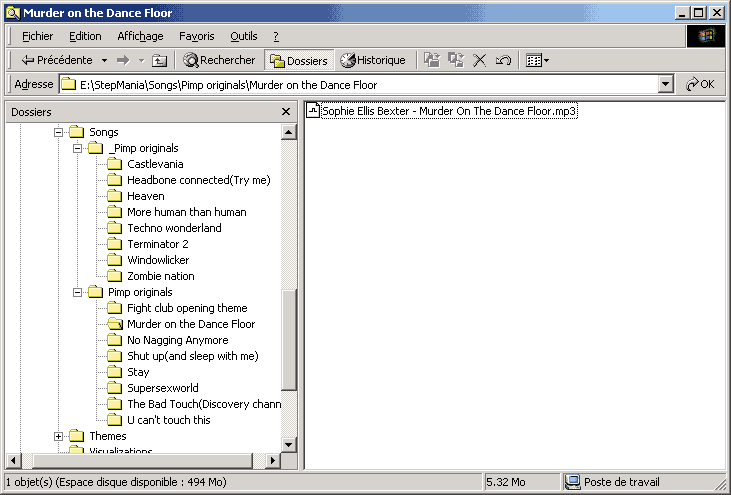
Prepare your step file by creating a directory inside the songs
folder, as shown. Then, copy your MP3/OGG/WAV inside this
directory.
-
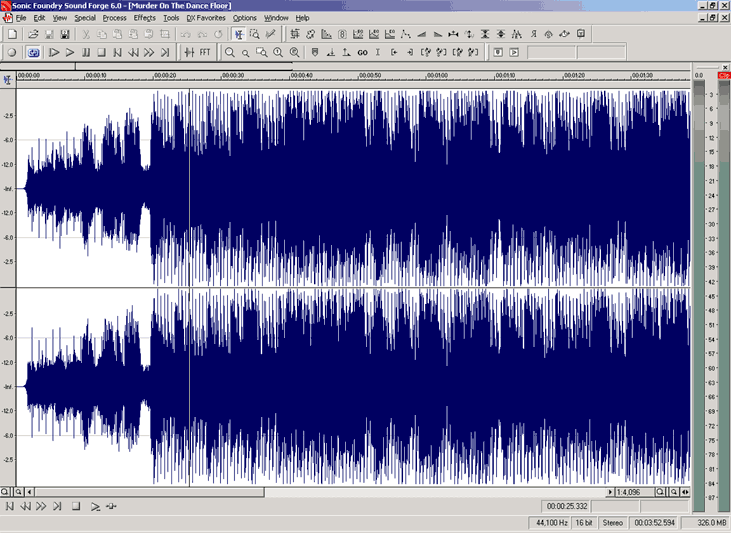
Open this file in SoundForge.
-
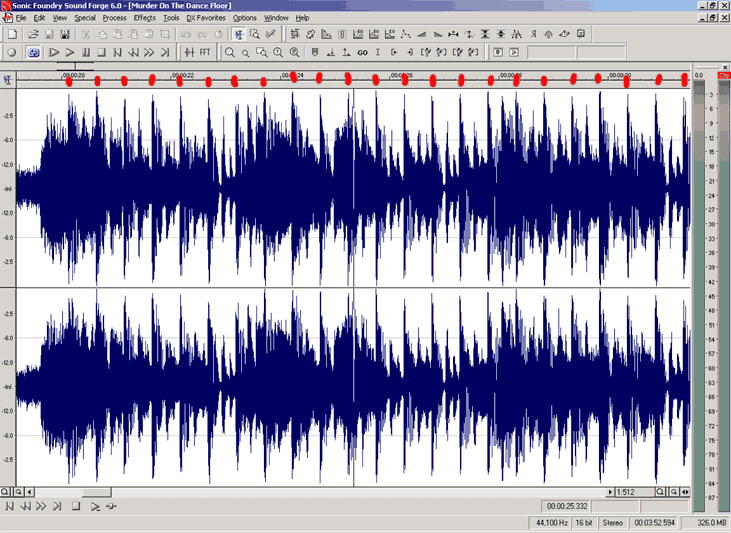
Find a section where you can see the beats easily. In this example,
I have indicated the beats with red ticks. As you can see, the beats
are the 'spikes' in the waveform.
-
Add markers before a couple of beats. Be accurate! Put the cursor at
the start of a beat, zoom in, align the cursor with the start of the
beat, add a marker, zoom out and repeat for a couple of beats.
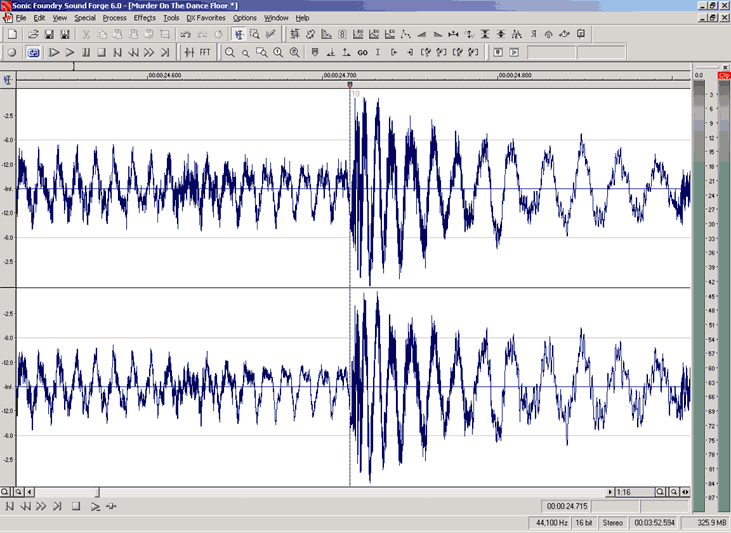
If you have a mousewheel, use it to zoom in and out, else use
up/down arrow or click on the little magnifiers. To add a marker, press
M. After adding a few markers, it should like this :
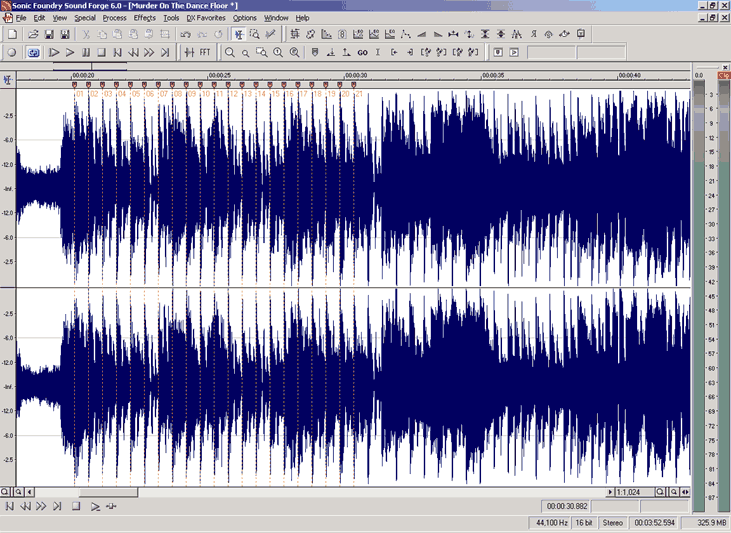
-
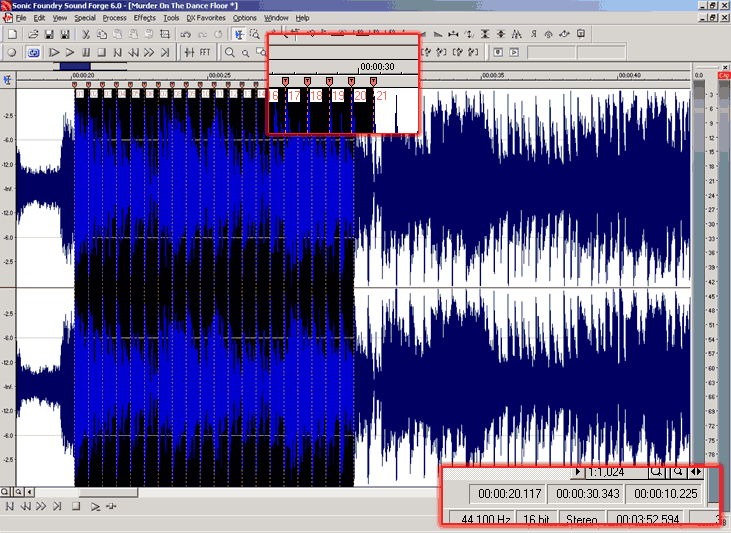
Select from the first beat to the last beat. To do that, first
double click inside the first beat. Then, hold Shift and double click
inside the last beat.
-
To calculate the BPM of the song, you need to divide the number of
beats by the number of seconds, then multiply it by 60(to make a
minute). Here is the math for this example :
20 beats / 10.225 seconds * 60 seconds per minute = 117.359 beats per minute(BPM)
-
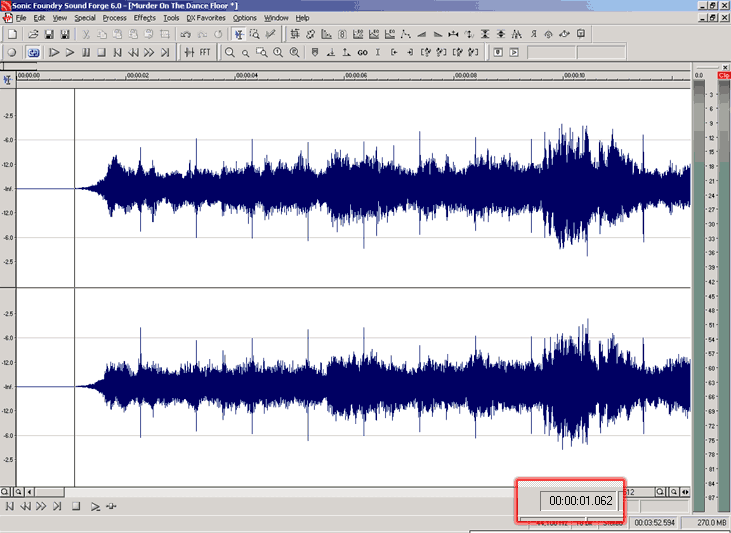
Place the cursor at the beginning of the song, right after the
initial silence.
-
To calculate the offset, we need to know where the song begins,
beatwise. For this, we need to know the length(in seconds) of a beat.
10.225 seconds / 20 beats = 0.51125 seconds/beat
After knowing the length of a beat, we require the length between
the first beat and the start of the song.
20.117 - 1.062 = 19.055 seconds
Then, we need to know how many beats this length corresponds to.
19.055 seconds / 0.51125 seconds per beat = 37.271 beats
We then round up, then get how many seconds these beats correspond
to.
38 beats * 0.51125 seconds per beat = 19.4275 seconds
Now, we need to find where the song begins, beatwise. Starting from
the first beat, we remove the amount of time we have found.
20.117 - 19.4275 = 0.6895
To get an offset out of this, we simply need to change the sign of
the result, thus, -0.6895, meaning that the first 0.6895 seconds of the
song will be trimmed.
-
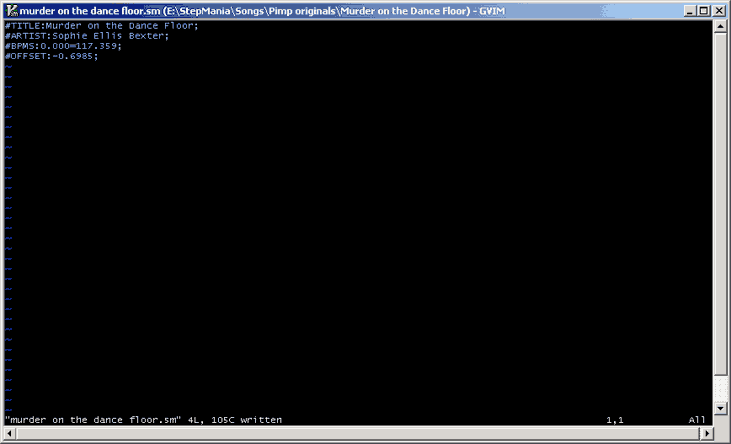
We need to tell StepMania all of this, so create a text file with a
.sm extension. Then fill this file with
#TITLE:Murder on the Dance Floor;
#ARTIST:Sophie Ellis Bexter;
#BPMS:0.000=117.359;
#OFFSET:-0.6985;
So now your directory should like
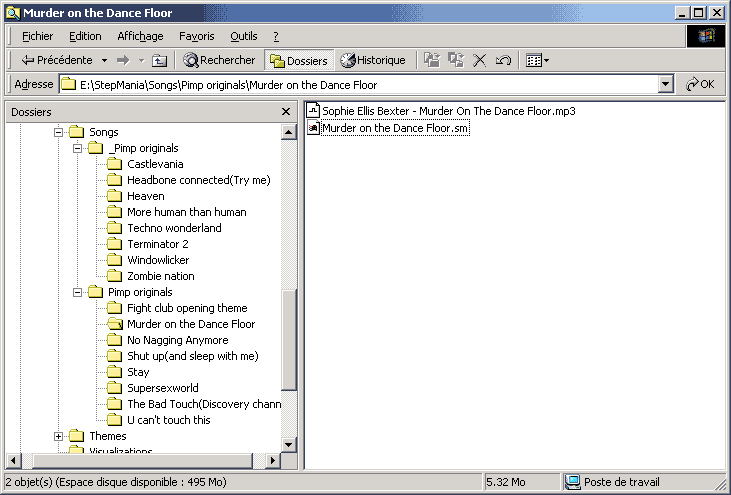
-
Fire up StepMania and open your song in edit mode.
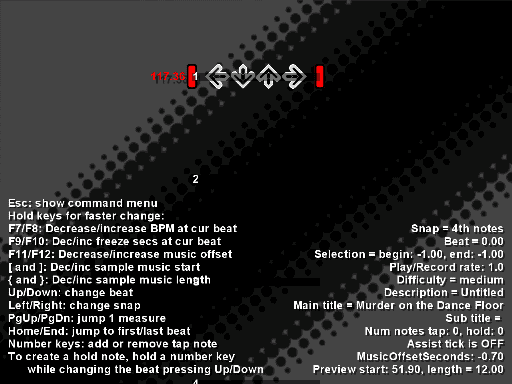
-
Create steps for the first 15 measures.
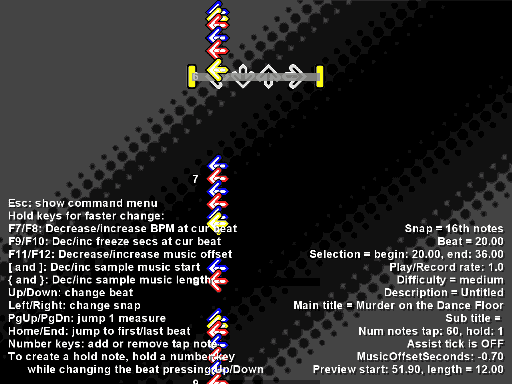
You might be wondering why the steps are only left arrows. It's
simpler to put the beat first, then worry about having a logical arrow
placement.
Here is how to place your steps :
- Select the first measures. To do this, place your cursor on
line 1 and press enter. Then, move to line 16 and press space.
- Press t until you get a play/record speed of 0.7(this will
make things easier)
- Put your cursor to input 16th notes by pressing
the left arrow until it turns yellow.
- Press r to start recording. Only put left arrows for now,
but try to get them on the beat.
- Press t until the play speed is 1.0
- Press i to get the assist tick
- Press p to play the selection. Is everything ok? If it
isn't, try re-recording the part that is incorrect or try to
fix it by moving arrows around(1,2,3,4 place arrows)
- Press s to save your work
Here is the key reference for this part :
| Key | Action |
|---|
| Enter | Selection start |
| Space | Selection end |
| Up/Down | Move up/down |
| Page up/down | Move up/down by a whole measure |
| Left/Right | Change note snapping(1/4, 1/8, 1/12, 1/16) |
| 1/2/3/4 | Place arrows |
| i | Toggle assist tick |
| t | Change play/record speed |
| r | Record |
| p | Play |
| s | Save |
| q | Quit |
Here are a few tips :
- Most of your arrows should be red or blue. If most(over
80%) of your arrows are yellow, it means that either
the SM or you are offbeat(or the song is really strange).
- You should save your work every time you do not screw up
steps. There is no undo or unsaved changes prompt when you
quit, so save often and live happy.
- You should record with a speed of 0.7 and play with a speed
of 1.0.
- Beware when recording. If you record over something, it
will be lost!
- The selection includes the lines where the selection markers
are on. So be careful not to lose notes at the edges of your
selection when recording.
-
Shuffle your steps so that they are varied. Please think about the
dance pad users! Try to alternate steps so that they can be done with
two legs alternating between arrows. If you are feeling unsure about
this, look at some official steps and mimick them(the arrow order, not
the arrows themselves!).
-
Adjust the sample music. The sample music is the music that is heard
in the song selection screen. Press m to hear the sample music, [] to
adjust the sample music start and {} to adjust the length of it. When
you get it right, save!
-
Save your work and quit StepMania. Restart StepMania and try your
song. Also try to do it on a dance pad or at least mimick the steps you
would do with autoplay on. If the song is too hard(ie. MaxX or BMR
hard), play it on 0.7 speed. If this works well, good job! All
you need now is to make some banners. If it does not work too well, do
not desesperate! Re-read the previous steps and try to find what went
wrong.
-
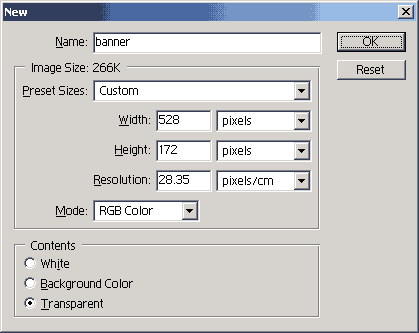
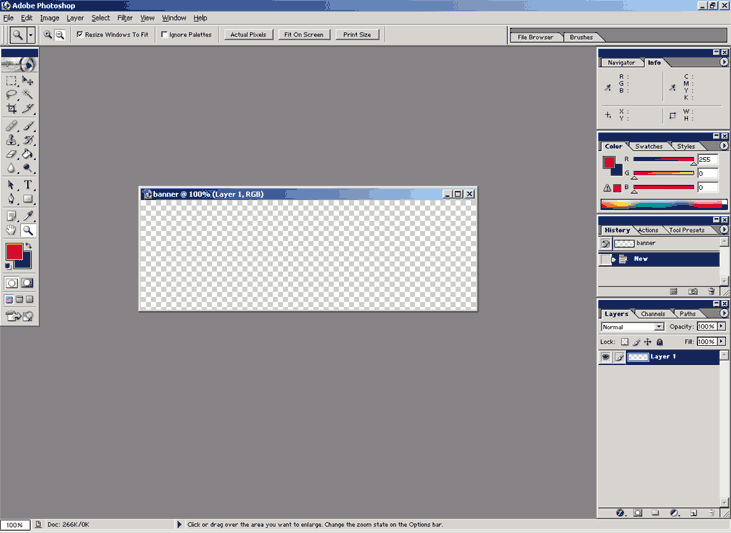
Quit StepMania and start Photoshop. Create a new file, sized
528x172(twice the dimensions of a banner file).
-
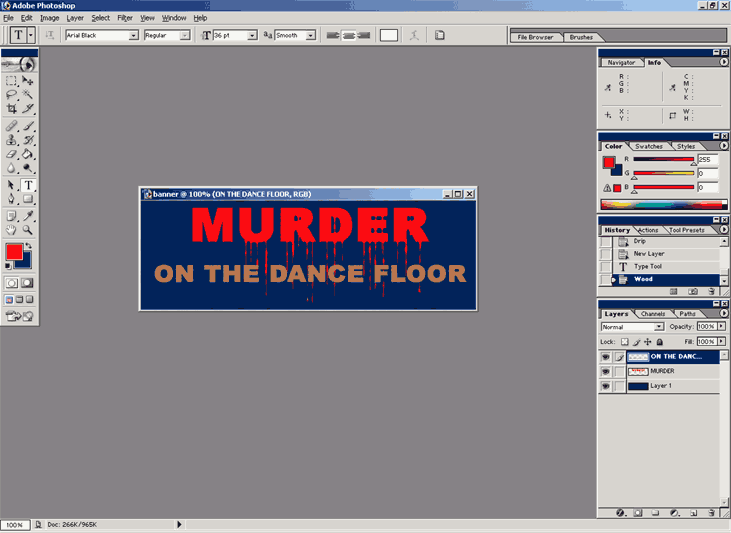
Show us your mad Photoshop skillz and create a banner. I quickly
made this :
-
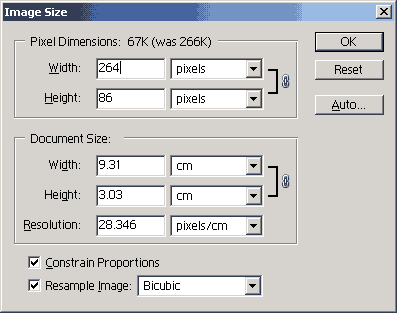
Resize it to the proper banner size(264x86). Go into Image >
Image size... for this.
-
Go into File > Save for Web... and save your file. Be sure to
minimize the file size to a decent level.
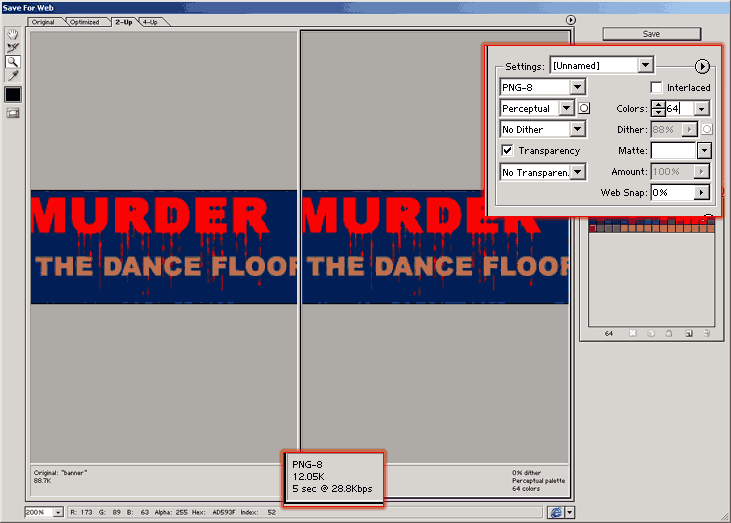
If you have Paint Shop Pro, open the banner file(in PNG format) and
save it. It will become smaller, without altering the image.
Alternatively, cou could use pngcrush to achieve the same thing. Why?
Because Photoshop's PNG optimizer does not write a fully optimized
file.
-
Create a file named bg for your song. It should be 640x480(or
another similar resolution). Repeat the previous steps(except
for the resizing).
-
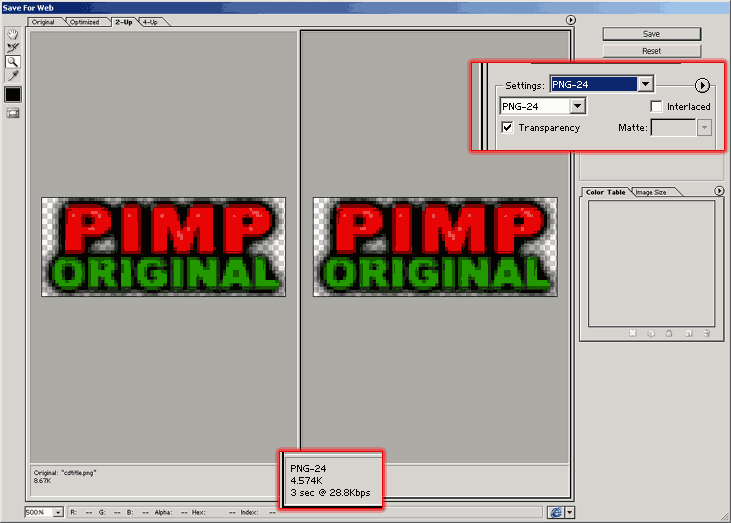
Create a file named cdtitle for your song. It should be 74x30.
-
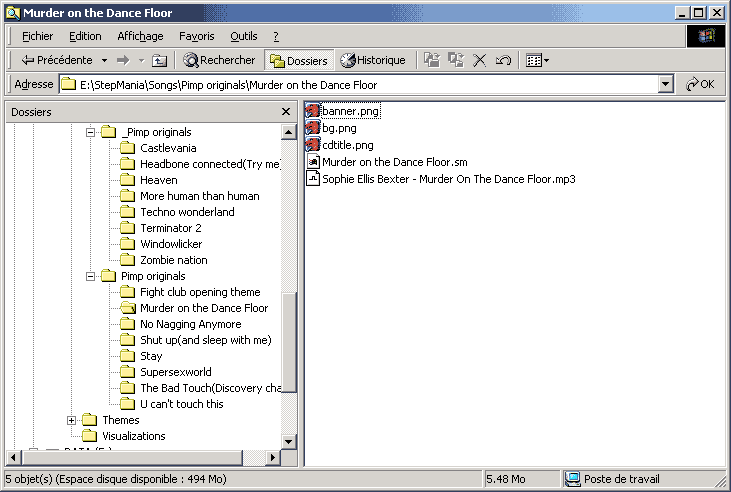
Clean up your song directory. It should look like this.
Congratulations! You have now made a complete StepMania step file. Now, in the next tutorial, I will show you about freezes, BPM changes, gradual BPM changes and BG changes. Stay tuned, same bat-time, same bat-channel.
|
Projects
What I do
Texts
Last update : 19/12/2002
|
|