| Sharing Files |
 |
 |
| LINKS |
 |
 |
 |
|
|
|
|
|
|
| There are basically two ways to find and share files : 1. Do a search of a specific title or artist or 2. Download a user's list and take directly from the list Each method is described below - |
| METHOD 1. |
| To download a particular song, click on search in top icon bar and type in name of song / artist. When an available list comes up, double click on the file you want & it should automatically start downloading to your computer. To determine where is goes, you will need to set the path but for now it will appear within one of the folders in the Filetopia folder on your hard drive. Do a test run to find out the path being used. We can help you adjust the path as you learn more about the program. |
| METHOD 2. |
| This method allows you to browse through a person's sharing folder and select anything you wish to download. NOTE: The user must be online & have a sharing list (most do) You must also refresh this list from the person each time you log on. You CANNOT work from an old list. |
 |
 |
| To get a person's list you need to be in a room. Simply right click on the person's name, select GET LIST and it will start downloading to your PC. When the download is complete it will open automatically. |
 |
|
|
 |
 |
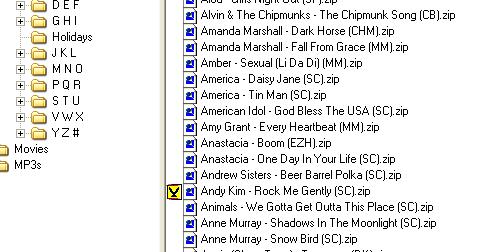
| Once the person's list is dowloaded and opens it will look like this. When you select a file (song) to download, simply double-click on it. A yellow, bird-like symbol will appear, indicating the download should begin. At times you may be in a queue and will have to wait. Watch the files retrieved box (shown above) to keep track of its progress. |
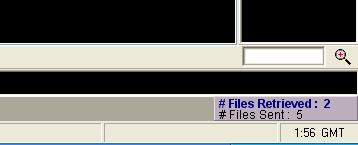 |
| This small box (bottom right of Filetopia screen, just above taskbar clock) will show you how many files are being sent & retrieved. To open this page, just click on it once to see the progress of the downloads / uploads. |
 |
| You can also close any window at anytime by using the close button shown. This will close a window or room but Filetopia will still be running. |
 |
 |
|
|