MS Excel Spreadsheet
Online Module
Lesson 5: Inserting Formula and Functions
Section 5.3 - Using the SUM Function
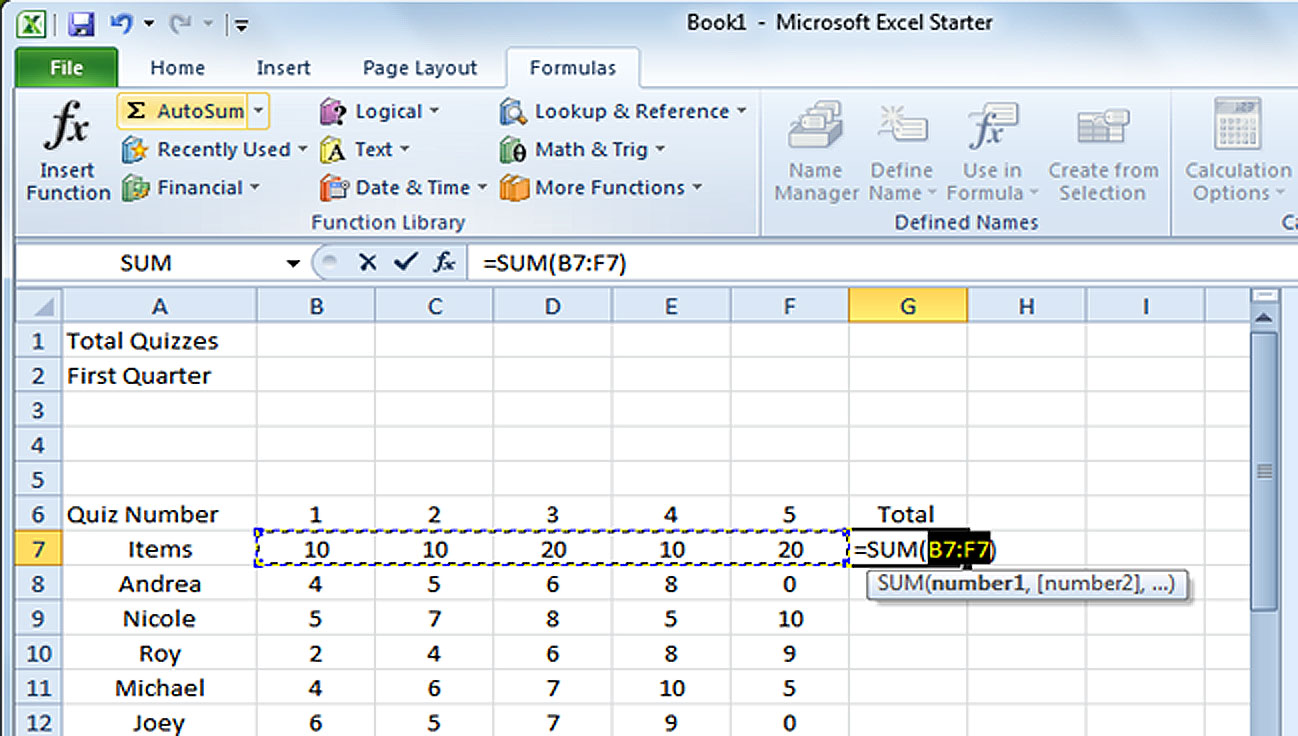
- STEP 1. Click on the cell you want to perform the formula.
- STEP 2. Click on the Formulas tab, got to the Function Library group and click the AutoSum button.
- STEP 3. Highlight the data that you would like to add.
- STEP 4. Press the Enter Key.
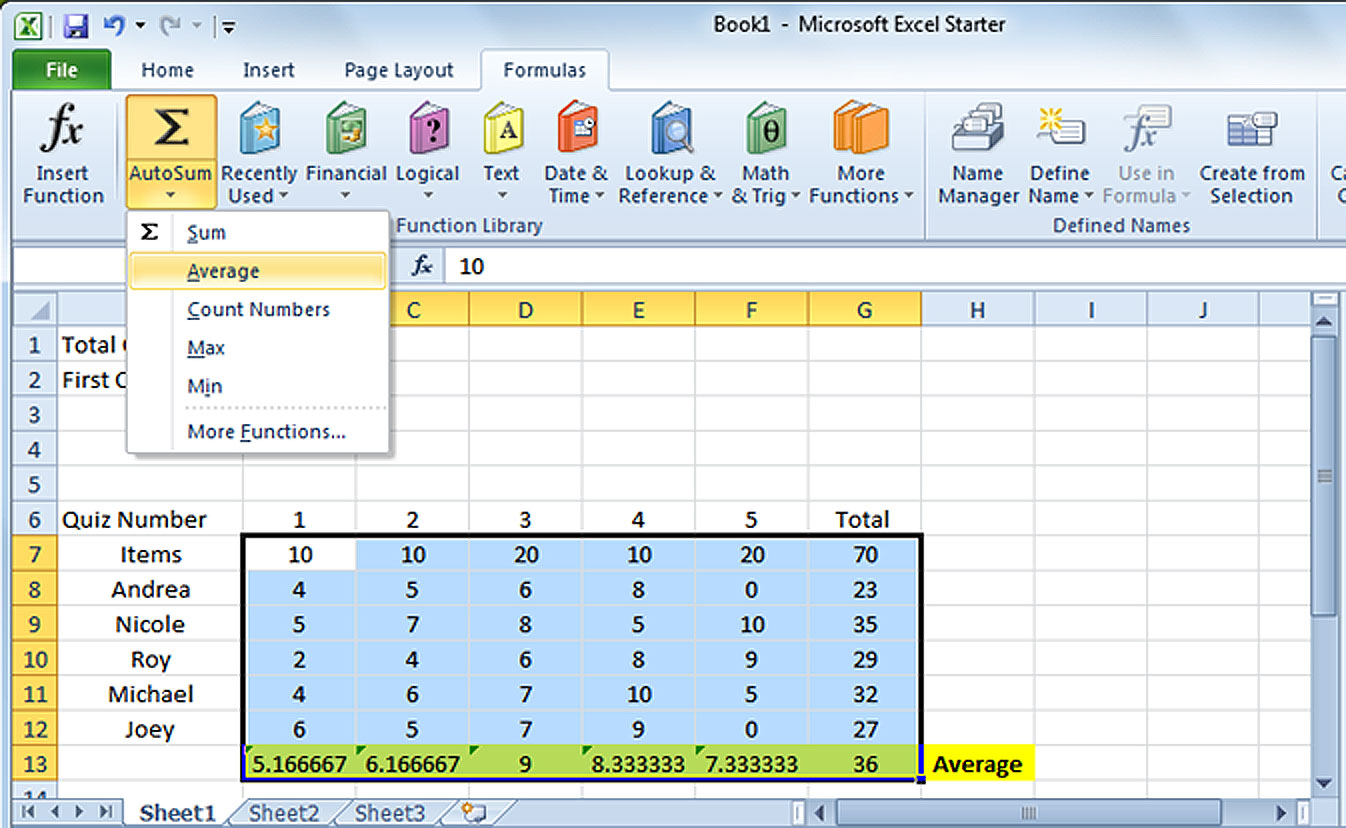
Section 5.4 - Using the AVERAGE Function
- STEP 1. Click on the cell you want to perform the formula.
- STEP 2. Click the Formulas tab, go to the Function Library group and click the AutoSum drop-down button.
- STEP 3. On the drop-down menu, click the Average command and highlight the data you would like to find the average value.
- STEP 4. Press the Enter key to finish the formula.