MS Excel Spreadsheet
Online Module
Lesson 5: Inserting Formula and Functions
Section 5.1 - Entering Labels and Data
Text entries include any combination of letters, symbols, numbers and spaces. To create the sample below, follow the steps:
- Step 1. In cell A1, type Total Quizzes.
- Step 2. In cell A2, type First Quarter.
- Step 3. Type the headings of the table.
Values are numbers that represent a quantity, price amount, quiz score and any value. To create the samples in the next figure, follow the steps:
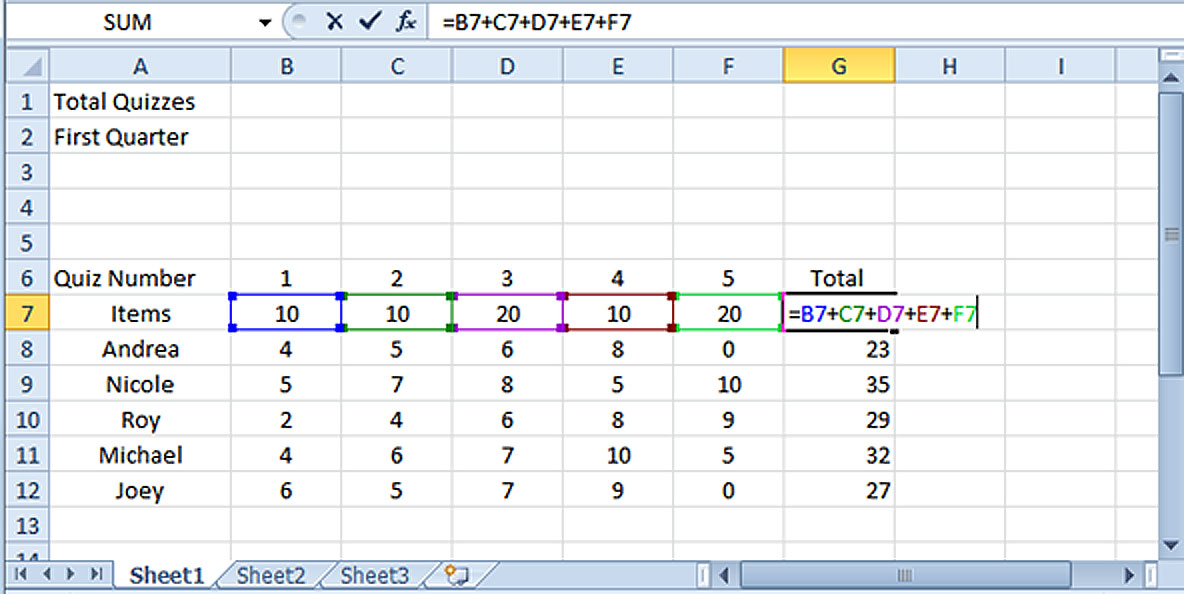
- Step 1. In cell A6 type �Quiz Number�. On cells B7, C7, D7, E7, and F7 type 1,2,3,4 and 5 respectively.
- Step 2. In cells A7, type the word �Items�. On cells A8, A9, A10, A11 and A12, type the names Andrea, Nicole, Roy, Michael and Joey, respectively.
- Step 3. In cell G6 type the word �Total� for this will display the total scores of quizzes.
- Step 4. Type the values below.
- Step 5. In cell G7, type = B7 + C7+D7+E7+F7 then press Enter Key. On cell G8, type = B8+C8+D8+E8+F8 then press Enter Key.
- Step 6. To make the computation go faster, select the cell G7 and drag it to G12.
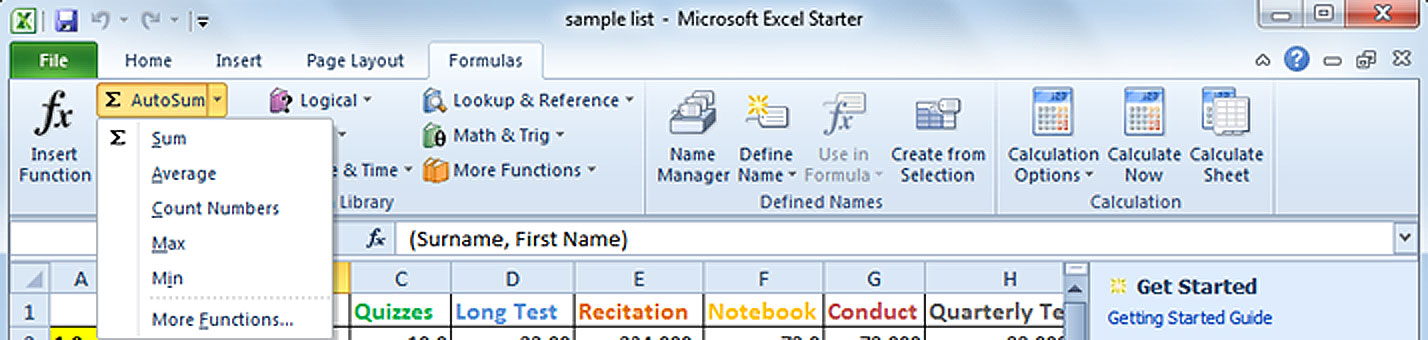
Section 5.2 - Using the Excel Functions(Sum, Average, Max, Min and Count)
Functions are built-in formulas you can use to make your worksheet construction easier.
| EXCEL FUNCTIONS | |
|---|---|
| Function | Description |
| =SUM | Calculates the sum of the values of a range of cells |
| =AVERAGE | Calculates the arithmetic mean of a range of cells or values |
| =MAX | Gives the maximum value in a range of cells or values |
| =MIN | Gives the minimum value in a range of cells or values |
| =COUNT | Counts the number of cells in a range of cells or values |