Email Setup
Some information about my email setup
My Software SetupMy Xnews Pages |
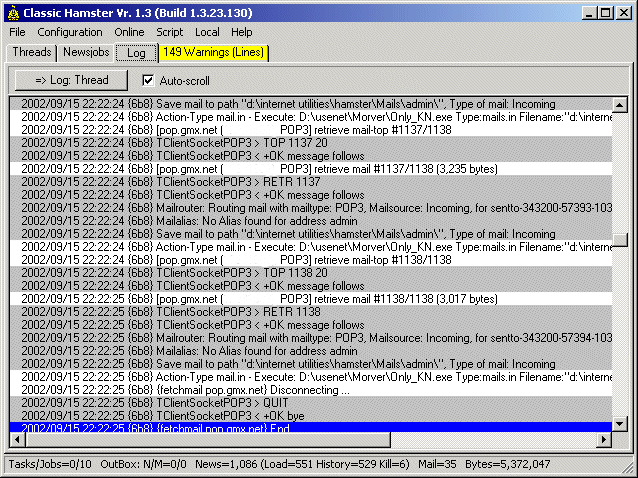
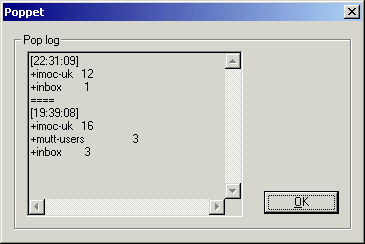
Getting mailI use Hamster (a local news and mail server) to download mail from my POP3 server to my local computer. In the process, I use a small script to carry out basic filtering (just for removal of obvious spam). A small app called Poppet is then used to sort my mail from the local POP3 account into mbox-format mailboxes. Personal mail goes straight to my inbox, mailing lists are sent to their respective mbox files etc. This is carried out using a configuration file (similar to those used for the Unix program procmail.
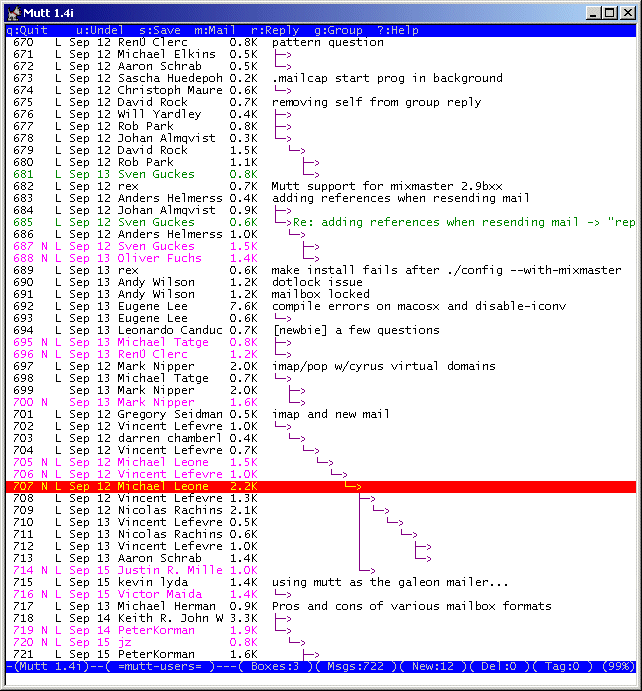
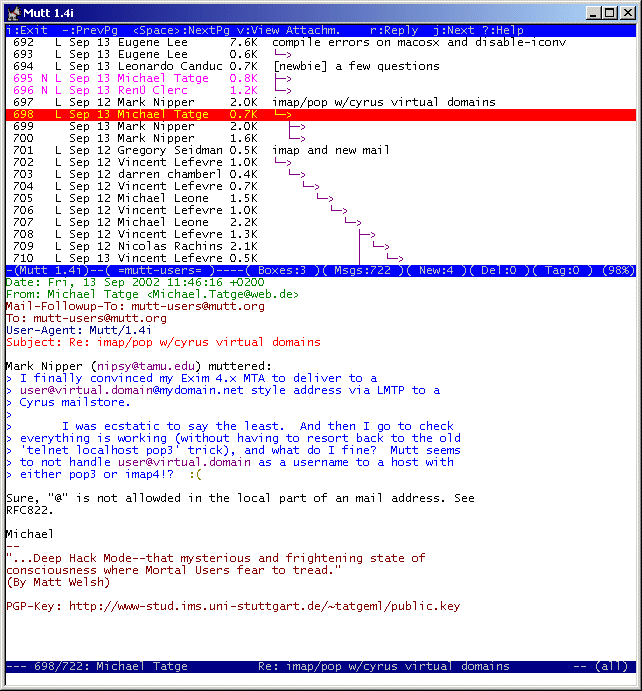
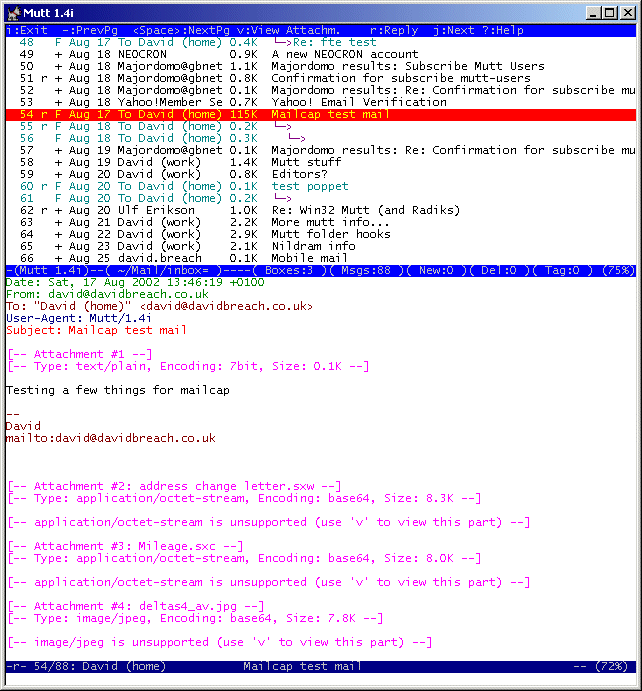
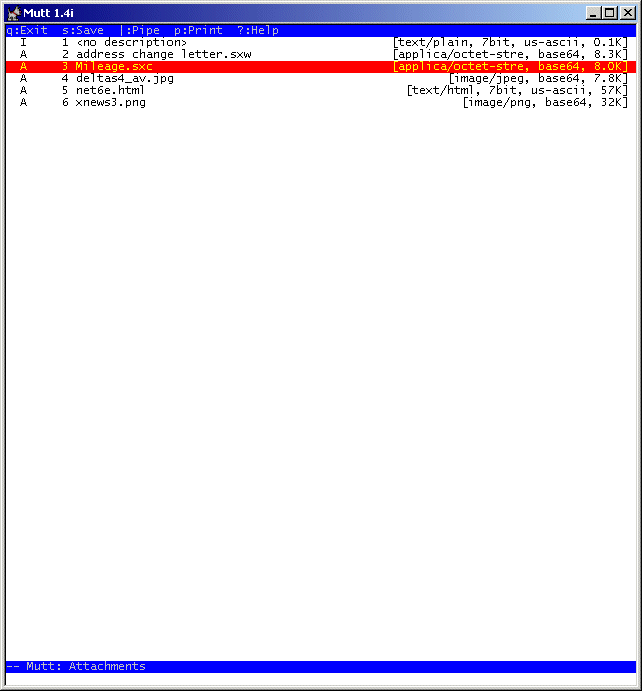
This all sounds a bit complicated, but now I've got it all set up, it all happens automatically (normally ;-)). Reading mailFinally, I read my mail using a mail user agent (MUA) - Mutt. This is a console-based program (no fancy GUI here :-)) from the Unix world. It may look a bit unattractive compared to the normal mail clients people use, but it is very powerful, and very customisable. Everything can be configured from a plain-text .muttrc file, and it is extremely flexible. For instance 'save-hooks' can be used to automatically save mail to a folder based on who it is To, or From, or CC'ed to etc. 'Send-hooks' can alter headers, sig-files, From-addresses etc, based on who you are sending to (useful for mailing lists, or where you use different mail aliases). Mail can be moved ('pushed') to different folders based on its age, or headers etc. This is just skimming the surface of what Mutt can do - I am still finding new things for it that make me like it even more :-) Despite being a console-app, Mutt can use colours very effectively. I make new mail 'brightmagenta', for instance. Mail from certain people can be coloured (I use green and blue). When reading mail, headers can be individually coloured. Multi-coloured quoted text can be set up. URL's, mailto links etc can be highlighted. Smilies [:-)] can be coloured too. Sigs can be a different colour to the body text. Again, all this is completely down to your own configuration, so you can make it as plain or revolting as you like :-) Mutt's method of dealing with attachments is excellent too. Each MIME file association is configured in a text file, so Mutt only opens files using the application you have told it to use - you'd have to be very stupid to execute a virus using Mutt :-) So, in my 'mailcap' configuration, I have Mutt open pictures (*.jpeg, *.png, *.gif) using Irfanview; MS Word & Excel files are opened by the appropriate Openoffice application; zip's are opened by UltimateZip. The most useful one is for *.html attachments (e.g. from anyone who has sent HTML-formatted mail) - these are rendered in the pager window using Links, which is a very quick text-only browser, and completely risk free since it can't run vbs scripts etc. By contrast, I want to use my normal browser to follow links that are in the message body, so I use URLView, which detects URL's in the message text, and then allows you to open the selected one in your chosen browser (mine is Phoenix).
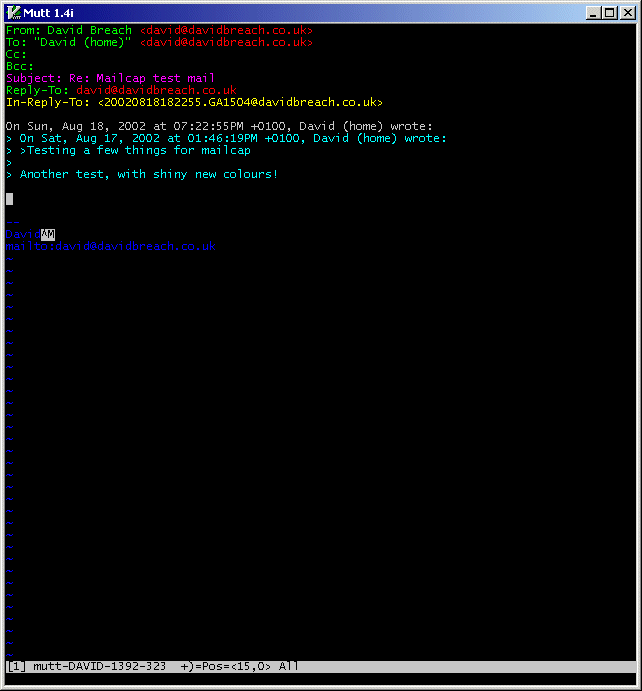
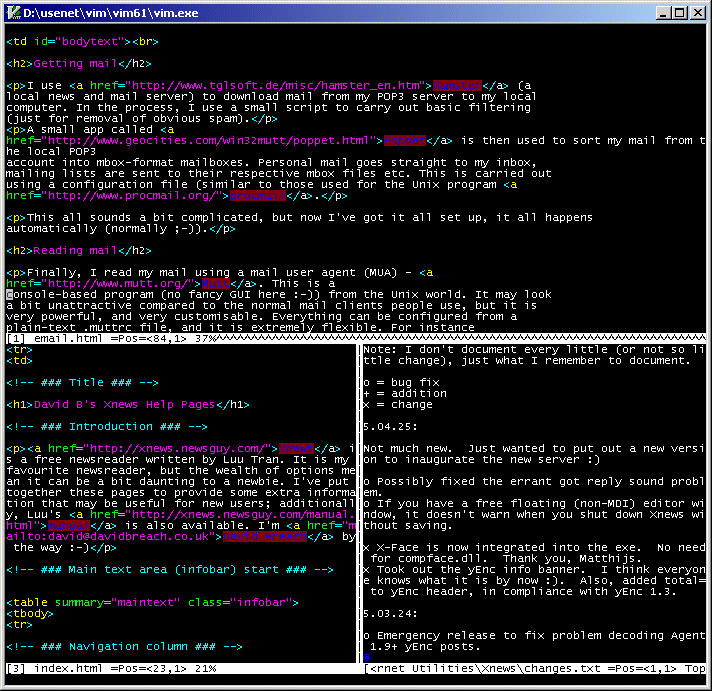
Writing mailLastly, to write e-mail (Mutt is a MUA only, it doesn't have an editor) I use Vim, which is a very powerful text editor. It's very different to most Windows editors, since it uses a separate mode to 'edit' text to the one used to compose text, but once you've got the hang of it, the two modes make it very efficient to use. Vim is also hugely customisable (again from a plain-text .vimrc file, most of mine is cribbed from Sven Guckes' excellent fully-commented example), and can be made to do all sorts of useful stuff. For the purposes of mail editing, it can do lots of stuff like re-wrapping quoted text, de-quoting or quoting sections of text, colouring headers, quotes, sigs differently etc. etc. It is also easy to set up shortcuts, for example to convert a short text string into a frequently-used URL. It is not the most intuitive program in the world however :-), but it's well worth getting to know IMO (and I've still got a lot of learning to do...).
| Useful LinksContact
|
 130350453
 davidgb75
 d4vidb