Painting in VizPaint2D is a lot like working with traditional artist's tools. You choose a brush and a color, then paint on a canvas. Unlike traditional tools, VizPaint2D lets you paint different layers and create sophisticated effects.
The brush tool (shown in figure 63) is displayed when you start VizPaint2D. Use the settings as shown in figure 63.
If you have tried other tools since start-up, display the brush tool by selecting paint(TM)brush. 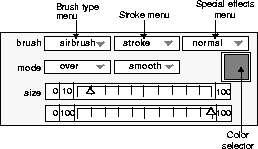
Figure 63 Using the brush tool
You should have painted a white, opaque, airbrushed stroke.
The current value changes from 100 to 50.
Figure 64 Brush tool opacity slider
Instead of being opaque white, this new line looks gray because it is more transparent than the first.
A white highlight appears around the color selector, showing that the color selector is activated.
The color selector in the brush tool and the color swatch in the continuous palette tool update to match the color you selected.
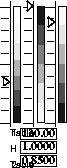
The palette tool updates to display the sliders for hue, saturation, and value as shown in figure 65.
Figure 65 Using the HSV slider palette
The left slider specifies the hue of the color (green, blue, yellow, and so on). The middle slider specifies the saturation. As you move this slider down, the color becomes paler, as if you were adding white paint. The right slider specifies value. Sliding it down is like adding black paint to the hue.
The transfer function lets you clone any element or design on the canvas.
The pointer becomes two small circles, one on the original line and another with a cross in it on the area where you'll do the transfer.
As you drag the mouse, notice that the new line is painted over anything that is already on the canvas.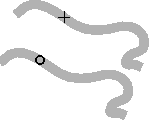
Before you move on to the next section, try experimenting with other palettes (including block, rgb slider, and cmy slider), brushes, strokes, or special effects. Also, see what happens when you adjust the size and opacity sliders.