Just as you would with traditional art tools, you can compose pictures in VizPaint2D by painting freehand on a blank canvas. As a computerized tool, VizPaint2D goes beyond traditional tools by letting you create new work using images that already exist, either stored on disk or in a hard-copy form that can be digitized.
In VizPaint2D, the area on the screen where you work is called a canvas. Once a canvas has been created and saved, it is called a picture.
A picture is a data file that can come from many different sources. Pictures can be:
For an image to be used in VizPaint2D, it must be saved in a file format that VizPaint2D supports (see Table 5). Note that VizPaint2D can both read and write files in these formats. You can output images in the appropriate format for use with other software packages or peripheral devices.
VizPaint2D also supports a range of image sizes (or resolutions). An image's size is determined by the number of pixels spanning its height and width. Images can be any size up to 8192 by 8192 pixels, provided your workstation has sufficient memory.
With VizPaint2D, you can manipulate images that have either 32- or 64-bit pixels (that is, either 8 or 16 bits of data per color component).
When 64-bit images are manipulated, all reading, writing, copying, pasting, and so on is performed using 64 bits per pixel. However, any operations which use the palette effectively use only 32 bits per pixel. Such operations include brush pasting, creating grades, and most operations which use color from the color palette.
If you try to match a color from a 64-bit image, only the 32 most significant bits are used, even if that color is subsequently painted onto a 64-bit image. Note that full white always causes all bits to be on, regardless of whether you are using 32- or 64-bit pixels.
When you load an image into VizPaint2D, it becomes an open canvas to work on. You also create canvases when you perform certain paint operations, such as cut or zoom. A default (blank) canvas is also provided.
VizPaint2D displays canvases at the maximum possible size. If the picture is larger than the largest available canvas, it is compressed to fit in the canvas. Note that in this case you will not see all of the pixels in the picture, but you will be painting them.
You can open or create a new canvas at any time. The canvas you were working on is automatically saved in memory and the new canvas is displayed.
| rla | .rla | Wavefront image |
| rlb | .rlb | Wavefront image |
| tex | .tex | Wavefront scalar, color, and bump textures |
| txs1 | .txs | Wavefront scalar texture |
| txc | .txc | Wavefront color texture |
| txb | .txb | Wavefront bump texture |
| als | Not applicable | Alias format2 |
| cin | .cin | Kodak Cineon |
| eps | .eps | Encapsulated PostScript |
| epsp | .epsp | Encapsulated PostScript with bounding box |
| pic | .pic | Pixar |
| pxr | .pxr | Pixar |
| qnt | .qnt | Quantel PAL |
| qnm | .qnm | Quantel PAL with matte component |
| qtl | .qtl | Quantel NTSC |
| qtm | .qtm | Quantel NTSC with matte component |
| rgb | .rgb | Silicon Graphics |
| sgi | .sgi | Silicon Graphics |
| si | .pic | Softimage |
| tdi | Not applicable | TDI |
| tif | .tif | TIFF class R |
| tga | .tga | TARGA 24- or 32-bit format |
| vst | .vst | VISTA 24- or 32-bit format |
| 1 .txs, .txc, and .txb are different extensions for .tex files. The formats themselves are identical. 2Alias uses one file for RGB values, another file for the matte channel. |
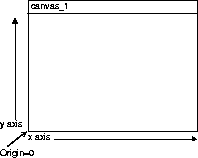
Every pixel in a canvas has a precise location, defined by an x, y coordinate system where the x axis runs from left to right and the y axis runs from bottom to top. The point of origin for both axes, where the values for x and y are zero, is at the lower left corner of the canvas. For any location on a canvas, the x and y coordinate values indicate how many pixels it is from the origin.
The range of possible values for a canvas's x and y coordinates is determined by the canvas size (or resolution). For a 640 by 486 canvas, the x values range from 0 to 639 and the y values range from 0 to 485.