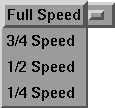
Select Full Speed from the menu in the soundtrack edit controls that appears as follows:
To listen to the soundtrack, click the playback button that appears as follows:
Click the stop button which appears as follows:
Select 1/2 Speed from the menu in the soundtrack edit controls and click the playback button again.
Click the stop button and set the speed back to Full Speed.
To the right of the speed menu, another menu controls whether the soundtrack repeats or plays only once. This menu appears as follows:
When Loop is selected, the soundtrack plays back over and over again, until you select the stop button.
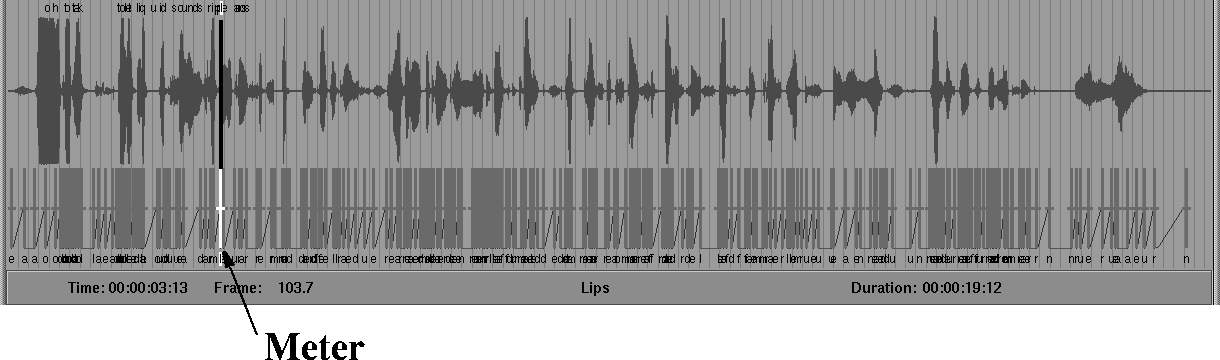
The meter is the black vertical bar that you can drag back and forth in the soundtrack display area as follows:
To move the meter, click the left mouse button over the soundtrack and notice that the meter jumps to your current location. As you drag the meter across the soundtrack, various keyframes (the vertical red bars) highlight and certain keyshapes in the top of the window also highlight. This gives you feedback on which keyshapes are used at each keyframe. Notice also that the Key Sets window (on the bottom left) moves the geometry to follow the movement of the meter.
Click-dragging with the middle mouse button selects a region of the soundtrack.
Try click-dragging at the beginning of the soundtrack with the middle mouse button down across the first 1/4 of the soundtrack. The soundtrack display area appears.
If you click the play button with are region selected, only the selected region plays.
Set the repeat mode menu to Loop and click the play button again.
Click the stop button to end the playback, and set the repeat mode back to Once.