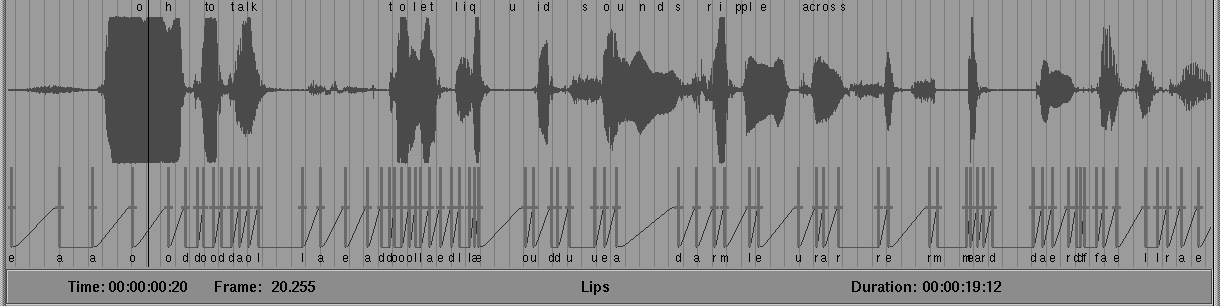
When you first load the soundtrack and animation data, they are shown with the entire soundtrack running across the entire width of the soundtrack display area, without regard to whether it is 10 seconds or 10 minutes in length. The scroll bar and zoom buttons are provided along the top of the soundtrack window to allow closer focus on parts of the soundtrack.
The scroll bar appears as follows:
The zoom buttons appear as follows:
If a region of the soundtrack is selected, the zoom-in button zooms so that the selected region fills the window left to right.
If there is no selected region, the zoom-in button magnifies the entire soundtrack by 50%.
The zoom-out button doubles the amount of the soundtrack visible until the entire region is visible.
When zoomed in, you can use the scroll bar to move back and forth across the entire soundtrack.
| The playback functions only play the displayed region and not the entire soundtrack. |
With the first quarter of the soundtrack selected, click the zoom-in button to focus on that portion of the soundtrack. Leave the soundtrack zoomed-in for the next part of this example as follows:
Press the Shift key and hold it while you click-drag the meter across the soundtrack. You are now in scratch mode. In scratch mode the soundtrack is played back according to the motion of the meter.
| For maximum speed, images do not play back and keyshapes do not highlight when in scratch mode. |