There are several recognizers included with SoundSync. Each recognizer uses a different technique for analyzing a soundtrack and automatically assigning keyshapes to a soundtrack.
In this example the Volume recognizer is used to link the volume of the sound with appropriate keyshapes. Notice that the Lips keyset contains positions of the mouth that correspond to the basic phonemes of the English language. The volume recognizer is used to ignore most of these positions in favor of simply opening and closing the mouth.
Select Recognizer  Volume from the menu bar.
SoundSync searches for the Volume plug-in and loads both it and its configuration file, Volume.config, from the directory in which it finds the volume plug-in. The configuration file determines how the recognizer functions.
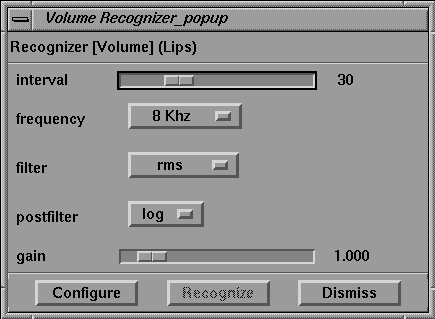
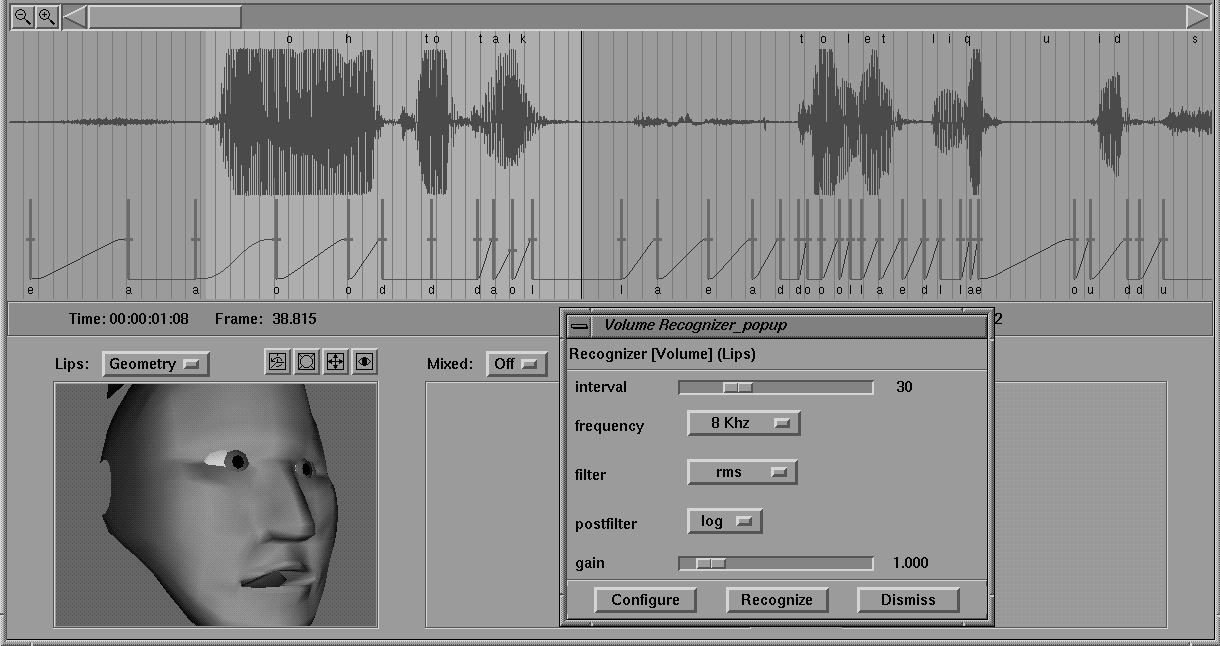
When the recognizer is loaded, the Volume Recognizer window appears as follows:
Notice that the Recognize button is grayed. Until the recognizer is configured for this particular keyset, it can't be used.
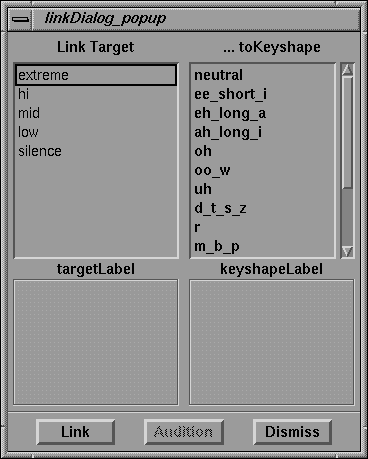
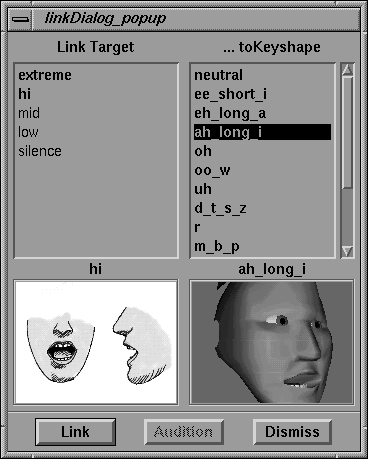
Click the Configure button and the Link Dialog window opens as follows:
The Link Dialog window is used to match the recognizer's Targets to keyshapes. Think of the targets as potential matches for the recognizer. Each of the targets must be linked to a particular keyshape.
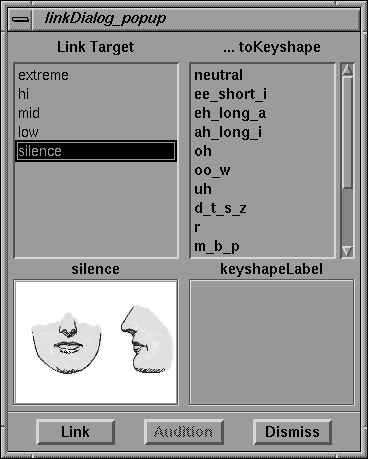
Click to highlight each of the targets on the left side, one at a time. Notice that a representation of the standard mouth position for each target appears in the display window directly below as follows:
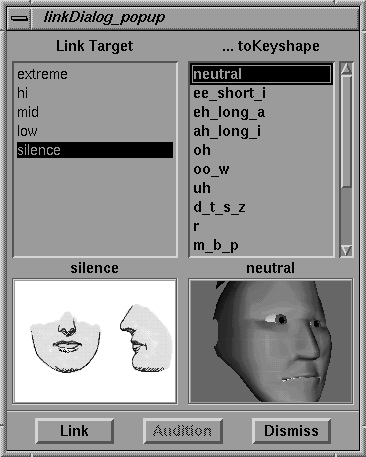
Click to highlight each of the keyshapes on the right side, one at a time. Notice that the images of the Lips keyset appear as their name is highlighted as follows:
The goal in configuring the recognizer for this keyset is to find keyshapes that match the images for each of the targets.
Select the target extreme and the keyshape oh. Notice that the two images roughly match.
Click the Link button to link the target and the keyshape. Notice that the target extreme is now bold.
Select the target hi and the keyshape ah_long_i. Notice that the two images roughly match:
Click the Link button. The hi target becomes bold to indicate that it is linked.
Select mid and uh. Click the Link button.
Select low and ch-n. Click the Link button.
Select silence and neutral. Click the Link button.
Once all of the targets are configured, click the Dismiss button on the Link Dialog window to close it.
|
If you accidentally dismiss the Volume Recognizer window, select Recognizer
Volume to bring it back.
|
Notice that the Recognize button on the Volume Recognizer window is no longer grayed out.
Before you click the Recognize button, select the phrase "Oh to talk" at the very beginning of the soundtrack for recognition. It appears as follows.
After the region is highlighted, click the Recognize button leaving the parameters of the Volume Recognizer window at the defaults to start.
Use the playback buttons to examine the results.
By adjusting the parameters on the Volume Recognizer window, you can achieve different results and experiment fairly quickly.
The interval slider controls the number of milliseconds over which the samples are averaged. Increasing the interval widens the averaging window.
The frequency menu controls the sample frequency at which the calculation is done.
The gain slider controls the multiplicative factor in dealing with very high or very low volumes in the sound.
After experimenting with the Volume Recognizer window, click the Dismiss button to close it.