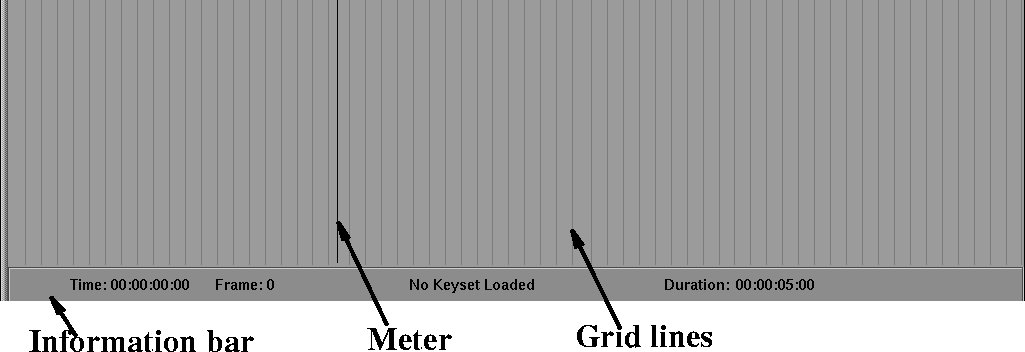
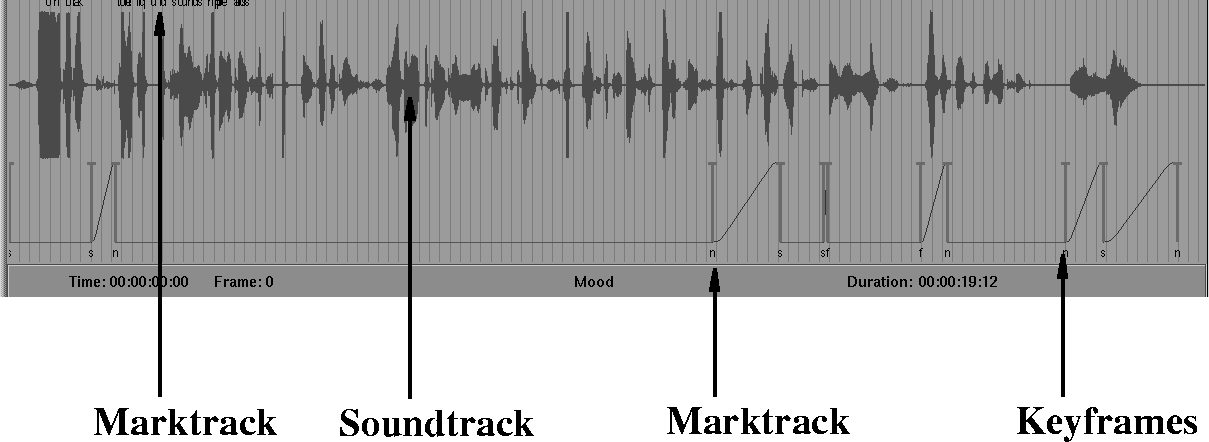
The soundtrack display area contains the soundtrack, the marktrack, and the key track as well as movement and information tools. The soundtrack display area appears as follows when there is no soundtrack loaded:
The grid lines are normally spaced every 10 frames and provide an easy way of seeing how many frames apart certain frames are when editing the soundtrack.
The meter is a black vertical bar which shows the current time position. The meter can be moved to any point on the soundtrack by clicking on it with the left mouse button and dragging across the display.
As the meter is dragged, the keyshapes in the keyshape display area highlight as the meter passes their corresponding part of the keytrack. The highlighted keyshape also displays in the Keyset display window. Marktrack elements (text characters) are also highlighted as the meter is dragged across them.
When you click the play button, the meter moves through the soundtrack to show the progress through the soundtrack.
If you drag the meter with the left mouse button while holding down the Shift key, the keyshapes do not highlight, but the part of the soundtrack the meter crosses plays. The sound is similar to the scratching sound of a radio when you turn the tuning knob. You can drag the meter in either direction to narrow in on a sound transition.
The information bar provides information about the soundtrack that you have loaded.
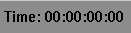
Time refers to the time that the meter is currently located at and appears as follows:
The Time is represents in timecode which is used to describe any moment within a 24 hour period in terms of hours, minutes, seconds, and frames. The usual way of presenting timecode is as follows:
HH:MM:SS:FF
| HH | is the number of hours. |
| MM | is the number of minutes. |
| SS | is the number of seconds. |
| FF | is the frame number. |
The Frame refers to the frame number that the meter is currently located at and appears as follows:
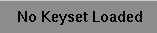
The next entry in the information bar varies according to what you have loaded into SoundSync. If you have not loaded any keysets or soundtracks, the entry appears as follows:
If you have loaded a keyset, the message display the name of the keyset and appears similar to the following:
The Duration refers to the length of the soundtrack and appears as follows:
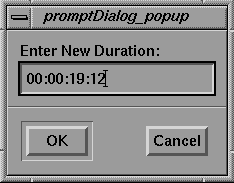
The Duration is the only editable part of the information bar. To edit the duration of the soundtrack, click anywhere on the duration entry. The following edit window is displayed:
Click in the edit field and enter the new duration timecode. When you are finished, click the OK button. The information bar Duration entry updates to reflect the new duration.
Changing the duration is convenient if you have less soundtrack than you need (or no soundtrack at all). The duration value sets the length of time in which you are able to set keyframes.
When you load a soundtrack and keysets, the soundtrack display area appears as follows:
To move a keyframe, click the text handle which is below the keyframe with the left mouse button and drag the keyframe to the location you want to place it. Release the mouse button and the keyframe appears in the new location.
To move a marktrack element, click the text character you want to move with the left mouse button and drag to the location you want to place it. Release the mouse button and the marktrack element appears in the new location.
To select a portion of the soundtrack and keyset, click-drag with the middle mouse button in the soundtrack display area. Release the mouse button when you have highlighted the area you want. The highlighted area appears a lighter gray color.