The three windows along the bottom of the display are used to show an approximation of the final animation, either as a simple image playback or as tessellated geometry with simulated deformations.
The preview display windows appears.
The preview window on the left is called the Keyset window. The Keyset window displays the active keyset.
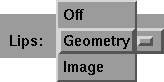
The menu associated with the Keyset window appears as follows:
The label for the Keyset window updates to the name of the loaded keyset. In the above example, the loaded keyset is called Lips. Therefore, the label for the Keyset window is Lips.
The menu choices toggle the mode of the window between Off, Geometry, and Image.
If Off is selected, the display is turned off and nothing is displayed.
If Image is selected, the active keyframe is displayed.
In image mode, the view controls are not available.
During playback, however, the Display menu gives you control over how the images transition between keyframes. This can be at the midpoint between keyframes, at the keyframe itself, or a smooth dissolve which is a mix between the two images of both keyframes.
If Geometry is selected, the object in the display area can be moved and tumbled to view in three dimensions as described in the View Controls section below.
The Display menu on the menu bar along the top of SoundSync is used to toggle between point, line, and polygon views of the geometry.
During playback, the geometry deforms in real time in response to the keyframes you have set. Because geometry deformation can be slow, SoundSync tries to predict drawing times and adjust playback so that the best real time view is achieved.
You can use Geometry mode to create new images and save them with your keyset. This can be very useful in creating a close up view of the mouth or some other feature of your data set, and then creating images (which are naturally faster to display) to use in playback and interaction.
Selecting Display  View-->Images takes the current geometry view and replaces the images with the new view. When you save the keyset, these images can be saved to the current project's /pix directory.
The middle window is the Mixed window, which shows all keysets overlaid together. The Mixed window can only be active when the Keyset window is in Geometry mode.
The Mixed window menu appears as follows:
Selecting On activates the display of keyframes in the window if the Keyset window is in Geometry mode.
Selecting Off turns of the display of keyframes in the window.
The right window, or Reference window, shows reference footage, if reference footage has been loaded.
The Reference window appears as follows:
When in Geometry mode, you can click and drag in the display window to directly change the 3D view.
Alternatively, you can use the four control buttons located above the window.
The view controls appear as follows:
The functions of the view control buttons are as follows:
All of the view controls are used in the following way:
| You may need to use several view controls to achieve the view you need. |
The mouse button you use with the view control affect the direction you move the view. The mouse buttons work as follows:
Changes to the view are not saved between SoundSync sessions.
All recognizers, whether included with SoundSync or created as plug-ins, work the same way. Basically, each recognizer divides the soundtrack into small segments and compares them to a set of reference parameters (or targets). Each reference target in the recognizer has been assigned a keyshape. As each segment of the sound is matched to a target, a keyframe is generated with the appropriate keyshape.
Each recognizer has an interval parameter which determines the width (in milliseconds) of the sound segments and a frequency parameter which determines the sampling frequency at which the computations are done.
Each recognizer has one or more targets and comparison functions to match incoming sound segments to those targets. You must provide the links between the targets and the keyshapes in a given keyset.
There are two recognizers provided with SoundSync, each uniquely configured for a particular keyset. For example, when the volume recognizer is initialized, and its targets are linked to keyshapes within the current keyset, it becomes a unique instance of the volume recognizer. If the volume recognizer were to be used for a different keyset, another unique instance would be created. Therefore, at most, each keyset could have a unique version of each recognizer.
When activated, recognizers present a small control panel that can be used to configure their parameters and to recognize the currently active region. These control panels remain active (until dismissed) as long as their associated keyset is active.
Each recognizer is configured and linked in two steps. The first step initializes the control parameters and targets, and the second step links the targets to particular keyshapes. The initialization step requires a configuration file. Configuration files are different for each type of recognizer.
Of the two recognizers SoundSync provides, one is provided in source code form, and can be used as the basis for generating new recognizers. The source code can be found in the gift_modules directory on the Alias 3DCD. The Plug-in Developers Library headers are included in the ODS directory.
The two provided recognizers measure a characteristic of the soundtrack and assign targets based on the value of that characteristic. In each case, the characteristic is one-dimensional so the matching process is fairly simple.
The first recognizer measures the volume of the sound and matches targets based on predefined volume ranges. The second recognizer uses a Fourier method to determine the dominant pitch of the soundtrack and matches targets based on frequency.