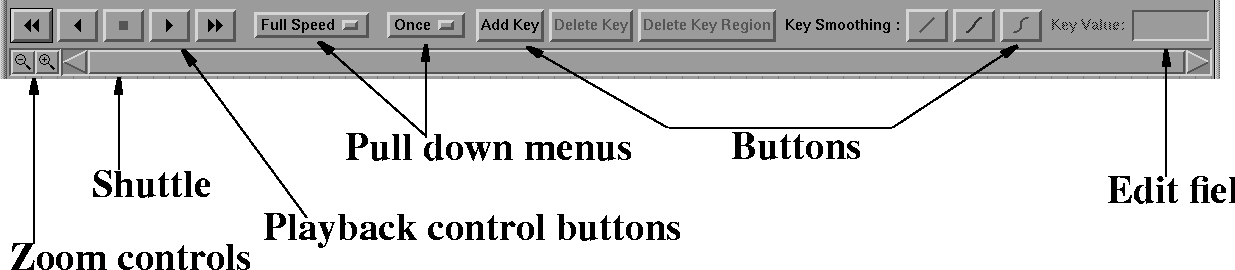
The soundtrack edit controls appear as follows:
The soundtrack edit controls are used to control the elements of the soundtrack which appears below in the soundtrack display area.
Above the slider is a row of five buttons that control the major shuttle functions.
If you click one of the buttons, a black square appears around it.
If no region of the soundtrack is selected, the playback buttons play the portion of the soundtrack that is visible in the soundtrack display area. If a region is selected, the playback buttons play only that region.
These buttons appear as follows:
Many users need to utilize geometry to accurately see the effect of lip sync on their models, but on all but the most powerful machines this playback mode doesn't approach real time. To provide real time playback with geometry mode, a new playback mode has been provided that effectively "playblasts" the geometry frames.
To the right of the playback button, a new button that has the playback symbol and a small S has been added. In addition, the reference playback window has a pull-down men that selects one of Reference, Playback, and Off.
When the new Playback button is pressed, SoundSync plays forward, one frame at a time, on the current selected region. If no region is selected, it plays back the entire width of the window. It grabs frames from the Mixed keyset window and prepares them for playback in the Reference window.
Warning: This process can not be interrupted!
Once the frames are grabbed, the frames in the Reference window can be replayed in real time.
A workflow might be as follows:
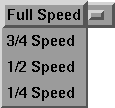
The Play and ReversePlay speed is selected from the speed menu to the right of the playback buttons.
The speed menu appears as follows:
There is no menu name as such; the selected speed appears on the top of the button as follows:
The Loop/Once menu is used to set whether the soundtrack plays through once and stops or whether the soundtrack plays through repeatedly from beginning to end.
The Loop/Once menu appears as follows:
There is no menu name as such; the choice selected, either Once or Loop appears on the top of the button as follows:
The Add Key button appears as follows:
Clicking the Add Key button works in two different ways:
The smoothing type of the new keyframe is Ease.
Clicking the Add Key button is the same as selecting Edit  Add Keyframe or using the key sequence Ctrl-K.
The Delete Key button appears as follows:
Clicking the Delete Key button works in two different ways:
Clicking the Delete Key button is the same as selecting Edit Delete Key or using the key sequence Ctrl-D.
The Delete Key Region button appears as follows:
Clicking the Delete Key Region button works in two different ways:
Clicking the Delete Key Region button is the same as selecting Edit Delete Region or using the key sequence Ctrl-R.
The Key Smoothing buttons are used to change the transition between two keyframes. The buttons can be used when a single keyframe is selected or when a region of keyframes is selected.
The Key Smoothing buttons appear as follows:
The Key Smoothing buttons function as follows:
The zoom buttons appear to the left of the slider bar as follows:
The left button zooms out of the soundtrack.
The right button zooms into the soundtrack, magnifying a small section over a larger area.
Clicking the buttons repeatedly zooms further in or out.
Zooming in to magnify a section of the soundtrack is very helpful when adding or deleting keyframes as it allows you to be more precise.
The default slider bar appears as follows:
In its default state, the entire soundtrack appears in the soundtrack display area. Therefore, the scroll bar fills the slider bar area.
As you zoom into a portion of the soundtrack, the scroll bar becomes smaller and you can click-drag it to move to the portion of the soundtrack that you want to look at.
A slider bar appears as follows when the soundtrack is zoomed in to show only a very small portion of the soundtrack filling the soundtrack display area:
The scroll arrows are buttons.
If you click the left scroll arrow, the soundtrack display moves in the same way that click-dragging the scroll bar to the left does.