The Display menu appears as follows: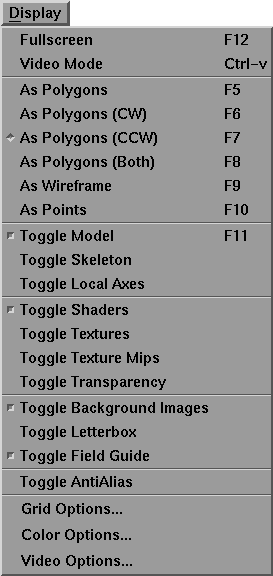
The menu options are selected by dragging down until the option you want is highlighted.
Selecting Fullscreen hides the cursor, menu bar, shuttle bank, and toolbox and makes the view/edit area fill the entire screen.
Pressing the F12 key is the keyboard shortcut to switch back and forth between the standard interface and fullscreen.
The next six menu items switch between the possible displays for the 3D scene view. Only one of these six options can be set at a time, but one of the options must be selected. The default option is As Polygons (CCW).
| None of these selections can be used if the Toggle Model option has been selected. |
Video Mode toggles MotionSampler's video mode.
| Some Silicon Graphics hardware can be configured to output an area of the screen to an external video recorder or display. To take advantage of this, you may have to position MotionSampler so that its scene view is in a specific location and size on the screen. You may also need to execute UNIX commands to change the state of the display hardware so that the video signal is appropriate for the external hardware. |
When Video Mode is activated, the MotionSampler window is resized and moved so that the lower left corner of its main scene display is in a preset location and has a preset size.
When Video Mode is deactivated, the MotionSampler window is restored to the size and location it was in before Video Mode was activated.
Video Mode can also be configured to hide the cursor when it is in side the scene view and execute a UNIX command to change the hardware video characteristics. These options are set using Display  Video Options.
The keyboard shortcut for Video Mode is Ctrl v.
Selecting As Polygons renders the objects in the scene according to a guess about which side of a polygon is facing out.
Selecting As Polygons (CW) renders the objects in the scene using a clockwise ordering of polygon vertices to determine the outward direction of each polygon.
Selecting As Polygons (CCW) renders the objects in the scene using a counter-clockwise ordering of polygon vertices to determine the outward direction of each polygon.
Selecting As Polygons (Both) renders both sides of all polygons in the scene.
Selecting As Wireframe draws all objects in the scene as wireframes.
Selecting As Points draws all objects in the scene as their polygon vertices.
Selecting Toggle Model turns the display of the model geometry on and off.
Selecting Toggle Skeleton turns the display of the model skeleton's bones on or off. This is often an effective way to view models and works well with the display option As Points.
Toggling Local Axes on displays a small axis at each dag node's rotate pivot that is aligned with the coordinate system for that node. The X axis is red, the Y axis is yellow, and the Z axis is blue.
Toggling Shaders on turns all shaders into the most basic shader type, Lambert, and changes only the color from material to material. This is the fastest display mode.
Toggling Textures on displays all of the loaded textures on Alias objects. The textures must have been loaded with the object to be visible.
If Toggle Textures is on, toggling Texture Mips on computes mip maps for all textures and displays the textures with additional filtering for the highest quality images.
Toggling Transparency on makes a second rendering pass of the scene and displays all transparent objects on top of the rest of the scene.
| Multiple layers of transparency are not displayed correctly. |
Toggling Background Images on displays any textures attached to the environment. Animation of the environment's texture file extension causes background images to play back.
Toggling Letterbox on blanks the areas above and below, or left and right, on Alias cameras to match the aspect ratio of the camera to the window.
Toggling Field Guide on displays a field box, cross hairs, and outlines that define the extent of the Alias cameras.
Toggling AntiAlias on draws each image four times and uses a jittering technique to anti-alias the main drawing area.
| This feature is very slow on machines that do not have a hardware accumulation buffer. |
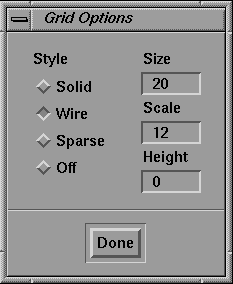
Selecting Grid Options... opens the Grid Options window which appears as follows:
The Grid Options window controls the display of the grid in the view/edit area.
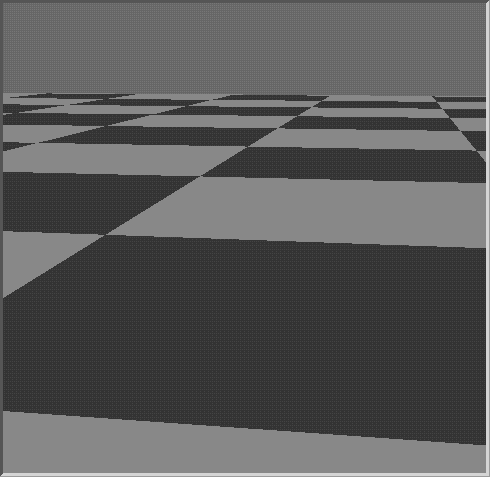
In Solid mode, the grid has the appearance of tiles as follows:
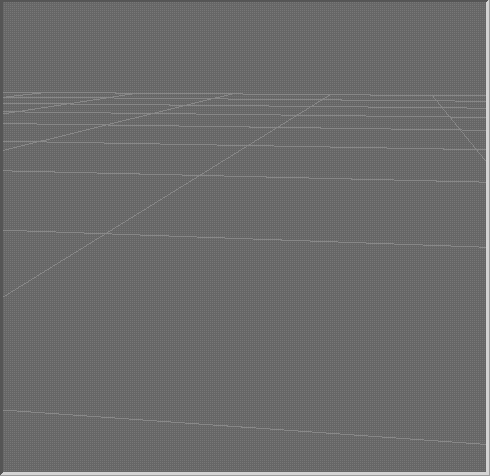
In Wire mode, the grid is thin wire lines as follows:
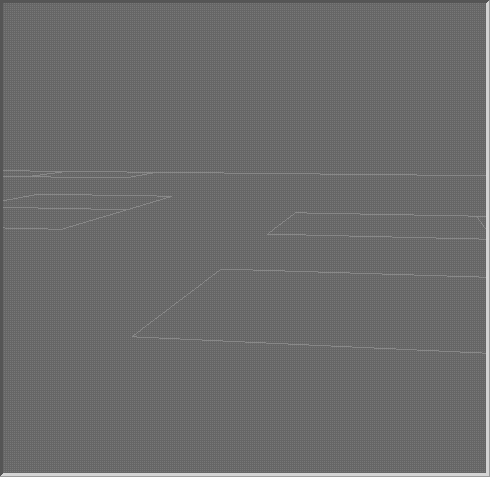
In Sparse mode, the grid is a sparse grouping of boxes as follows:
If Off is selected, the floor is not displayed.
The default grid style is Wire.
The size and scale of the grid and the height of the floor can be changed in the Grid Options window as well.
When you have finished adjusting the grid, click the Done button to close the window.
Selecting Color Options... opens the Color Options window.
The Color Options window controls the color values for the background and the grid. The colors are adjusted by click-dragging the red, green, and blue slider for each.
To close the window, click the Done button.
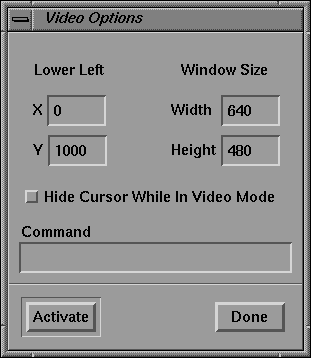
Selecting Video Options opens the following window:
The Video Options window allows you to set parameters which affect the video mode.
Enter the X and Y coordinates for the screen location of the lower left corner of the MotionSampler window at Lower Left.
| The window system places (0,0) in the upper left of the screen. Values for Y increase going down the screen. |
Enter values for the Width and Height of the MotionSampler window at Window Size. You should match this size to that of the area that the external video hardware sees.
Click the Hide Cursor While In Video Mode button to hide the cursor so that it does not appear in the external video.
Enter UNIX commands in the edit field at Command. These UNIX commands are executed when you toggle video mode ON using Display Video Mode.
When you toggle Display Video Mode ON, the command has the text argument activate appended to it. When you select Display Video Mode to toggle video mode OFF, the argument is deactivate.
Click the Activate button to activate the video mode. This is the same as selecting Display Video Mode or as using the keyboard shortcut Ctrl-v.
Click the Done button to save the options you entered in the Video Options window and to return to the display mode MotionSampler was in when you selected Display Video Options....