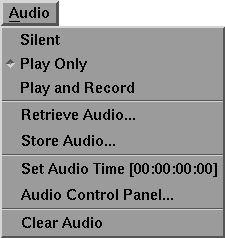
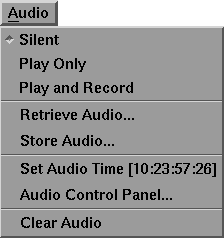
The Audio menu appears as follows:
A sound track is a sound file that is loaded into MotionSampler and used as a timing reference while sampling a performance.
Sound tracks have a built-in concept of time based on their sampling frequency and sample count. Therefore, having actors perform to a pre-recorded audio track is effective for maintaining timing, and layering several elements of a scene. The sound track file can be digitized from a DAT tape, audio CD, microphone input, or through standard audio input available on many Silicon Graphics platforms.
Sound tracks can be monophonic or stereophonic. MotionSampler recognizes sound tracks in AIFF and AIFC audio file formats.
Tools available on Silicon Graphics workstations such as soundeditor and soundfiler can be used to create, convert, or manipulate AIFF and AIFC audio files.
MotionSampler can also record digital audio while recording motion. This provides an excellent way to preview performances when the audio comes from an external source and cannot be pre-digitized.
| MotionSampler does not have sound editing capabilities. It views sound tracks as constant data sets of fixed length. |
The Audio menu options are selected by dragging down until the option you want is highlighted.
The first three menu options set the way sound tracks are played by MotionSampler. Only one of these can be on at a time, and one of them must always be selected. The default option is Play Only.
When Silent is selected, the soundtrack playback is not audible even when it is playing.
When Play Only is selected, the sound track plays at the volume set on the workstation's Audio Panel when animation is previewed or recorded. The sound track is not recorded, however.
The sound track is tied to the movement of the shuttle. So, as the shuttle moves forward the sound track plays. If the playback speed is not 100%, the sound track also plays at a reduced speed.
When Play and Record is selected, MotionSampler records sound while recording motion.
When the shuttle is moving forward in Record mode, audio is sampled and stored. When the shuttle is moving forward in Play mode, the sampled and stored audio is played back.
MotionSampler retains only one block of audio samples. Therefore, each time that audio is recorded, it replaces the audio that was previously recorded unless the previous recording was stored.
Selecting Retrieve Audio... is the same as selecting File  Retrieve Audio....
Selecting Store Audio... is the same as selecting File Store Audio....
Selecting Set Audio Time [00:00:00:00] allows you to change the time when the sound track begins to play.
A notion of time is very important to MotionSampler. It needs to know at precisely what time each sample occurs when recording motion and at what time within an animation the sample is to be inserted.
Internally, MotionSampler represents time with a resolution of 6000 ticks per second and a total range of 24 hours. While this doesn't mean that every sample has an accuracy of 1/6000 of a second or that 24-hour-long recordings are possible, it does show that MotionSampler's notion of time is precise.
MotionSampler presents time in a format known as timecode which addresses a specific moment within a 24-hour period in terms of hours, seconds, minutes, and frames. The usual number of frames in a second is 30.
MotionSampler accepts two time frames: real time and frame time. MotionSampler measures data events that occur in real time and then records the information to data channels in frame time.
Real time is an approximation of the time you are actually experiencing. A 10 second motion sample is 10 seconds long in terms of real time.
Frame time is the destination time of the data and may change at different speeds. Frame time is always controlled by the playback shuttle controls.
Timecode is a way of describing time. It is similar to the Society for Motion Picture and Television Engineers (SMPTE) timecode standard used in video and audio applications.
Timecode can describe any moment within a 24 hour period in terms of hours, minutes, seconds, and frames. The usual way of presenting timecode is as follows:
HH:MM:SS:FF
| HH | is the number of hours. |
|---|---|
| MM | is the number of minutes. |
| SS | is the number of seconds. |
| FF | is the frame number. |
The number of frames in a second is not fixed. Usually, NTSC video has 30 frames per second, PAL has 25 frames per second, and film has 24 frames per second. Multimedia applications commonly have 10 and 15 frames per second.
To change the time when the sound track begins to play:
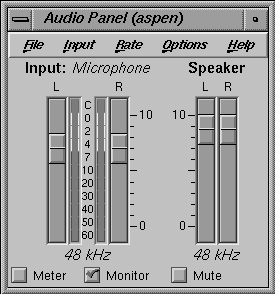
Audio Control Panel... is used to adjust the volume at which the sound track is played or the sensitivity of the microphone when recording a sound track.
Selecting Audio Control Panel... opens the Audio Panel which appears as follows:
The Audio Panel runs the program apanel, which controls the audio hardware and the volume that the sound track is played at or recorded at.
To open the Audio Panel from the UNIX desktop, choose Audio Control from the UNIX Desktop menu in the Toolchest.
Selecting Clear Audio deletes any audio data that was loaded or recorded in the current session.