The menu options are selected by dragging down until the option you want is highlighted. The option functions are as follows.
Selecting Retrieve Model... clears all models currently in the scene and then loads an Alias wire file.
To merge an Alias wire model with the current scene, select File  Include
Model... which is described below. Include
Model... which is described below.
|
The fileManagerBrowser window is displayed to help you navigate the file system and select the wire file you want to retrieve. The fileManagerBrowser appears.
The fileManagerBrowser opens to the current project's wire directory. When you select a file by clicking on its name or by typing in the command line, the current scene is cleared and the wire file is loaded.
The three option buttons located under the Files list control loading options. Textures are loaded with the wire file if the button next to Load Textures is pushed in. Shapeshifter images are loaded if the button next to Load Delta Shapes is pushed in. All files including files beginning with a "." or ending with .ICON are shown in the Files list if the show invisible files button is pushed in.
If you load a model without clicking the button next to Load Textures, you will not be able to see any textures with the object even if you select Display Toggle Textures.
The default settings for the loading options are set according to the hardware you are running MotionSampler on or by whatever command line or previous setting you have used.
When the file is being retrieved, all surfaces in the file are automatically tessellated into polygons for faster display feedback.
| To precisely control the tessellation and make loading into MotionSampler faster, you can use PowerAnimator to build special model approximations. |
If the model being loaded was previously saved from MotionSampler using File Store Model..., it may contain information about the previous MotionSampler session. If this is the case, MotionSampler loads all talent files, pipeline files, and audio files specified there.
If you want to load the model and without any previous session data stored with it, first select Scene Clear Scene, and then load the model using File Include Model....
If the model being loaded does not contain any information about a previous session, the LookAt function is automatically invoked when the file is retrieved. The LookAt function displays the model in four windows with three orthographic cameras and one perspective camera.
| See the View/Editor Icons section below for more information about the LookAt function. |
If you click the Filter button, an edit field opens in the File Browser. The edit field is used to specify a UNIX-style string matching prototype for the types of files that are shown in the File Browser. The filter variable is automatically set to the appropriate value for each type of file being loaded or stored, so you normally do not need to use the Filter button.
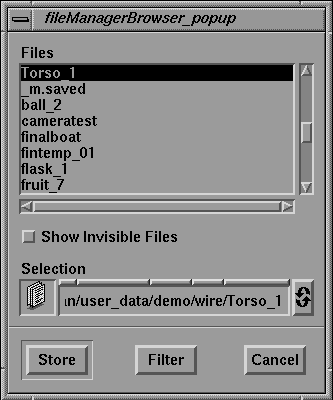
Selecting Store Model... saves all model data and animation from the session to a wire file. The fileManagerBrowser is displayed to help you navigate the file system and select the folder where you want to save the file. The fileManagerBrowser appears as follows:
If a pipeline, talent, or audio file was retrieved or created and stored during the session, the name of the file is saved with the wire file. The next time the model is read using File Retrieve Model..., the corresponding pipeline, talent, and audio files are also loaded.
The session data consists of the filenames of the currently loaded pipeline, talents database, and audio file. If you have not retrieved or stored a file of a specific type, then no filename is saved. Additional information stored in the session data includes the position and orientation of each of the four built-in perspective cameras (Persp1, Persp2, Persp3, and Persp4), the grid height, the audio starting time, and the two sample frequency settings.
| The cameras stored are not actual Alias cameras and are not stored as Alias cameras. |
Filenames stored in the session data are placed in the misc_data directory of the current project. If you change projects and try to load a saved wire file from a different project, MotionSampler prompts you to locate any files it cannot locate.
Selecting Include Model... opens the fileManagerBrowser window to help you navigate the file system and select the file you want to retrieve. The fileManagerBrowser window appears the same as when File Retrieve Model... is selected.
Include Model... merges the information in the selected wire file with the data in the current scene.
| Any MotionSampler session data embedded in the file is ignored when a file is retrieved using Include Model.... |
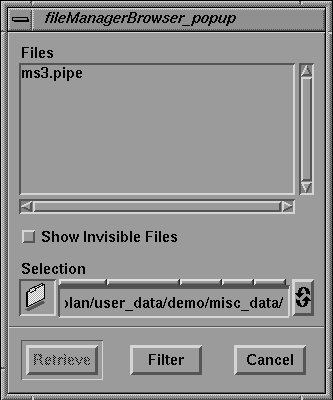
Selecting Retrieve Pipeline... opens the fileManagerBrowser window to help you navigate the file system and select the file you want to retrieve. The fileManagerBrowser window appears as follows:
Retrieve Pipeline... replaces the current pipeline in the session with the selected one. Pipeline descriptions are saved in text files ending with the extension .pipe and are stored in the directory misc_data. The fileManagerBrowser only displays files with the .pipe extension for this function.
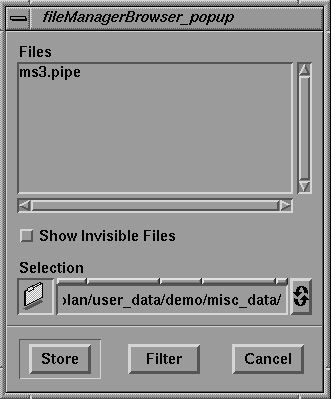
Selecting Store Pipeline... opens the fileManagerBrowser window to help you navigate the file system and select the folder you want to store the pipeline in. The fileManagerBrowser window appears as follows:
Store Pipeline... stores the current pipeline to a file. If you specify a file name in the browser without a .pipe extension, the extension is added automatically. The fileManagerBrowser only lists files with the .pipe extension for this function.
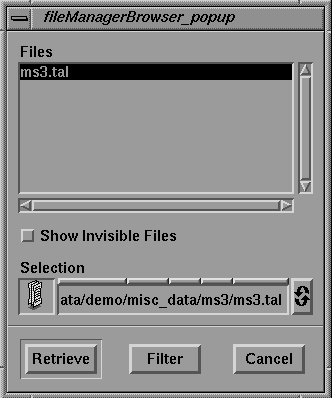
Selecting Retrieve Talents... opens the fileManagerBrowser window to help you navigate the file system and select the file you want to retrieve. The fileManagerBrowser window appears as follows:
Retrieve Talents... loads a group of talents from a file. The new set of talents replaces any previously loaded set. A talent file is a text file with the extension .tal. The fileManagerBrowser only lists files with the .tal extension for this function.
Selecting Store Talents... opens the fileManagerBrowser window to help you navigate the file system and select the folder you want to store the talents in. The fileManagerBrowser window appears the same as when Retrieve Talents... is selected, but with a Store button in place of the Retrieve button.
Store Talents... saves the current set of talents and their calibrations to a file. If you specify a file name in the fileManagerBrowser without a .tal extension, the extension is added automatically.
Selecting Retrieve Audio... opens the fileManagerBrowser window to help you navigate the file system and select the file you want to retrieve. The fileManagerBrowser window appears the same as when Retrieve Talents... is selected, but only files ending in .aiff or .aifc are listed.
Retrieve Audio... loads digital audio from a AIFF and AIFC format audio files. The new sound track replaces any previously loaded sound track. AIFF files end with .aiff and AIFC files end with .aifc. AIFC audio files are actually compressed AIFF files.
Selecting Store Audio... opens the fileManagerBrowser window to help you navigate the file system and select the folder you want to store the sound track in. The fileManagerBrowser window appears the same as when Retrieve Talents... is selected, but with a Store button in place of the Retrieve button.
Store Audio... saves digital sound tracks to a file. Audio files are saved in AIFC format, which is the compressed version of AIFF format files.
Selecting Change Project... opens the following window:
At the prompt line you can type a new project name to change the Alias project from which your files are loaded. Once you have entered the new project name, click the OK button. MotionSampler then finds the wire and misc_data directories that contain its data in the new project directory.
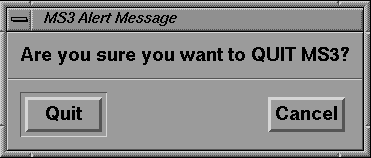
Selecting Quit opens the following window:
If you click the Quit button, you exit MotionSampler. If sampling is active when you click the Quit button, the sampling is deactivated.
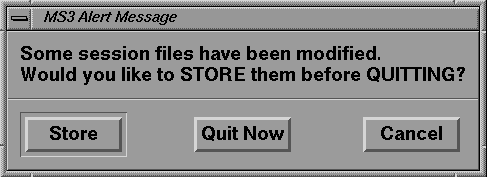
If any part of the scene, pipeline, talents, and audio need to be saved, MotionSampler prompts before exiting with the following window:
Other windows specify what precisely you have modified and not saved.
If you click the Store button, the fileManagerBrowser window opens to allow you to select the directory in which to store the files. Once the files have been stored, MotionSampler quits the session and closes.