This section describes the layout and function of MotionSampler.
MotionSampler is divided into four major areas: Menu Bar, Shuttle Bank, View/Edit Area, Toolbox.
The Menu Bar is located at the top of the MotionSampler window. It is always displayed and appears as follows:
Some operations that can be accessed directly elsewhere in the application are also accessible in a menu. For example, the actions of the playback buttons in the shuttle bank can also be accessed from items in the Playback menu.
A few other operations can be accessed under more than one menu. For example, many of the commands for storing and retrieving files are found under the menu for the type of item being stored, such as Pipeline or Talent as well as in the File menu.
Many menu commands have keyboard shortcuts that let you make menu selections by typing special keys on the keyboard. This is especially useful in MotionSampler because you may want to use the mouse as a motion capture input device and record its motion into an animation channel.
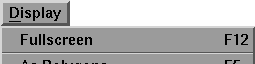
Menu items with keyboard shortcuts show the shortcut at the end of the item as in the following example:
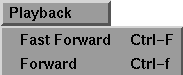
If the keyboard shortcut is a control character, it has a label such as Ctrl-a, which means type the A key while you hold down the Ctrl key. A label like Ctrl-A (with an uppercase A) means that you type the A key while you hold down the Ctrl key and the Shift key. You can see the two types of shortcut in the following menu:
Keys used as shortcuts to menu items are affected by the state of the keyboard. In particular, Num Lock and Scroll Lock can disable shortcuts. If you normally use Num Lock or Scroll Lock, MotionSampler detects this and resets the menu shortcuts appropriately. However, if you change the status of these settings while MotionSampler is running, it cannot detect this and your keyboard shortcuts will no longer work. It is best not to change these settings once you've begun working in MotionSampler.
Some menu items are toggles, and have an On or Off state. If the item is On, a diamond shape appears to the left of the menu item. If the state is Off, the diamond disappears.