|

|
Set the UV parameterization of a group of polygons by mapping the vertices of the polygons onto a projection or a NURBS surface.
Overview
When polygons are created, the default UV coordinates are usually not ideal for texture mapping, and textures appear distorted and misplaced. To place the textures correctly, you must map UV coordinates onto the polygon, a process called parameterization.
This tool lets you begin parameterizing polygons more quickly than manually manipulating them with the texture space editor or the UV Transform tools.
How to Use
|
|
When Axis Override is set to
None, the vertices are
mapped onto a NURBS
surface in the direction of
their normals. Since the
normals usually point
outward on an object, you
may have to surround a
polygonal object with a
NURBS surface.
|
-
1
-
Set the options based on whether you want to remap the UVs of polygons based on a projection object or a NURBS surface (see Apply UVs Options below).
-
2
-
Pick the polygons you want to remap. Then pick either a projection object or a NURBS surface (depending on the Source Type
setting).
-
If you pick more than one projection or surface, Alias uses
the first one you picked.
|
|
In order to see through the
surface to the polygons,
template the surface, then
pick the polygons and
surface using the Pick >
Object and Pick > Template
tools.
|
-
3
-
Select Poly Shading > Apply UVs or click the icon.
-
Alias remaps the UV coordinates of the polygons using
the projection object or the NURBs surface.
Apply UVs Options
To display the Apply UVs Options box, select Poly Shading > Apply UVs - from the
menu, or double-click the icon. from the
menu, or double-click the icon.
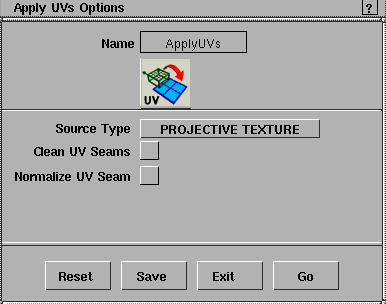
Source Type
-
- Choose NURBS Surface or Projective Texture. The source types have different options as shown below:
-
- NURBS Surface Options

Axis Override
-
- (This option is available when the Source Type is NURBS surface).
-
- Choose how to project the vertices onto the target:
- None - uses the normals of the polygon vertices to project polygon vertices onto the target.
- X, Y, Z axis - uses a world space axis to project polygon vertices onto the target.
- Average axis - uses the average normal axis to project polygon vertices onto the target.
Reverse Direction
-
- (This option is available when the Source Type is NURBS surface).
-
- Check this box to reverse the direction of the axis chosen in the Axis Override pop-up menu.
-
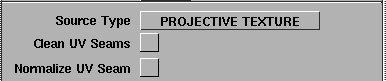
- Projective Texture Options
-
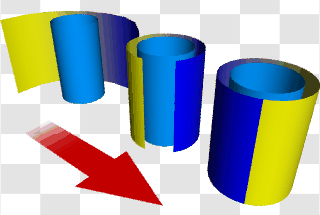
- UV coordinates are a two-dimensional square wrapped around the polyset. When that square is wrapped around a circular object like a cylinder or a sphere, you may get a seam where the edges of the square (0 and 1) meet.
-
- When this seam is on polygon edges (as it is on polysets that were converted from NURBS primitives), it can distort the texture.
-
- Similarly, when you use Spherical or Ball projections, you can get UV poles, where UV coordinates become crowded together, making the texture look pinched toward two poles of the sphere.
-
- The Clean UV Seams and Normalize UV Seam options help minimize texture distortions caused by seams and poles.
Clean UV Seams
-
- Fix the texture distortion caused when a texture seam is on polygon edges. In most cases, you should also turn on Normalize UV Seam when using this option.
Normalize UV Seam
-
- The Clean UV Seams
option can result in UV coordinates outside the standard (0,0) to (1,1) range. This is not a problem for Alias, but can be a problem for other applications or platforms to which you might export your data. This option solves the problem by scaling the UV coordinates back into the (0,0) to (1,1) range.
|


