|
|
Poly Shading palette
> UV Xform
|
Changing and Copying Polygon Parameterization
|
|
|
|
|
|
|

|
Quickly change the parameterization of polygons by moving, rotating, scaling, normalizing, and copying UV coordinate maps.
|
|
If you have a fast machine,
choose DisplayTgls > Shade
in the menu (make sure the
Display Textures option in
the DisplayTgls > Shade
options box is on). This will
let you view the texture as
the parameterization
changes.
|
Overview
When polygons are created, the default UV coordinates are usually not ideal for texture mapping, and textures appear distorted and misplaced. To place the textures correctly, you must map UV coordinates onto the polygon, a process called parameterization.
|
|
To view the actual UV
coordinates graphically,
choose DisplayTgls >
Polygon control - , turn on
Colored Display, and choose
UV color from the Color
Style pop-up menu. , turn on
Colored Display, and choose
UV color from the Color
Style pop-up menu.
|
These tools allow you to make quick, large scale edits to the UV parameterization of polygons. You can:
- Move, rotate, and scale the UV coordinate space over the surface of the selected polygons.
- Normalize the UV coordinate space on the polygons.
|
|
These tools use the concept
of selecting polygons by
picking their vertices. To see
a graphic indicator on
selected polygons, choose
DisplayTgls > Polygon
control -, and turn on
Selected Polygons.
|
- Copy the UV coordinate space (and shader) from properly parameterized polygons to other polygons.
-
For finer control, use the Texture Space Editor to visually
map the UV coordinates onto the polygon surface (see the
Texture Space Editor section of the Rendering in Alias
manual).
Moving, Rotating,and Scaling the UV Coordinates of Polygons
|
|

|
-
1
-
Choose Poly Shading UV Xform - or double-click the icon to the side.
-
2
-
Choose Transform from the UV Action pop-up menu.
-
3
-
Choose the type of transformation from the Transformation pop-up menu: Translate (move), Rotate, or Scale. Different options will appear for each type of transformation (see the Transform Options section below).
-
4
-
Click Go. The system prompts:
-
Shift select complete polygons to map.
-
5
-
Hold down Shift and pick the vertices of polygons you want to edit. The mouse buttons work as in normal picks: the left mouse button toggles, the middle mouse button picks exclusively, and the right mouse button unpicks.
-
Once you have picked at least one complete polygon, the
system prompts:
-
Click / drag to map, or enter (ABS)
translation (u,v):
-
You can now:
- click/drag the mouse with Shift held down to continue to pick/unpick vertices
- drag the mouse without Shift to transform the UV coordinates
- enter transform values from the keyboard for precise control
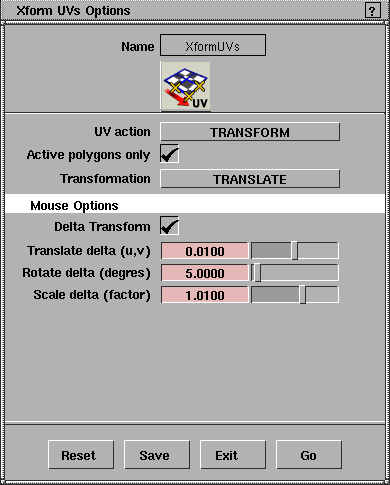
Xform UVs Options
Active polygons only
- Turn this check box on to only transform polygons with all their vertices selected. Polygons whose vertices are not all selected will not be transformed.
- Turn this check box off to transform all polygons with any vertices selected.
Transformation
-
- Choose the type of transformation to perform on the UV coordinates of the polygons: Translate (move), Rotate, or Scale.
Delta Transform
- Turn this check box on to translate and rotate by fixed-size units ("deltas", set below) when you move the mouse. This option allows more precise control over transformations.
- Turn this check box off to translate and rotate relative to the amount you move the mouse.
Translate delta (u,v)
-
- Enter the distance (in UV space) to move for each pixel of mouse movement (when Delta Transform is on).
Rotate delta (degrees)
-
- Enter the number of degrees to rotate for each pixel of mouse movement (when Delta Transform is on).
Scale delta (factor)
-
- Enter the factor to scale by for each pixel of mouse movement.
Normalizing the UV Parameterization of Polygons
|
|

|
-
1
-
Choose Poly Shading > UV Xform - or double-click the icon to the side.
-
2
-
Choose Normalize from the UV Action pop-up menu.
-
3
-
Choose the type of normalization from the Normalize Options pop-up menu: Global, Global Best Planar, Norm per Polygon, or Unit per Polygon (see the descriptions in the Normalize Options section below).
-
4
-
Click Go. The system prompts:
-
Shift select complete polygons to map.
-
5
-
Hold down Shift and pick the vertices of the polygons you want to edit. The mouse buttons work as in normal picks: the left mouse button toggles, the middle mouse button picks exclusively, and the right mouse button unpicks.
-
Once you have picked at least one complete polygon, the
system prompts:
-
Shift select / deselect vertices to map.
Click on GO to normalize
-
You can now:
- click/drag with the Shift key held down to continue to pick/unpick vertices
- click the Go button in the bottom right corner of the window to normalize the UV coordinates
Normalize Options
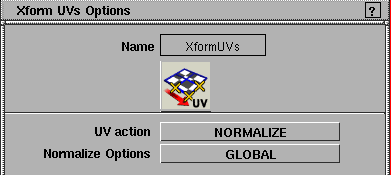
Normalize Options
- Global - normalizes based on the UV coordinates of all selected polygons.
- Global Best Planar - normalizes based on the best planar fit.
- Global Screen Planar - normalizes based on the camera fit.
- Norm per Polygon - normalizes each polygon individually based on UV coordinates.
- Unit per Polygon - normalizes each polygon individually based on the UV space unit square (0,0 to 1,1).
Copying UV Parameterization to Other Polygons
Paint Mode Off
|
|

|
-
1
-
Choose Poly Shading UV Xform - or double-click the icon to the side.
-
2
-
Choose Copy/Paste from the UV Action pop-up menu.
-
3
-
Choose Off from the Paint Mode pop-up menu.
-
4
-
Click Go. The system prompts:
-
Shift select target polygons / click select
source polygon.
-
5
-
Click the polygon you want to copy from.
-
6
-
Hold down Shift and pick the vertices of polygons you want to paste to. The mouse buttons work as in normal picks: the left mouse button toggles, the middle mouse button picks exclusively, and the right mouse button unpicks.
-
Once you have picked at least one complete polygon, the
system prompts:
-
Shift select target polygons / click select
source polygon. Click on GO to paste.
-
You can now:
- click/drag the mouse with the Shift key held down to continue to pick/unpick vertices to paste to
- click the Go button in the bottom right corner of the window to paste the UV coordinates
Paint Mode On
|
|

|
-
1
-
Choose Poly Shading UV Xform - or double-click the icon to the side.
-
2
-
Choose Copy/Paste from the UV Action pop-up menu.
-
3
-
Choose On from the Paint Mode pop-up menu.
-
4
-
Click Go. The system prompts:
-
Shift select source polygon, and click drag
polygons to paint.
-
5
-
Hold down Shift and click the polygon you want to copy from.
-
6
-
Drag the mouse over polygons you want to paste to (as if painting them with a brush).
Copy/Paste Options
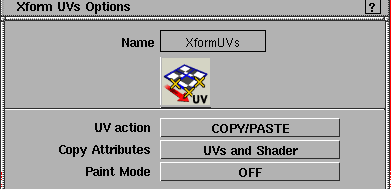
Copy Attributes
- UVs - copies the UV parameterization of the selected polygons.
- Shader - copies the shader of the selected polygons.
- UVs and Shader - copies both the UV parameterization and the shader of the selected polygons.
Paint Mode
- On - After selecting the source polygon, drag over polygons to copy the UVs/shader to them (as if painting them with a brush).
- Off - After selecting the source polygon, drag a selection rectangle to select the target polygons of the copy.
|


