|

|
Reduce the number of colors used by a polyset.
Overview
The Polyset Prelight operation stores 32 bit color values (8 bits each of red, green, blue, and alpha) in the vertices of polygons. Once you have stored the color information, you can use this tool to reduce the resolution of the stored color information.
This tool is useful if you plan to use the model on a low color resolution display device, or if you want to reduce the storage space of the model.
How to Use
>
|
Note:
|
You must use Polyset Prelight to store color information in
the polygon(s) before you can use Color Reduce.
|
-
1
-
Pick the polygons with pre-lit color information you want to reduce.
-
2
-
Select Poly Shading > Color Reduce -
 or double-click the Color Reduce icon. or double-click the Color Reduce icon.
-
3
-
If you want to reduce the colors of all channels (red, green, blue and alpha) at once, click Update from Red.
-
If you want to reduce the colors of each channel
individually, click Separate.
-
4
-
Use the slider(s) to set the number of colors allowed in each channel. If you do not want to reduce a channel, set that channel's slider to 0
.
-
5
-
Click Go.
Polyset Color Reduce Options
To display the Vertex Merge Options box, choose Poly Shading > Color Reduce - or double-click the Color Reduce icon.
All Channels
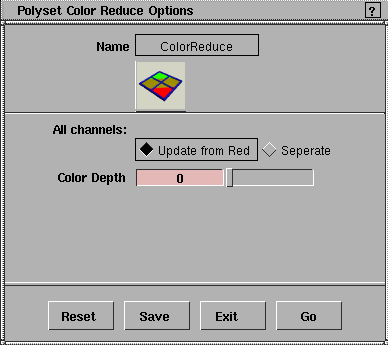
-
- Update from Red - one slider lets you set the depth for all channels at once.
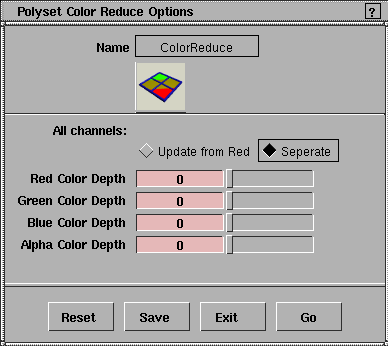
-
- Separate - four sliders let you set the depth of each channel individually.
Color Depth sliders
-
- Set the sliders to the number of colors allowed in each channel. If you do not want to reduce a channel, set that channel's slider to 0.
|


