CAD Packages |
|
||||
5 |
CATIA Data Transfer |
In this Section:
CAT Direct Connect Overview |
|||
|
| |||||
Alias CAT Direct Connect is a stand-alone utility that allows the exchange of 3D model data between Alias and CATIA using the CATIA/Alias neutral format CAI. Software Requirements
WorkflowsBefore transferring geometry between Alias and CATIA, you should consider the purpose of the transfer in order to plan an appropriate workflow. Two common workflows are:
There are many variations on these two examples. Whatever the transfer scenario, you should carefully plan the transfer process, to ensure that the appropriate data is written out and is useful. Transfering Alias to CATIA | |||||
|
| |||||
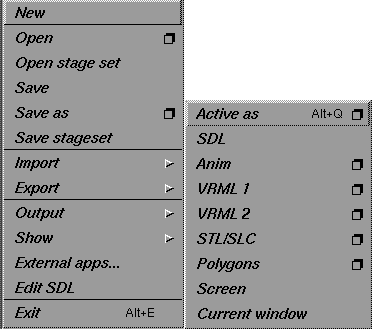
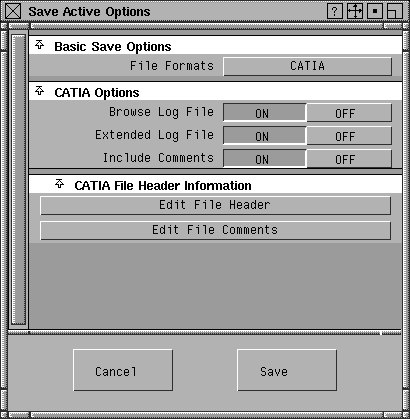
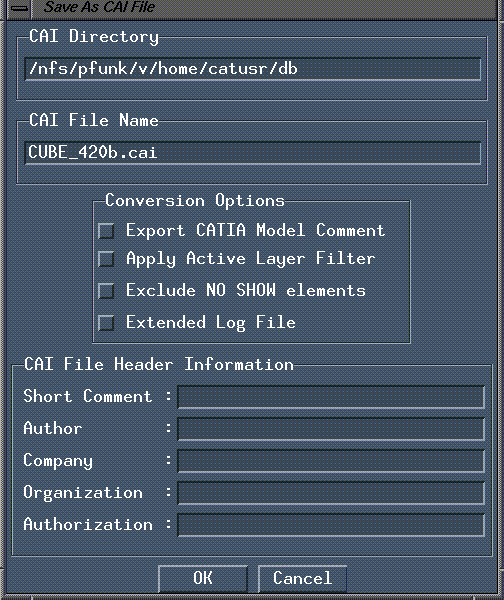
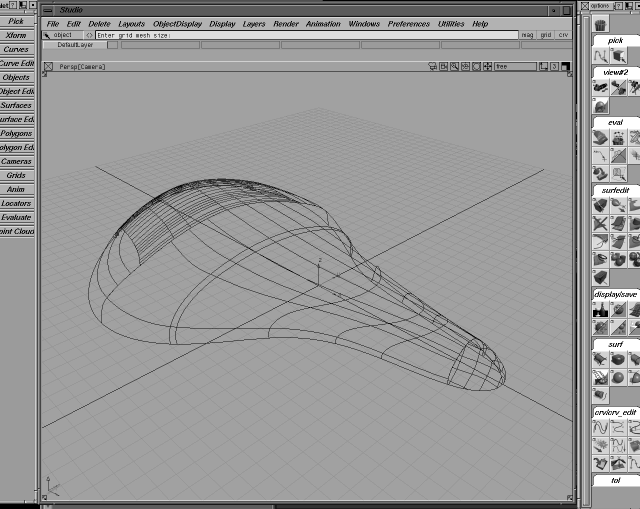
This section describes the process of transferring an Alias model to CATIA: Creating the CAI file in AliasFollow these steps to create a CAI file in Alias for transfer to CATIA: | |||||
| |||||
|
Importing the CAI file into CATIAThe following sections describe how to import Alias CAI files into CATIA, view them and prepare them to be used in downstream CATIA operations. To import a 3D Alias file into CATIA and create useful geometry for the CATIA engineer, you must follow two main steps:
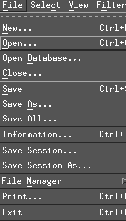
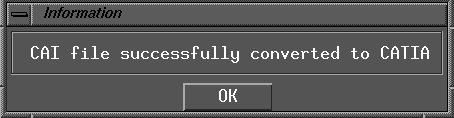
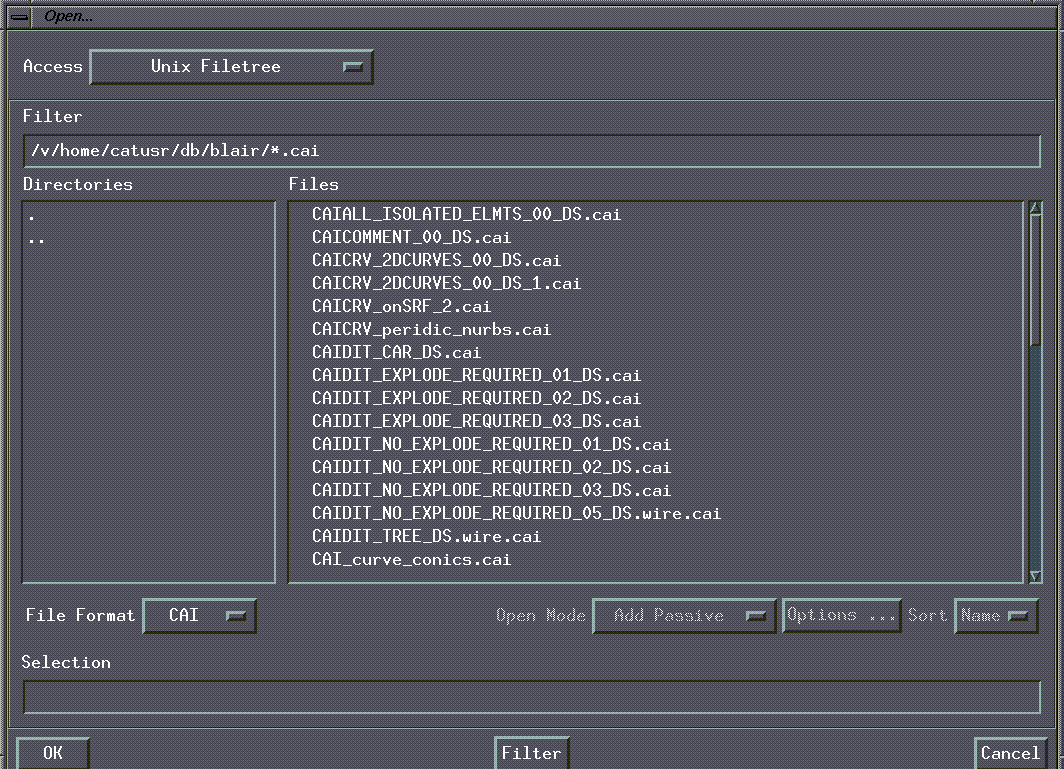
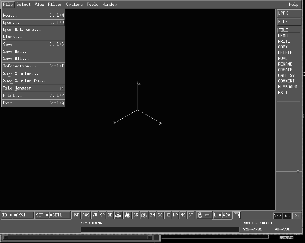
Step 1: Creating an Alias CAI fileCreate the Alias CAI file as described previously in the section Creating the CAI file in Alias on page 95. Step 2: Creating a CATIA model fileEverything imported from the Alias CAI file will be translated to make up the CATIA .model file. Follow these steps to import the Alias CAI file into CATIA and create a model file: Starting CATIA | |||||
| |||||
| |||||
|
|
| ||||
|
For more on the extended log file, see Extended Log File on page 121. |
| ||||
|
For more on the log file, see Short Log File on page 119. |
Changing a file name You may want to change the name of a model file once you have opened it:
Step 3: Creating a SkinBefore using the imported Alias geometry in many of the downstream CATIA operations, a skin must be generated from CATIA face entities. A CATIA model file that has been generated from an Alias CAI file is made up of surfaces, curves and faces (trimmed surfaces). If the Alias geometry has been exported successfully as a shell, then a CATIA skin is automatically created. If a CATIA skin has not been generated automatically, you must create the logical links between faces. To join faces into a CATIA skin, do the following:
Once you have created a skin from the available geometry, you can then define the skin as either a closed solid (volume), closed surface model, or an open surface model.
Using a Skin in CATIAOnce the skin has been created, it can then be used for a variety of downstream applications:
Creating a SolidFor some downstream operations (for example, FEA and the creation of 2D and 3D drawings) you may be required to create solid geometry from the CATIA skin. This can be done using one of two techniques:
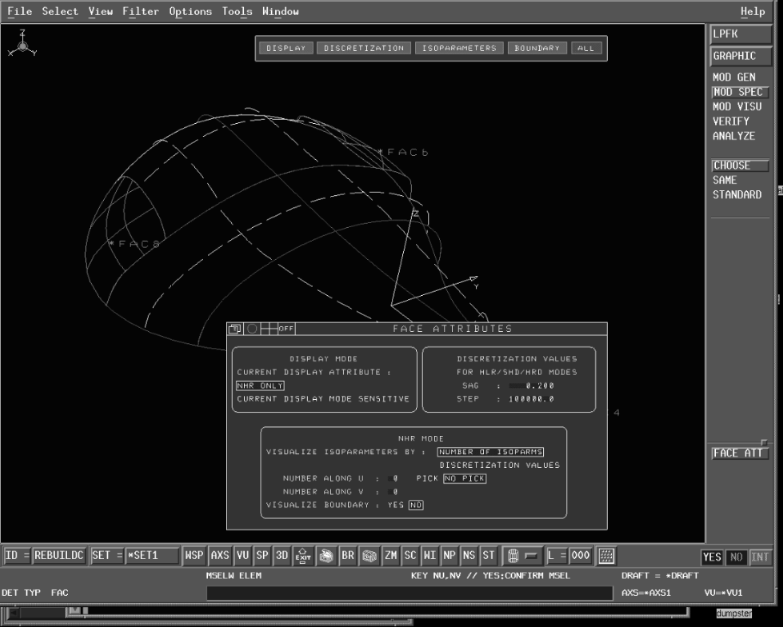
Assembling a SolidThe skin that has been created can be "capped" to define a solid. You can then use this solid in boolean operations. Offsetting to Create a SolidYou can perform this operation using the CATIA offset functionality (FORMTOOL > OFFSET, or SOLID > OFFSET). There is no guarantee that the skin will meet all CATIA prerequisites for an offset. Underlying adjacent faces (and by extension, the surfaces) must not self-intersect during the offset. As well, the continuity between faces must be of a certain standard in order for CATIA to successfully offset the eventual skin. Creating a MeshFor creation of tessellated Solid Imaging files (such as .stl) you can create a mesh from the skin. Then, using the CATIA solid imaging functionality, offset the mesh to create a solid mesh. You can then send this file to the solid imaging technology operator for creation of the physical part. Creating a ToolpathFrom the skin, you can generate a toolpath to send to a CNC milling machine. This is usually the way in which prototype tooling is analyzed. Working in CATIA with Geometry Imported from AliasThe following sections describe how to verify imported geometry for use in downstream processes such as offsetting and the creation of toolpaths. Selecting geometryIn order to make the desired geometry type pickable, you may need to make the interior isoparms of the geometry visible. By default, the face boundaries are not displayed. Even if they were displayed, they would be positionally coincidental with the curve entities. You must modify the display configuration so that the curves are out of the way, then display the face boundaries and interior isoparms:
| ||||
| |||||
Confirming Geometry StatusTo confirm that the surface geometry imported from Alias exhibits a degree of curvature that allows it to be milled or offset, use the following two evaluation tools:
Using the Curvature function
Using the Numeric function
Meeting geometry requirementsAll surface edges must be topologically matched before the geometry meets the requirements of either a Closed Solid or a Closed Surface Model. In general, edges fail to match because of a mismatch in the topology of two or more adjacent faces, or because the maximum distance between two adjacent edges is greater then the current accuracy defined in CATIA. There may be a gap existing between the adjacent surface edges, or the edges may overlap to the extent that they are unable to be stitched. You can fix this problem by lowering tolerances in Alias and recreating the Alias geometry before re-importing the file into CATIA. Alternatively, the re-intersection of surface geometry can be done in CATIA. By accessing the surface entities and retrimming them, you will re-establish a logical link between the faces and their edges. Replacing Alias geometry in CATIAA common workflow using Alias and CATIA together is one where you replace existing Alias geometry in a CATIA model file with updated Alias geometry. This workflow allows you to continue working in Alias, modifying a model that has already been passed over to CATIA. When you want to update the CATIA database with the completed changes, the surfaces that have been modified are passed to CATIA as a CAI file. You import the new Alias geometry and then redefine the skin that includes the faces in question using the Limit2 > Skin > Create/Modify tool. A skin is made up of adjacent faces that meet parameters such as positional and tangent continuity. If you want to make changes to a face or surface in Alias and then include that modified surface in the CATIA model, you only have to redefine the skin to its members. That is, this time you leave out the original face and include the new Alias-modified face. This way Alias geometry can be used to modify CATIA models at any point throughout the product development cycle. To replace Alias geometry in CATIA:
Alias/CATIA GeometryThe Curve Fit Distance is the tolerance to which trim boundaries are rebuilt to (or approximated). The default positional tolerance in CATIA is .1 mm, and the Alias Curve Fit Distance setting should be set to 0.01mm. This Curve Fit Distance setting should normally be accurate. If you find that it is not resulting in Studio geometry that can be successfully used in CATIA , then experiment with the Curve Fit Distance-it can set to as low as 0.005 mm. This setting will enhance the success of post transfer processes, such as skinning, that are to be carried out once the geometry is in CATIA.
Whether you are creating a model, verifying a model, or debugging a translation, there are a number of Alias tools you can use to check the quality of the geometry you have created. The most useful tool is the Min/max measurement tool in the Locators menu, found within the Tool Palette. Use this tool to check the maximum distance between any two surface boundaries. (See NURBS Modeling in Alias for more information.) Creating Shells for export in AliasCreating a `skin' and offsetting (or creating solid geometry from imported Alias models) is a common workflow when integrating Alias and CATIA. When exporting the model from Alias, you must ensure that the geometry is built to the correct tolerance and that it can also be stitched. The stitching process in Alias identifies gaps between surfaces so that you can repair the appropriate geometry before writing the file out to CATIA. During stitching, the surfaces are twinned. This means that the surface boundaries may be split to accommodate adjacent surfaces, and periodic geometry is detached into multiple surfaces. For this reason, you should save the Alias wire file before stitching so that if further modifications are required to be made to the Studio model, the construction history will be intact. (Stitched geometry saved to an Alias wire file cannot be unstitched to its original state.) A typical workflow follows: >
SummaryUse the following summarized list of modeling practices discussed in this section as a quick reference guide if problems arise. Before you create the model
In the Construction Settings window:
Tolerances should be set as follows:
While you create the model
Transfering CATIA to Alias | |||||
|
| |||||
This section describes the process of creating a CAI file in CATIA. Creating the CAI file in CATIAFollow these steps to create a CAI file in CATIA for transfer to Alias:
| |||||
|
|
| ||||
| Copyright © 1998, Alias|Wavefront, a division of Silicon Graphics Limited. All rights reserved. | Please send questions or comments regarding the documentation to: [email protected] |