CAT Direct Connect Reference | |||||||||||||||||||||||||||||||||||||||||||||||||||||||||||||||||||||||||||||||||||||||||||||
|
| |||||||||||||||||||||||||||||||||||||||||||||||||||||||||||||||||||||||||||||||||||||||||||||
OverviewThe Alias CAT Direct Connect product allows the exchange of 3D model data between Alias and CATIA using the CATIA/Alias neutral format CAI. There are two interfaces for the product:
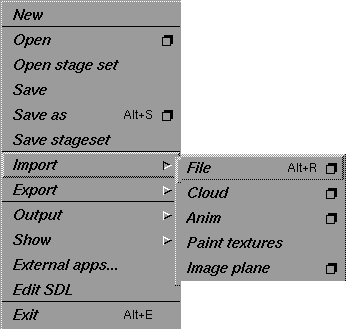
This section contains information on: Interactive User InterfaceImporting and exporting a CAI file is as simple as importing and exporting any geometry file into Alias. Please refer to the File Operations section in the Basic Tools in Alias book for information on importing a file into Alias. The following subsections contain information specific to importing and exporting a CAI file. Importing a CAI FileYou can import a CATIA CAI file into Alias by selecting File > Open or File > Import File.
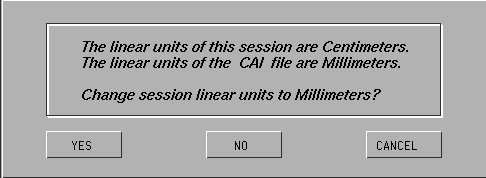
Linear Units and TolerancesAs a first step in the CAI file import process, the linear units and tolerances stored in the CAI file are examined and compared with the current linear units and tolerances in the Alias modeler. The linear units and tolerances stored in the CAI file are those that were used by CATIA in the creation of the geometry in the CAI file. If the linear units stored in the CAI file are different than those in Alias, a confirm window is displayed indicating both CATIA and Alias linear units.
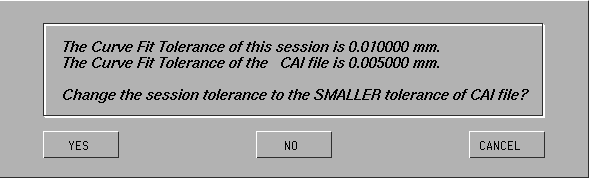
You are asked if you want to change the current Alias linear units to those stored in the CAI file. If you select YES , the current Alias linear units are changed to the units indicated, and processing continues. If you choose NO , the current Alias linear units do not change and the translation process continues. If you choose CANCEL , then the current Alias linear units do not change and the translation process is aborted. If the tolerance stored in the CAI file is different from that of the current Alias modeling tolerance, a confirm window is displayed, containing both the CATIA Curve Tolerance from the CAI file and the corresponding current Alias Curve Fit Distance Tolerance. | |||||||||||||||||||||||||||||||||||||||||||||||||||||||||||||||||||||||||||||||||||||||||||||
| |||||||||||||||||||||||||||||||||||||||||||||||||||||||||||||||||||||||||||||||||||||||||||||
You are asked if you want to change the current Alias Curve Fit Distance Tolerance to be the same as the CATIA Curve Tolerance stored in the file. >
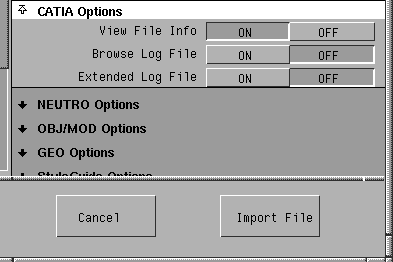
CATIA Import Options
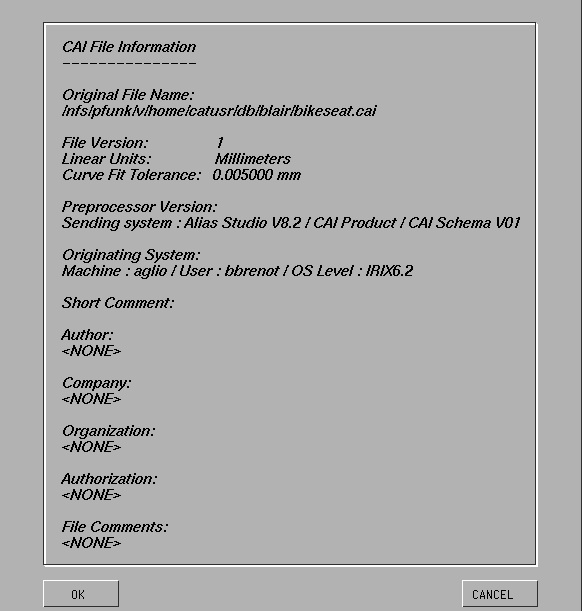
View File InfoWhen you turn this option ON , any user information contained in the imported file is displayed in a confirm window. After reviewing this information, you can choose to continue with the translation by selecting OK , or abort the translation by selecting CANCEL . | |||||||||||||||||||||||||||||||||||||||||||||||||||||||||||||||||||||||||||||||||||||||||||||
| |||||||||||||||||||||||||||||||||||||||||||||||||||||||||||||||||||||||||||||||||||||||||||||
The Comment File is one of the pieces of information included in the File Info . The Comment File is a text file where you can input information pertaining to the development of a project. In addition, if the import of a CAI file is completed with an included comment, then that comment will be added to the existing Comment File. Browse Log FileThis option controls the automatic display of the import translation log file once the transfer has been completed. If you turn this option ON , the log file will be displayed in an editor window after the translation has been completed. (Please see the Translation Log File section on page 112 for more information on the log file name and format). Extended Log FileThis option controls the generation of a verbose log file. The log file is always produced. If you turn this option ON , the log file includes detailed entity mappings, Info , Error and Warning messages, and entity count tables. If you turn this option OFF , then the terse form of the log file is generated. It contains Info , Error and Warning messages, and entity count tables only. Exporting a CAI FileExport a CAI file from Alias for import into CATIA by selecting File > Save As or File > Export > Save Active and selecting CATIA from the File Format popup window. The filename extension CAI will be added to the specified filename on export. This file extension is required by CATIA. A log file containing details of the translation process is produced for both import and export. CATIA Export OptionsBrowse Log FileSee CATIA Import Options on page 114 for more information on controlling the display of the export translation log file. Extended Log FileSee CATIA Import Options on page 114 for more information on controlling the contents of the export translation log file. Include CommentsThis option controls the display of user-supplied comments in the exported CAI file. The CATIA file comment is restricted to 70 characters per line and a maximum of 500 lines. Because Edit Comment uses a user-defined editor, you are not bound by these limits; however, the file comment that is exported from Alias will change to conform to these restrictions, if necessary. That is, lines over 70 characters in length will be wrapped and the comment will be truncated at 500 lines. CATIA File Header Information: Edit File Header | |||||||||||||||||||||||||||||||||||||||||||||||||||||||||||||||||||||||||||||||||||||||||||||
| |||||||||||||||||||||||||||||||||||||||||||||||||||||||||||||||||||||||||||||||||||||||||||||
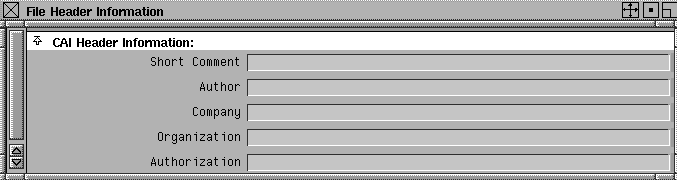
When you click on this field, the CAI File Header Information window is displayed. In this window, you can provide a short comment that might include a description of the model, the name of your organization and company, an authorization code, and your name as the author of the exported model. Entering information in this window is optional. CATIA File Header Information: Edit File CommentsWhen you click on this field, an editor window appears. In it, you can type more detailed comments about the model. The comments are included in the exported file only if you select the Include Comments option. The CATIA file comment is restricted to 70 characters per line and a maximum of 500 lines. Since Edit Comment uses a user-defined editor, you are not bound by these limits; however, the file comment that is exported from Alias will be altered to conform to these restrictions, if necessary. That is, lines over 70 characters in length will be wrapped and the comment will be truncated at 500 lines. Unix Command Line InterfaceThe utilities CaToAl and AlToCa provide the Alias CAT Direct Connect translation functionality at the UNIX command line level. As in the interactive versions, these utilities produce either a brief or extended log file. The log file can also be displayed on the screen during translation. CaToAlThis utility converts a CAI file to an Alias Wire File. To display the usage information, type the following in a UNIX shell window: CaToAl -h The usage information will be printed as follows: CaToAl - Convert CAI (CATIA/Alias Interoperability) files to wire files. Usage: CaToAl [-h] [-b] [-x]
AlToCaThis utility converts an Alias Wire file to a CAI file. To display the usage information, type the following in a UNIX shell window: AlToCa -h The usage information will be printed as follows: AlToCa - Convert Alias Wire files to CAI (CATIA/ Alias Interoperability) files. Usage: AlToCa [-b] [-h] [-x]
Translation Log FileThe translation log file is produced during both import and export of CAI files. This log file contains entity mappings, entity counts, and Information, Error, and Warning messages. Interpreting the Import Log FileOn import of a CAI file, a translation log file is created in the same directory as the CAI file. The file name of the log file is the same as that of the CAI file with the extension .catia2alias added to it. Short Log FileIf you have chosen to use a short log file via the interface options, the log file will contain:
If an error or problem occurs while processing an entity, the CAI entity's type name, user identifier name, and instance name (STEP file line number) are printed, followed by the error or warning message. Here is an example of a short import log file: --- CATIA TO ALIAS TRANSLATION REPORT --- CAI Filename: /nfs/machineid/v/home/catusr/db/userid/wheel_fcat2.cai CAI Entity Type Number of Instances --------------- ------------------- --------------- ---------------- CAI to Alias Conversion Statistics ---------------------------------- Extended Log FileIf you have chosen to have an extended log file produced, then the log file will contain the same information as the short log file, with the addition of:
Each line in the Detailed Entity Mapping Report is indented according to the entity's position within the CAI Detail hierarchy structure. Entities of the CATIA Master detail are presented with the least number of indentation spaces. The first reference to a Ditto of a detail workspace will cause the entities of the detail workspace to be converted first, followed by the ditto. Subsequent dittos of the same detail workspace will not cause the mapping description lines for the detail to be printed. The mapping description line in an extended import log file contains:
Here is an example of an extended import log file: --- CATIA TO ALIAS TRANSLATION REPORT --- CAI Filename: /nfs/machineid/v/home/catusr/db/userid/wheel_fcat2.cai CAI Entity Type Number of Instances --------------- ------------------- --------------- ---------------- Detailed Entity Mapping Report ****************************** [CAI Entity Type Name] [CAI Entity User Name] [CAI Line Number] converted to [Alias Node Type Name] [Alias Node Name] FaceElement <NONE> #19 converted to region of Trimmed Surface XSHELL FaceElement <NONE> #30 converted to region of Trimmed Surface XSHELL#9 FaceElement <NONE> #43 converted to region of Trimmed Surface XSHELL#8 FaceElement <NONE> #79 converted to region of Trimmed Surface XSHELL#7 FaceElement <NONE> #96 converted to region of Trimmed Surface XSHELL#6 FaceElement <NONE> #113 converted to region of Trimmed Surface XSHELL#5 FaceElement <NONE> #137 converted to region of Trimmed Surface XSHELL#4 FaceElement <NONE> #152 converted to region of Trimmed Surface XSHELL#3 FaceElement <NONE> #163 converted to region of Trimmed Surface XSHELL#2 Conversion Statistics For Detail: NODE Ditto <NONE> #164 of Detail NODE converted to Instance NODE#16 Ditto <NONE> #165 of Detail NODE converted to Instance NODE#18 Ditto <NONE> #166 of Detail NODE converted to Instance NODE#19 Ditto <NONE> #167 of Detail NODE converted to Instance NODE#20 Ditto <NONE> #168 of Detail NODE converted to Instance NODE#21 Conversion Statistics For Detail: MASTER CAI to Alias Conversion Statistics ---------------------------------- Interpreting the Export Log FileOn export of a CAI file, a translation log file is created in the same directory as the CAI file. The file name of the log file is the same as the CAI file with the extension .alias2catia added to it. Short Log FileIf you have chosen to have a short log file via the interface options, the log file will contain:
If an error or problem occurs while processing an entity, the Alias entity's type name and node name are printed, followed by the error or warning message. Here is an example of a short export log file: --- ALIAS TO CATIA TRANSLATION REPORT --- CAI Filename: /nfs/machineid/v/home/catusr/db/userid/wheel.cai CAI Info: This is an original Alias model. There is no previously imported CATIA tolerance information available. Alias to CAI Conversion Statistics ---------------------------------- Extended Log FileIf you have chosen to have an extended log file produced, then the log file will contain the same information as the short log file with the addition of:
Each line in the Detailed Entity Mapping Report is indented according to the entity's position within the Alias dag hierarchy structure. Each time an Alias group node is encountered, its type name and node name are printed. On subsequent lines, each mapping description line corresponding to a node belonging to the group is indented. Group nodes themselves are not converted to a CAI entity. Only instance nodes of grouped geometry are converted (to CAI dittos). In the case that an Alias entity maps to more than one CAI entity, the mapping description line for this Alias entity is continued by printing additional lines containing only the information of the additional converted CAI entities. Here is an example of an extended export log file: --- ALIAS TO CATIA TRANSLATION REPORT --- Alias Stage: Stage translated to CAI Filename: /nfs/pfunk/v/home/catusr/db/blair/wheel.cai CAI Info: This is an original Alias model. There is no previously imported CATIA tolerance information available. Detailed Entity Mapping Report ****************************** [Alias Node Type Name] [Alias Node Name] converted to [CAI Entity Type Name] [CAI Entity User Name] [CAI Line Number] Trimmed Surface xshell converted to FaceElement <NONE> #4 Trimmed Surface xshell#9 converted to FaceElement <NONE> #20 Trimmed Surface xshell#8 converted to FaceElement <NONE> #31 Trimmed Surface xshell#7 converted to FaceElement <NONE> #44 Trimmed Surface xshell#6 converted to FaceElement <NONE> #80 Trimmed Surface xshell#5 converted to FaceElement <NONE> #97 Trimmed Surface xshell#4 converted to FaceElement <NONE> #114 Trimmed Surface xshell#3 converted to FaceElement <NONE> #138 Trimmed Surface xshell#2 converted to FaceElement <NONE> #153 Instance node converted to Ditto node #163 of Detail node #2 Instance node#12 converted to Ditto <NONE> #164 of Detail node #2 Instance node#10 converted to Ditto <NONE> #165 of Detail node #2 Instance node#8 converted to Ditto <NONE> #166 of Detail node #2 Instance node#6 converted to Ditto <NONE> #167 of Detail node #2 Instance node#4 converted to Ditto <NONE> #168 of Detail node #2 Alias to CAI Conversion Statistics ---------------------------------- Debugging a CAI fileIf the log file identifies an error during translation between Alias and CATIA in either direction, you can trace the information in the error message back to the problem geometry. In some cases once the piece of geometry has been isolated, the nature of the problem will be visually obvious and you will need only to delete or manually fix the surface in question. Alias to CATIAFor example, in the following excerpt from a .log_CA file that was generated during import of an Alias CAI file, an error in the translation of a FaceElement has occurred. (BsplineSurface, NONE, #355) converted to (Bspline surface, *SUR55, 5.2) (BsplinePcurve, NONE, #358) converted to (Edge, NONE, 12.1) (BsplinePcurve, NONE, #360) converted to (Edge, NONE, 12.1) (BsplinePcurve, NONE, #362) converted to (Edge, NONE, 12.1) (BsplinePcurve, NONE, #364) converted to (Edge, NONE, 12.1) (BsplinePcurve, NONE, #366) converted to (Edge, NONE, 12.1) (BsplinePcurve, NONE, #368) converted to (Edge, NONE, 12.1) Entity : (FaceElement, NONE, #356) GCWFAC(Error) : 2997 ERROR IN SURFACE SOFTWARE GCWFAC(Error) : 2997 A SURFACE SOFTWARE ROUTINE RESULTED IN A NON-ZERO RETURN GCWFAC(Error) : 2997 ERROR NUMBER = 0 failed : ERROR IN SURFACE SOFTWARE The first line in the excerpt describes the type of CATIA element, the name of the element (in this case NONE since the Alias element had been given no name and therefore took the node# as its name) and the line # in the .alias2catia logfile at which the error occurred. In order to find out the identity of the Alias geometry which resulted in an error, you should go to the .alias2catia file and find the identity of the geometry on the specified line number. In the following excerpt from the .alias2catia log, the line #356 has been found and the geometry entity from that line is node#12. Trimmed Surface node#14 converted to FaceElement <NONE> #330 Trimmed Target Surface node#13 converted to FaceElement <NONE> #341 CrvSrf <NONE> #354 Trimmed Surface node#12 converted to FaceElement <NONE> #356 Trimmed Surface node#11 converted to FaceElement <NONE> #371 Trimmed Target Surface node#10 converted to FaceElement <NONE> #386 CrvSrf <NONE> #403 You then go to the Alias application, select Pick > Object and type node#12 in the prompt line to highlight the geometry responsible for the error message in the .log_CA file. You can now inspect it for reasons that may have caused problems in the translation. If there are no visible problems, often the geometry simply needs to be untrimmed and retrimmed, or regenerated from curves. Supported Geometry and Data Mapping | |||||||||||||||||||||||||||||||||||||||||||||||||||||||||||||||||||||||||||||||||||||||||||||
|
| |||||||||||||||||||||||||||||||||||||||||||||||||||||||||||||||||||||||||||||||||||||||||||||
The following sections describe the mapping process used for geometry types and non-geometric data that can be transferred between Alias and CATIA via the CAI file. Supported Alias Geometry TypesThe following Alias geometry types can be exported to CATIA. Non-geometry entities such as Lights, Cameras, Textures, Windows, Shaders and Animation are not supported by the translator. The numbers in the table entries refer to Notes For Table 1 below.
Notes For Table 1
Supported CATIA Geometry TypesThe following CATIA geometry types can be imported to Alias. The letters and numbers in parentheses refer to Notes For CATIA Entities in Table 2 and Notes For Alias Entities in Table 2, respectively, below.
Notes For CATIA Entities in Table 2
Notes For Alias Entities in Table 2
Supported Non-Geometric DataThe following non-geometric data can be imported and exported between Alias and CATIA. Groups/InstancesHow an Alias Group is exported depends on whether it is instanced or not. An Alias Group that is not instanced has its component geometry exported to the appropriate independent CAI geometric entities. An Alias Group node that is instanced is exported as a CAI Detail entity (that is, the grouped Alias geometric entities become members of the CAI Detail); an Alias Instance node is exported as a CAI Ditto entity. CAI Dittos and Details are subsequently imported into CATIA as CATIA Dittos and Workspaces, respectively. An Alias Instance that contains a non-proportional (non-p) scaling factor in its transformation is "exploded" on export (that is, each geometric entity that belongs to the Alias Group being instanced is copied and transformed to independent CAI geometric entities). Only instances that contain a non-p scale component are exploded. Other instances of the same group that do not have a non-p scale component will export as CAI Dittos of a CAI Detail (as noted above). CATIA Workspaces and Dittos can feature a situation that is not supported by the Alias dag structure and instancing mechanism. This situation arises when Dittos of the same Workspace belong to different parent Workspaces (see note bold(6) in Notes For Alias Entities in Table 2 above). The CATIA Ditto/Workspace structure is preserved as best as possible on CAI export from CATIA and subsequent import back to CATIA. NamesAlias DAG node names are exported as an attribute of the CAI entity to which the node's geometry maps. Alias Instance node names are exported as an attribute of the CAI Ditto; the corresponding CAI Detail will have the name of the instanced Alias Group node. The name attribute of a CAI entity is mapped to the CATIA User Identifier for that entity in CATIA. On CAI import to Alias, it is possible for multiple CAI entities to map to a single Alias object (see notes bold(4) and bold(5) in Notes For Alias Entities in Table 2 above). Each of these CAI entities may have a unique name (CATIA User Identifier), but the Alias object can only have one name available for viewing and editing. The CATIA User Identifiers that are not mapped to an Alias object with a modifiable name are maintained by Alias for subsequent export to CATIA via CAI, assuming the objects to which the names are assigned still exist. For example, a CATIA user can name individual Faces that all reference the same surface. These Faces map to CAI FaceElements which in turn map to trim regions of a single Alias Trimmed Surface. Only the trimmed surface node can have a name, and this is given the name of the underlying CATIA surface being trimmed. The CATIA User Identifiers of each of the faces that mapped to trim regions are maintained within Alias so they can be transferred back to CATIA. A similar situation exists for multiple CAI CrvSrf entities that map to one Alias Target Surface. The CAI CrvSrf name attribute is preserved for export back to CATIA. Alias generated names of the form node#<n> (for example, node#5) are not exported to CAI. CATIA generated names of the form *<OBJ><N> (for example, *FAC5) are not exported to CAI. CAI entities that do not have names are given a system generated name on import to Alias or CATIA. LayersThe Alias Layer assignment is preserved when exporting to CAI. As with names, the layer number becomes an attribute of CAI geometric entities and Dittos. The layer name and other Alias Layer attributes are not exported. On CAI import to Alias, geometric entities are placed on the layer defined by the CAI layer number attribute. If the layer is created by the import process, it is given the name CATIA_<N> where <N> is the layer number. All layers created by the CAI import process are sorted in the layer bar by ascending number. As with the name attribute, the layer number assignment for CAI FaceElement and CAI CrvSrf entities is preserved on CAI import so that this information can be returned to CATIA through CAI even though it cannot be modified in Alias. In Alias, a geometric object and all of its ancestors in the dag hierarchy must be in the same layer. In CATIA, this is not necessarily the case, as a Ditto may be in a different layer than the components of the instanced Workspace. On CAI import to Alias, this feature of CATIA layers is maintained for subsequent export back to CATIA. If you change the layer assignment of an Alias Instance that was created from a CAI Ditto, you will change the layer assignment of all the geometric entities being instanced to this new layer number within Alias. However, on CAI export, the original CATIA layer number assignments for the component geometric entities and Ditto will be used. CATIA Dittos that are not assigned to a layer will be preserved through a bi-directional CAI translation with Alias. While in Alias, these Dittos will be imported as Alias instances that reside in the Default Layer. Object ColorsThe wireframe display color of CATIA objects is preserved in a bi-directional CAI translation with Alias, providing the CATIA model uses the CATIA Standard Color Table. If the model references a user-defined color table, then on CAI import to CATIA, the CAI color of each element is chosen from the standard color table as the closest match to the original color. As with names and layers, the CATIA wireframe color index of an object is an attribute of the CAI geometric entity. On CAI import to Alias, the CAI geometric entity's color index is converted to an RGB color based on the CATIA Standard Color Table. This RGB color is used to create a simple shader that is assigned to the associated Alias object that is created, unless the object is a curve. Only for curves is the CATIA wireframe color index preserved. CAI surface geometry that has no CAI color attribute is assigned the Alias default shader. On Alias export to CAI, the color index of a CAI geometric surface is determined by finding the index in the CATIA Standard Color table that represents the closest match to the RGB color of the associated Alias shader. For non-surface CAI entities, the preserved CATIA color index is exported if it exists. For original Alias curve geometry, the layer color is used to find a close match to a CATIA Standard Color index. Layer ColorsLayer colors are not transferred explicitly via the CAI format. However, layer colors are assigned to layers created as a result of CAI import by one of two possible methods. In the first method (the default) a created layer is assigned one of the 15 available colors based on the remainder of the layer number divided by 15. This cycles through the available Alias layer colors as the layer number increases. The second method uses the CATIA Standard Layer Color Table which is defined in the CATIA environment's startup initialization file CATINSTD.dcls. If this file exists in the /usr/aw/alias/.Alias/ directory of the Alias installation, or in the .Alias/Prefs.1/Color/ directory of the Alias user account, then the CATIA Standard Layer Color Table will be extracted from this file by the Alias CAI import process and used in the layer color assignment process. The CATIA Standard Layer Color Table assigns to each of the 256 CATIA layers a default CATIA color index whose RGB color is defined in the CATIA Standard Color Table (see Object Colors above). When the Alias CAI import process has access to this default layer color assignment, it assigns a color to a newly created Alias layer that closely matches the color for that layer number in the table. To activate this second method copy the CATINSTD.dcls file from the CATIA installation to /usr/aw/alias/.Alias/ or to the .Alias/Prefs.1/Color directory of your user account. Alternatively, create a symbolic link, in either of these Alias directories, to the CATINSD.dcls file in the CATIA installation. For example, if Alias is installed in /usr/aw and CATIA is installed in /usr/catia, then the following command will create the necessary symbolic link: ln -s /usr/catia/cfg/dec/CATINSTD.dcls /usr/aw/alias/.Alias/CATINSTD.dcls | |||||||||||||||||||||||||||||||||||||||||||||||||||||||||||||||||||||||||||||||||||||||||||||
| Copyright © 1998, Alias|Wavefront, a division of Silicon Graphics Limited. All rights reserved. | Please send questions or comments regarding the documentation to: [email protected] |