|
|
Xform > Modify >
Rotational Scale

|
Deforming Curves and Surfaces About a Pivot Point
|
|
|
|
|
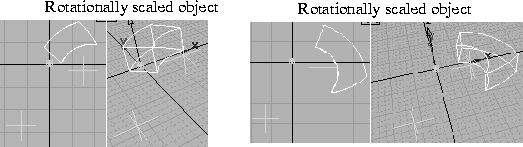
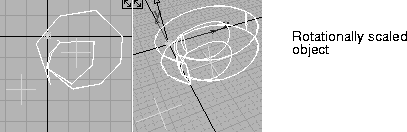
Deforms a set of curves or surfaces about a common pivot point. This pivot point can be in a planar or 3D world. You can use this tool on curves, surfaces, trimmed surfaces, and polysets, but not on shells.
|
|
If the perspective window is
active at the time of the
deformation, a warning box
appears asking you to work
in an orthographic window.
|
You must use this tool in an orthographic window. It performs its function in a planar manner, and the plane of the window provides the plane for the deformation.
|
|
| |
|
|
|
Tip:
|
If you are working with a model with a set number of
pieces, and you want a different number for the final model,
open the option box and turn on Number of divisions.
|
Notes on Rotational Scaling
- You cannot preserve construction history with this tool. If you try to transform an object that resulted from an operation that used construction history, a confirmation box appears asking if you want to continue.
-
You must select YES to continue the operation (and the
construction history is deleted). If you select NO, the
operation is cancelled and the construction history is kept.
- Select Undo at any time to reset the geometry.
- Any continuity present in the model will be lost by this deformation and you will have to rebuild the surface. If you keep the deformations relatively small, the resulting continuity may work for presentation purposes only.
Rotational Scale Options
Select Xform > Modify > Rotational Scale- , and the following option box appears. , and the following option box appears.
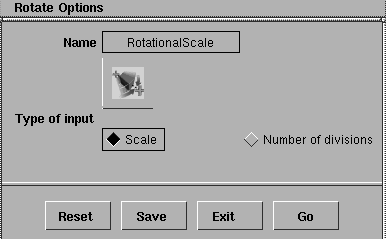
Scale
-
- The input is considered a scaling value, much like the scale value used in Xform > Scale. As the value increases and decreases, the size of the object also increases and decreases.
Number of Divisions
-
- Useful when building objects if you want to change the number of building components.
-
- You can specify the number of divisions present in the model by typing the value at the prompt line. For example, for a wheel with eight spokes, you can type in a value of 8 if this mode is selected.
How to Use
|
|

|
-
1
-
Select Xform > Modify > Rotational Scale, or click its icon.
-
You can select the geometry you want to deform before
using the Rotational Scale function, or while in the
function. During the operation, you can pick and unpick
geometry in the SBD window by holding down the Shift
key and clicking on DAG nodes.
-
2
-
The system prompts:
-
Position the initial pivot location for
rotational scale.
|
|
The system calculates the
best fit for the model
according to the deformation
values you request. For the
most accurate fit, use the
keyboard to input values,
rather than the mouse.
|
-
Place the pivot point for the deformation by typing in an
X, Y, Z location, or by using the mouse to position the
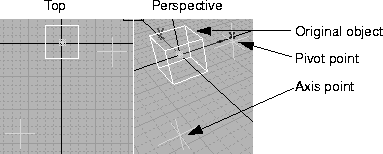
pivot point in the workspace. A green cross-hair, the pivot
point, appears and becomes the center of the rotational
scale.
-
3
-
The system prompts:
-
Position the second point to determine base
axis for rotational scale.
-
Position the second point to define the deformation axis.
The geometry deforms about the pivot point and toward
or away from this second point.
-
Define this second point using the mouse or keyboard.
Another green cross-hair appears. The selected curves and
surfaces rotate around this axis point.
-
4
-
If there is no active geometry, the system prompts:
-
Select geometry to be deformed. Hold down
the shift key to select geometry
-
In the SBD window, select the geometry you want to scale.
You can continue selecting and deselecting geometry
during the function.
-
5
-
After you have finish selecting, the system prompts:
-
Current scale: 1.0000 Adjust scale factor
OR move a pivot point (ABS):
[left-rotate][shift-select geometry]
-
6
-
Use the mouse to interactively adjust the scale, or input a new value using the keyboard.
-
This new value can be considered either a new scale or a
new number of divisions, depending upon the Type of input
mode you chose in the Rotate Options window.
|
|
|
Example
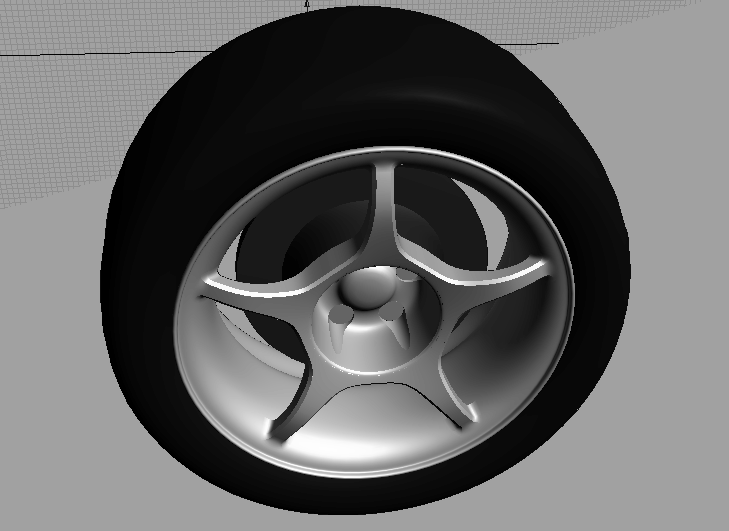
To rotationally scale a spoke of a five-spoked wheel in order to create an eight-spoked wheel:
-
1
-
Select the geometry for one of the spokes, and toggle the rest of the model invisible or templated.

-
2
-
Select Xform > Modify > Rotational Scale-, or double-click on its icon in the tool palette.
-
3
-
Set the input mode to Number of divisions.
-
4
-
Position the pivot point at the center of the wheel, and the second point along the spoke.
-
5
-
Now the system needs to know how many divisions were in the original model. (Type in a value of 5 for this example.)
-
6
-
Enter the new number of divisions. (For this example, type in 8.)
-
7
-
You are now finished deforming the model. To complete the new wheel, you must create seven additional copies of this spoke, each rotated by the correct amount.
-
To make these copies, use Edit > Duplicate Object. In this
example, the wheel was in the X-Z plane, so the rotation is
about the Y-axis. Set the following options in the Duplicate
Object Options window
-
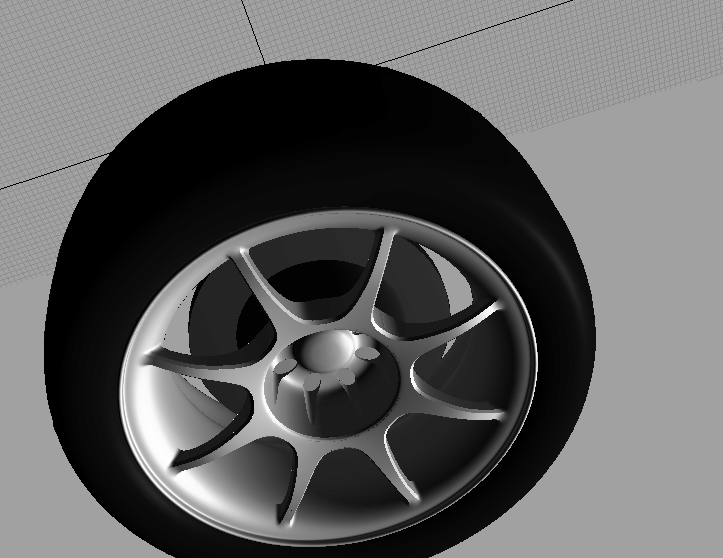
The following wheel is created. It has eight spokes rather
than five.
|
|
|
|


